
 Need help?
Do you have a question about the Rosewill AC1200UBE2 and is the answer not in the manual?
This document is a Quick Installation Guide for the Rosewill Wireless USB Adapter AC1200UBE2. It outlines the steps for setting up and connecting the device to a wireless network across different operating systems, including Windows, MAC OS, and Linux.
The Rosewill Wireless USB Adapter AC1200UBE2 is designed to provide wireless connectivity to computers that may not have built-in wireless capabilities or to upgrade existing wireless connections to a faster standard. This adapter allows users to connect to wireless networks, enabling internet access and network communication without the need for Ethernet cables. Its primary function is to facilitate wireless communication between a computer and a wireless router or access point, supporting the AC1200 standard for potentially faster and more reliable connections.
The installation process is designed to be straightforward, guiding users through hardware connection and driver installation.
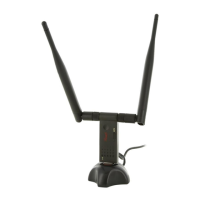
The adapter can be plugged directly into an available USB interface on the computer. For the AC1200UBE2 model, a USB cradle is included, offering flexibility in placement. This cradle can be used to connect the adapter to the computer, potentially improving signal reception by allowing the adapter to be positioned optimally. This is particularly useful if the computer's USB ports are in a location that obstructs wireless signals or if the user prefers to place the adapter away from the computer's chassis for better performance.
The guide provides instructions for driver installation across multiple operating systems:
For Windows 8/7/Vista/XP: Users are instructed to insert the included Driver CD into their CD-ROM drive. A "Setup Wizard" will then guide them through the installation. The Rosewill smart driver assistant is designed to automatically select the correct driver program based on the detected Windows operating system. Users simply click "Install," and the InstallShield Wizard will appear, prompting them to click "Next" and follow the on-screen steps to complete the driver installation. This automated approach simplifies the process, reducing the chances of incorrect driver selection.
For MAC OS: The process involves opening the "Driver" folder, then navigating to the "MAC" subfolder on the CD. Users need to select the appropriate driver package for their specific MAC OS version and run the "Installer.pkg" file. An installation dialog will pop up, and users are instructed to click "Continue" and follow the subsequent steps to finish the driver installation. This caters to the specific file and installation procedures of the macOS environment.
For Linux: The guide indicates that available driver files can be found in the "Driver" > "Linux" folder on the CD. While it doesn't detail a specific installation wizard for Linux, it implies that users will need to access these files to manually install the drivers, which is common for Linux distributions where driver installation can vary.
Once the drivers are installed, the guide provides instructions for connecting to a wireless network:
For Windows 8/7/Vista/XP (using Windows 7 as an example): After driver installation, users are directed to click on the wireless network connection icon located in the lower right corner of the taskbar. A list of available wireless networks will appear. Users should choose their desired network and click the "Connect" button to establish a wireless connection. If the chosen network is secured, a pop-up window will prompt the user to enter the security key or password. The guide includes a screenshot illustrating this process, showing a list of available networks and the "Connect" button.
For MAC OS: Users are instructed to click the "Wireless Network icon" (a screenshot of which is provided, showing a "Wireless Network Utility" interface). Similar to Windows, they then choose an available wireless network and click the "Connect" button. If the network is secured, they will be prompted to enter the network key/password on the next page.
For Linux (using Ubuntu as an example): Users are advised to choose the available wireless network to set up a wireless connection. If the network is secured, they will need to enter the password in the pop-up window. A screenshot of a "Wireless Networks" utility in a Linux environment is provided, showing a list of networks and options like "Connect to Hidden Wireless Network" and "Create New Wireless Network."
The guide itself does not explicitly detail maintenance features for the device in terms of hardware upkeep or software updates. However, it implicitly supports ongoing maintenance through its recommendation to register the product.
Users are encouraged to register their product at www.rosewill.com. This registration is stated to provide "complete warranty information and future support for your product." This suggests that registering the device could grant access to:
While the guide focuses on initial setup, the emphasis on product registration and future support implies a commitment to long-term usability and maintenance through software updates and customer service. The provision of drivers for multiple operating systems also indicates an effort to ensure the device remains functional across different computing environments, which is a form of ongoing maintenance support from the manufacturer. The inclusion of a USB cradle can also be seen as a feature that aids in maintenance by potentially reducing wear and tear on the computer's USB port if the adapter is frequently plugged and unplugged, or by allowing for better heat dissipation if the adapter is positioned openly.
 General
| Max Speed | 1200 Mbps |
|---|---|
| Interface | USB 3.0 |
| Category | Adapter |
| Wireless Standard | IEEE 802.11ac, IEEE 802.11a, IEEE 802.11b, IEEE 802.11g, IEEE 802.11n |
| Wireless Data Rates | 11ac: up to 867 Mbps (5 GHz), 11n: up to 300 Mbps (2.4 GHz) |
| Frequency Bands | 2.4 GHz / 5 GHz |
| Security | WPA/WPA2 |
| Compatibility | Windows XP/Vista/7/8/8.1/10 |
| Antenna | 2 x 5dBi external antennas |



 To Next Page