14
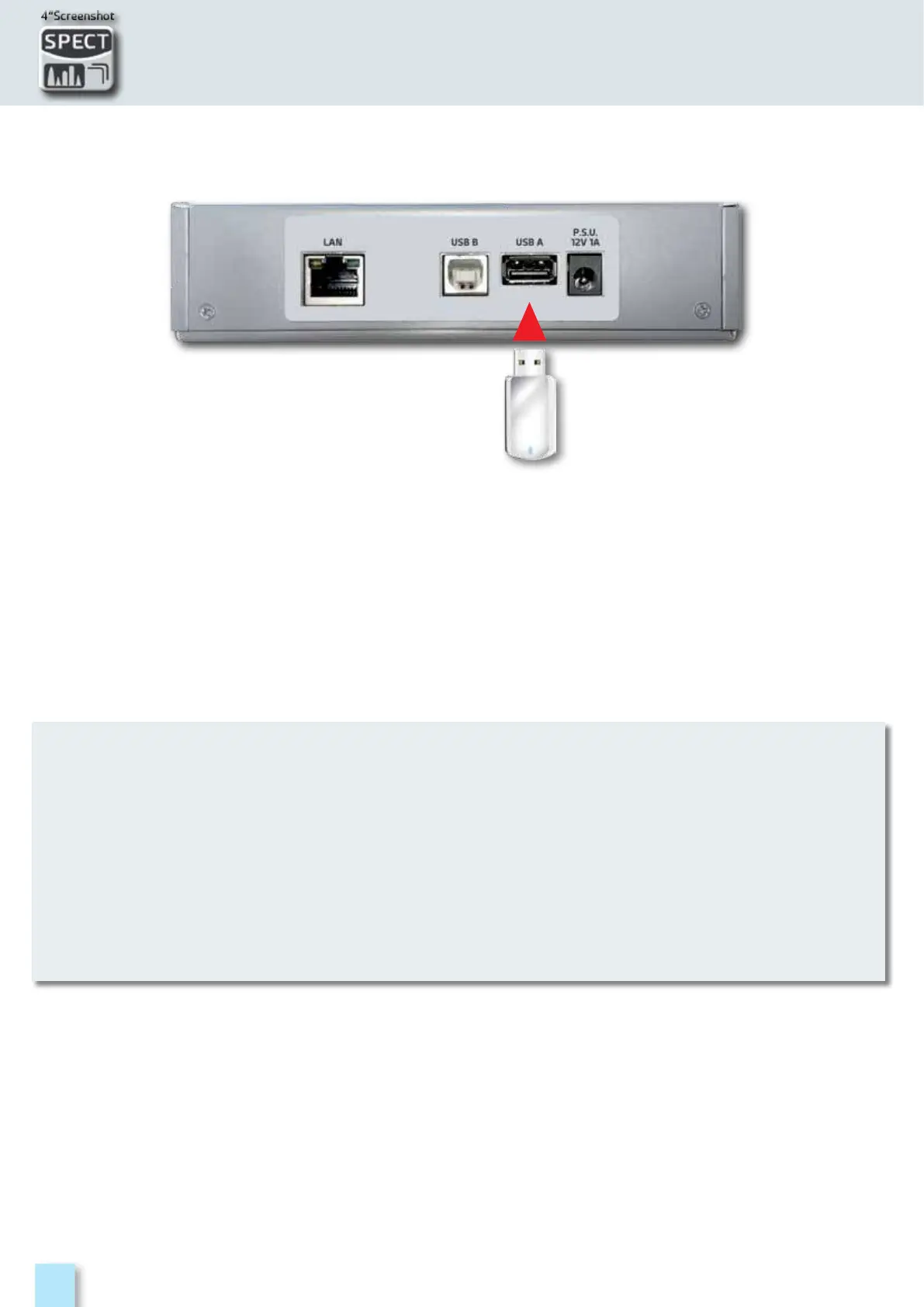
The “SCREEN SHOT” function allows you to directly save the TFT monitor screens in an external
memory.
•Connect an external memory source (not provided) to the USB A socket.
•Set the instrument on the screen to be saved: Spectrum, Measurements, Constellation,
Echoes etc.
•Press the SPECT (4” Screenshot) key for 4 seconds keys and wait for file to be saved:
the instrument will make a series of beeps.
•Digit the file name and touch ENTER.
SCREEN SHOT
•If the memory is not inserted correctly, or is not recognised, the following message will be
shown: “PLEASE INSERT USB MASS STORAGE DEVICE”.
•Full screen picture zooms can not be saved.
•the ENTER command is not active If the file name is already present in the external
memory source.
•The files are saved in .bmp (bitmap) format.


 To Next Page