15
User
Manual
5. OPERATION
5.1 Start up*
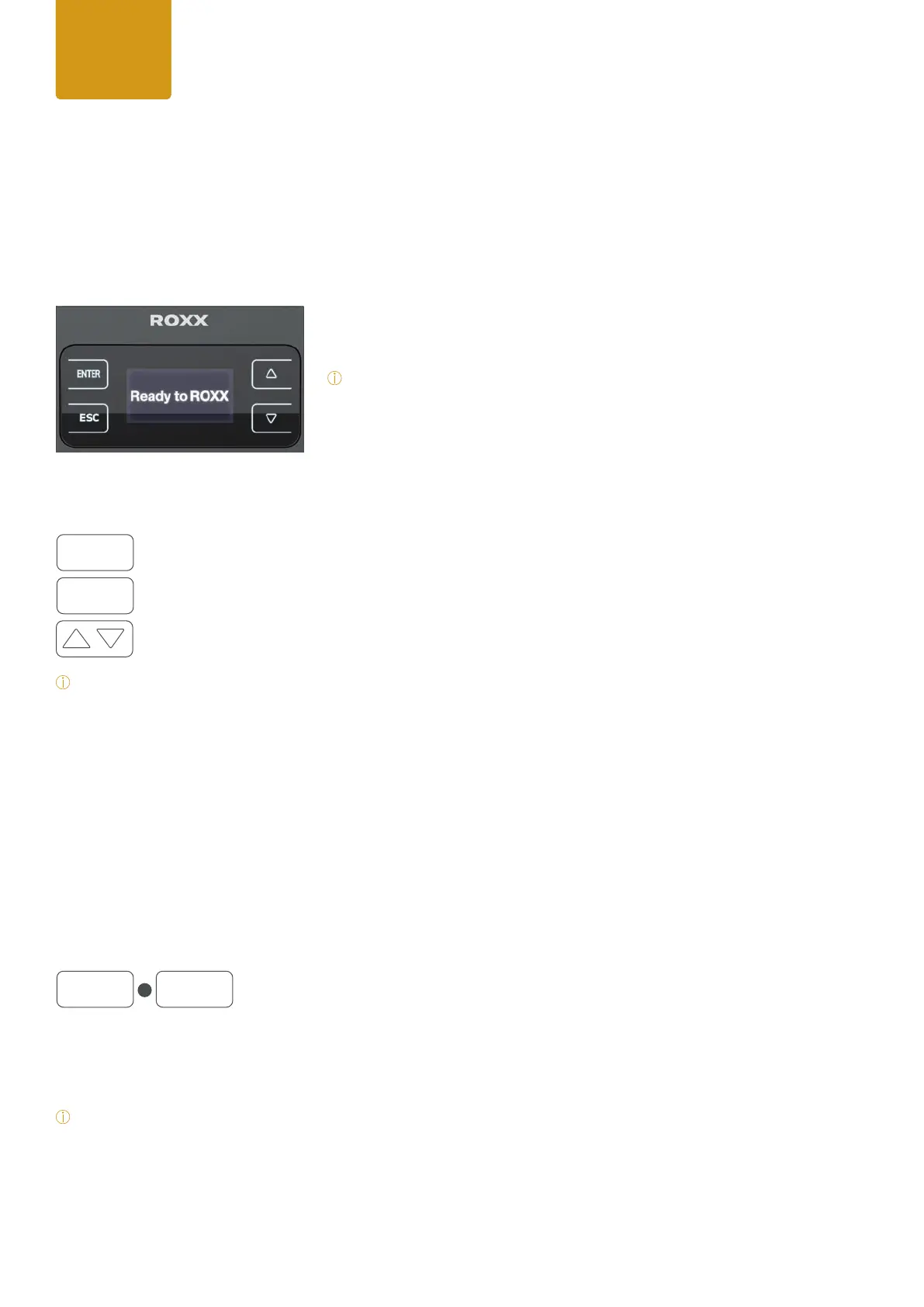
Once the xture is connected to AC power, the boot process starts and the following information will appear on the
display:
“Ready to ROXX”, the product name and the current software version.
After this process, the xture is ready for operation, and starts in the previous-
ly enabled mode.
*
Note:
During boot process the fan spins up quickly to blow out some possible
dust from last use.
5.2 Control Display*
OLED Display with Touch-Sensitive controls
Press ENTER to access the selection menu for system settings or conrm changes.
Press ESC to take a step back in the menu.
Press arrows to scroll up and down inside the menu and change values, such as DMX address.
*Note:
For a smooth navigation thru the menu settings, please make sure the display surface is dry and dust free.
After approximately 1 minute of inactivity inside the menu settings, the display will automatically jump back
to home screen.
5.3 Display Short Cuts*
Short Cuts
For some always recurring functions the xture allows quick and user-friendly access at home screen over some dis-
play control short-cuts:
User Reset or Factory Reset*
Pressing ESC+ENTER simultaneously a Factory Reset or User Reset can be started.
By using the up/down arrows the Factory- or User Reset can be selected.
For conrming press ENTER, to jump back please press ESC.
*Note:
After Factory Reset all xture settings are set back to factory default values.
After User Reset all user selected reset functions and user default values will set back.
Also a short self-test will start immediately while dimming in and out each single color.
User
Manual
ESC
ENTER ESC
+
ENTER


 To Next Page
 Loading...