33
Adding My Photos
To access the media server’s hard drive, in your computer’s web browser address
window, enter \\IP address of media server. Example: \\192.186.0.52 (IP address is avail-
able on the Network page under Options & Status.) Drag and drop the image files onto the
media server’s hard drive into the folder named Icons. Once added, it may take a few min-
utes to view the new icon on the media server.
To select the new icon for a theme, choose the theme, choose to edit, then select the
new icon from the Theme Icon list.
Adding My Photo Albums
You can build a photo album collection on the media server for viewing pictures within
the user interface, as full-screen images or in a slideshow.
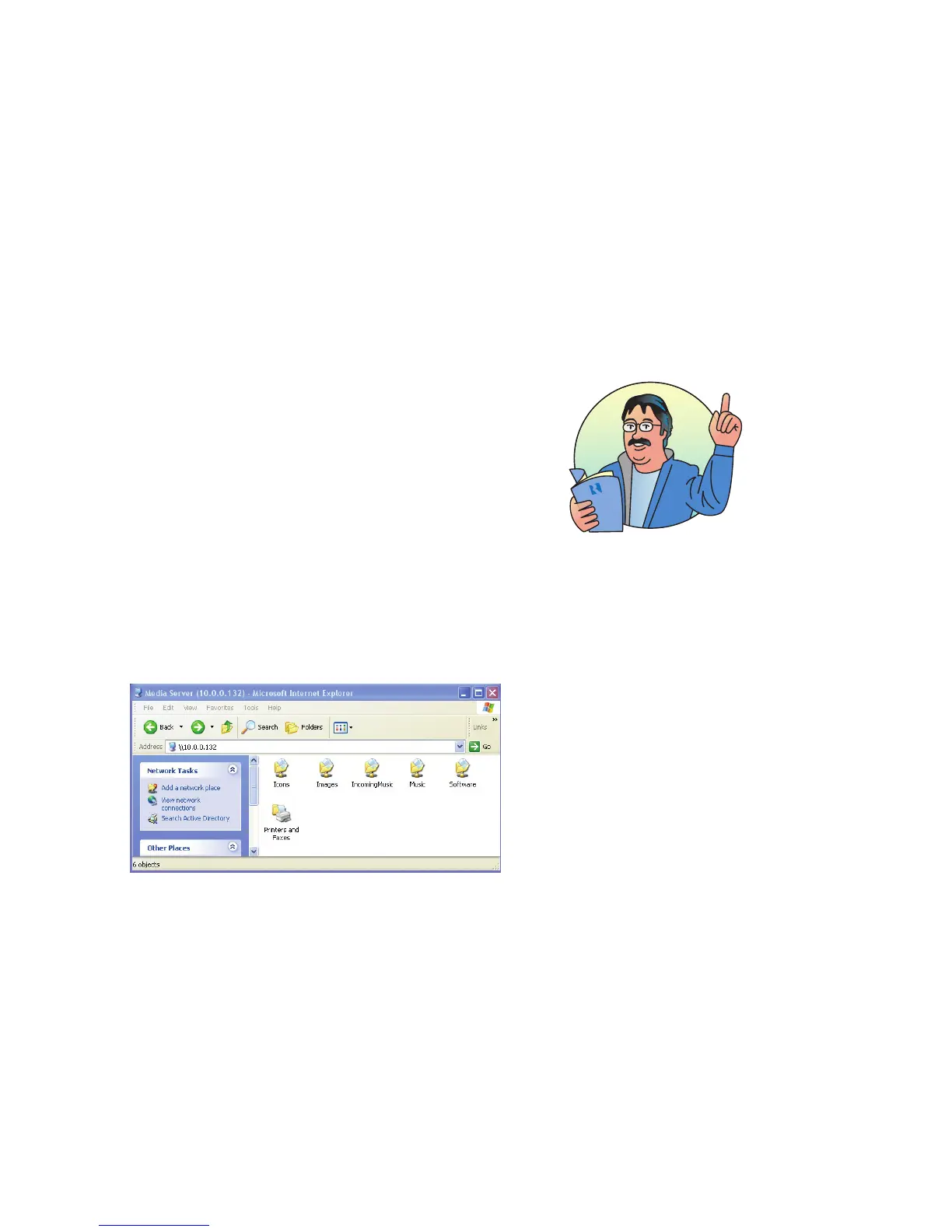
To add your photos, access the media server’s hard drive by entering \\IP address of
media server in the browser address window.
You should see a series of folders on the media server: Images, Icons,
IncomingMusic, Music, and Software. Open the “Images” folder, and create a new folder
and name it according to its content (e.g., Trip to Colorado, Jed’s Birthday Party, etc.).
When you move your photos onto the media server, each set of images must be “nested”
in a named folder within the “Images” folder on the media server’s hard drive.
On your computer, locate the image files you want to load onto the media server.
Drag and drop the image files from your computer to the new folder you created in the
“Images” folder on the media server. The new folder will then be available in the Images
list onscreen on the media server.
All image editing, including
photo rotations, should be
completed using your photo
editing application before
importing the photos into the
media server.
View of SMS3 hard drive from Windows Explorer window


 To Next Page