How to resolve delay data issue on Rynan R20 PRO?
- KKayla ReynoldsSep 12, 2025
If you experience delayed data with the Rynan Printer, decrease the speed, increase the fixed length, and, in realtime mode, increase the delay before.
How to resolve delay data issue on Rynan R20 PRO?
If you experience delayed data with the Rynan Printer, decrease the speed, increase the fixed length, and, in realtime mode, increase the delay before.
What to do if Rynan R20 PRO displays 'Printhead unknown'?
If the Rynan Printer displays 'Printhead unknown', check the firmware and software version, restart the controller, and check the grounding PE.
What to do if Rynan R20 PRO is 'Receiving data timeout'?
If you are getting a 'Receiving data timeout' error on your Rynan Printer, there are two possible scenarios: * If the printer can continue printing: * No action needed. * If the printer cannot continue printing: * Click on the 'Refresh connections' button and start printing again. * Remove the data cable. * Restart the controller.
Why is updated software not applying on my Rynan Printer?
If the updated software on your Rynan Printer is not applying, check the private label of the software on the controller and update with the correct private label software.
What to do if Rynan R20 PRO cannot set Vfire?
If the Rynan Printer cannot set Vfire, remove and re-insert the cartridge again, check the smartcard, and check the hardware.
Why can't I start printing with my Rynan Printer?
If the Rynan Printer cannot start printing, it might be due to incompatible firmware and software. To resolve this, update the software and firmware.
Why does my R20 MAX/R20 REACH Rynan R20 PRO show 'No cartridge'?
If your R20 MAX or R20 REACH Rynan Printer shows 'No cartridge', check the smartcard on the cartridge, check the smartcard pin on the printhead (it may be damaged), and check the current firmware and software.
How do I fix a Rynan Printer counter that is not working?
If the Rynan Printer's counter isn't working, disable the 'Print Static Image' function at Settings => System Settings => Print Static Image => Disable.
How do I fix an 'Incorrect printhead' error on my Rynan Printer?
If your Rynan Printer shows 'Incorrect printhead', reload a template compatible with the connected printhead or create a new template corresponding to the connected printhead.
How to resolve 'Write flash error' during Rynan R20 PRO firmware update?
If the Rynan Printer displays 'Update firmware: Write flash error', try the update again and check the hardware.
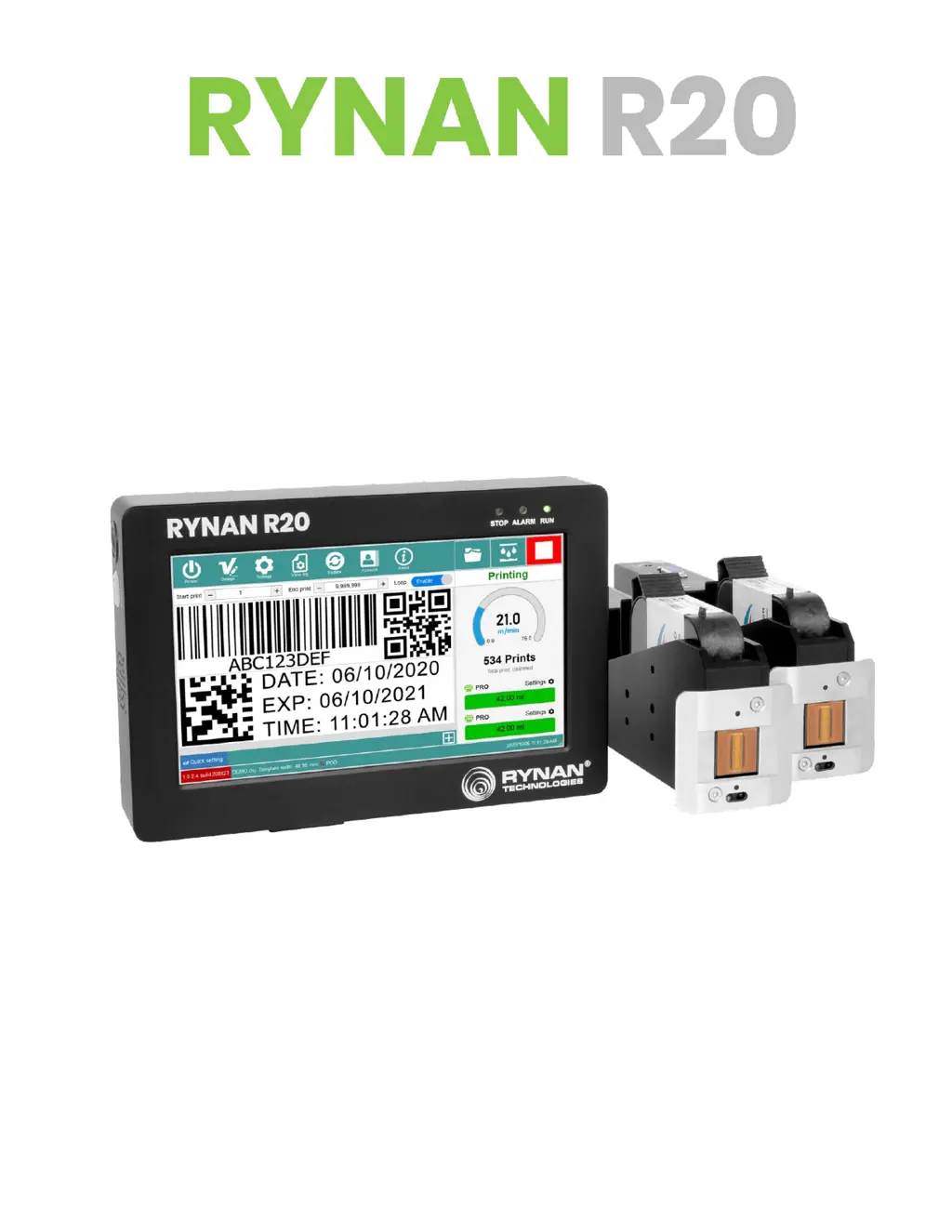
Detailed specifications of the RYNAN R20 printer, including dimensions, weight, and power.
Overview of the RYNAN R20 printer's main user interface and its elements.
Introduction to the template design software, including its interface and tools.
Detailed explanation of various settings that affect print quality and performance.
Configuration options for each printhead, including resolution, density, and alignment.
Various system-wide configurations for the printer, including encoder and mode settings.
Step-by-step guide on creating print templates using the DesignJet interface.
How to load and use data from external files for variable printing.
Guide on adding and configuring various types of barcodes to templates.
Step-by-step guide on opening a template and preparing for printing.
Adjusting settings like resolution and speed before starting the print job.
Solution for when the printer cannot receive commands or communicate with the printhead.
Solution for when the printer cannot send settings to connected devices.
Solution for when the printer cannot send start print commands.
Solution for when the printer cannot send stop print commands.
Solution for when the printer cannot send commands for firmware updates.
Solution for when the printer cannot send commands related to the purge function.
Solution for when the printer cannot send commands to unlock.
Troubleshooting steps for data loss issues during the printing process.
Solutions for print position errors caused by incorrect delay or fixed length settings.
Steps to resolve issues with empty prints or missing POD data.
| Print Resolution | 203 DPI |
|---|---|
| Connectivity | USB, Ethernet |
| Supported Barcode Types | UPC-A, UPC-E, EAN8, EAN13, CODE39 |
| Power Supply | 24V DC, 2.5A |
| Operating Temperature | 5°C to 40°C |
| Storage Temperature | -20 to 60°C |
| Operating Humidity | 25 - 80% |