Figure 4. Checking the State
Figure 5. Refreshing charge
Table F6. Node ID#
Figure 6. Manual Node ID setting (ID # from 1 to 4)
Figure 4 Steps (refer to illustration and tools)
1
Press ON/OFF button for 2 seconds and allow the self-test
to complete. Record the Operating LED state (see Table 3).
CAUTION: When ON, the battery voltage is connected to the
power terminals.
2
Press the SOC/SOH button (See Table 2).
3
Observe and note the LED state for SOC and SOH (See
Table 2).
4
Remove cover and measure and note the terminal
voltage. Replace cover.
5
Press ON/OFF button for 4 seconds to turn OFF the Evolion
®
.
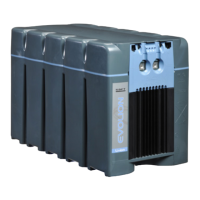
The Evolion
®
is now ready for continued storage or service.
Figure 5 Steps
1
Connect the power terminals to a telecom rectifier
according to Figure 8.
NOTE: If the voltage is within 0.5 V between the modules,
paralleling and charging more than one module is OK. See
Figure 4 to check module voltage.
2
Before applying power, set the rectifier output voltage
according the Table F5 and the maximum output current
to 21 Amps per Evolion
®
.
3
Power ON and start charging according to Figure 10.
4
Continue charging for the minimum amount of time
according to Table F5.
5
Turn OFF the rectifier output power and then turn OFF
the Evolion
®
.
The Evolion
®
is now ready for continued storage or service.
Figure 6 Steps (refer to illustration and tools)
CAUTION: Make sure to disconnect the power cables before
conducting these steps.
Table F5. Charging guide
LED ID#
1
2
3
4
> 4
(Note 1)
To set %SOC
Max. V
set-point
Chg hours
(Note 1)
45% (1 year more storage) 50.5 V ±1.0% 2.5
100% (to put in service) 56.0 V ±1.0% 4.5
1
Turn OFF the Evolion
®
2
Press and hold the SOC/
SOH button and ON/OFF
button simultaneously for
2 seconds.
3
The current Node ID will be
displayed. See Table F6.
4
To change the Node ID,
press the SOC/SOH button
until the LED indicates a
Node ID between 1 and 4.
See Table F6.
5
Press the ON/OFF button
for 4 seconds to turn OFF;
the new Node ID is now set.
6
Scribe the Node ID on the
outside in a visible location.
The Evolion
®
is now ready for continued storage or service.
Note 1: Based on 21 Amps per Evolion
®
and 0% SOC at the start of charge.
Note 1: To set a Node ID higher
than 4, use the Evolion
®
Toolbox Software.
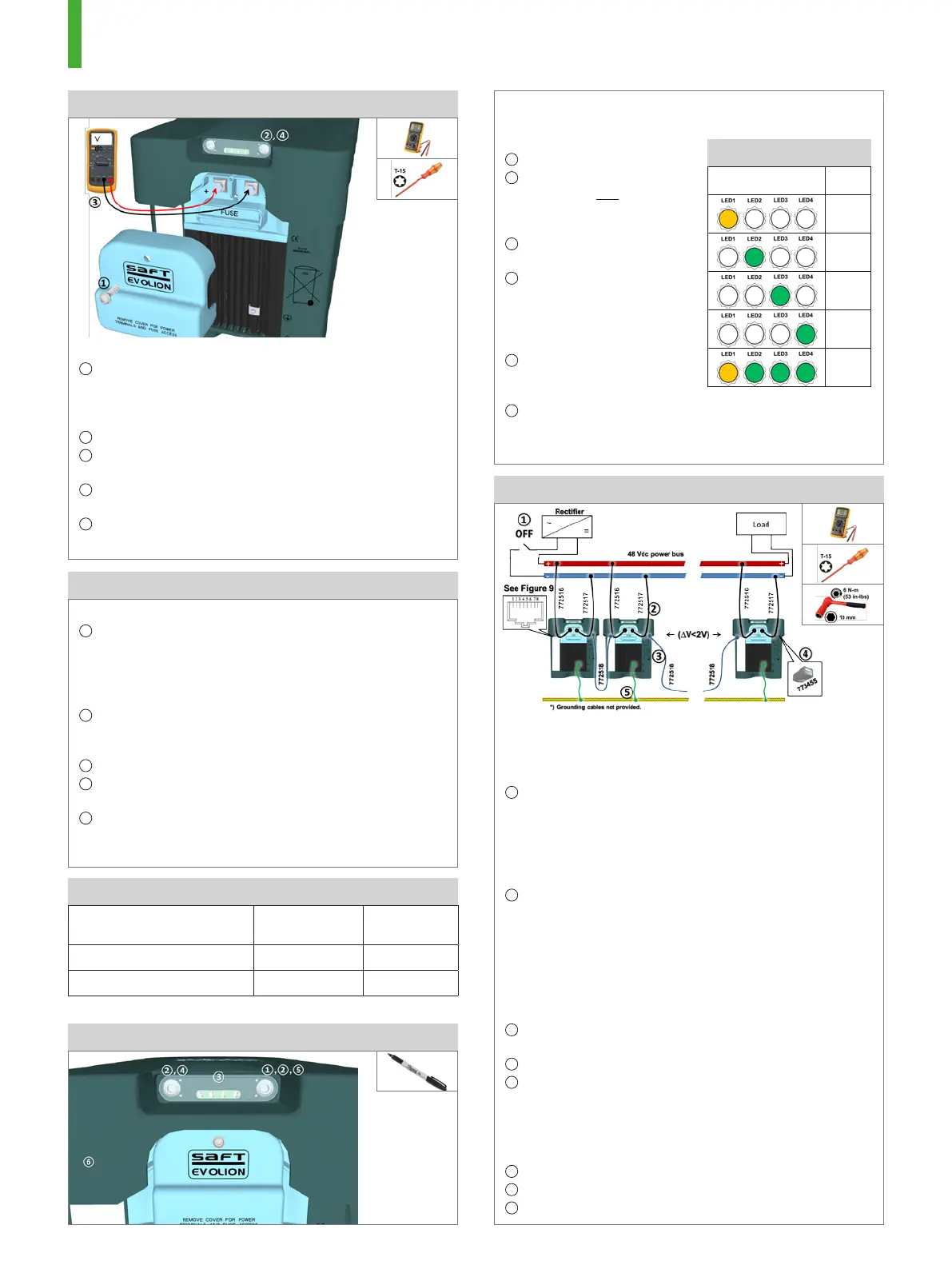
Figure 8. Connections
Figure 8 Steps (refer to illustration and tools)
CAUTION: Do not conduct these steps if any Evolion
®
has more
than 2 V difference. The fuse or power board may be overloaded.
IMPORTANT: Make sure all Evolion
®
modules are OFF before starting.
1
Make sure the rectifier battery output breakers are open
or disconnected so the power bus is not live with power.
IMPORTANT: Never turn the Evolion
®
ON using the ON/OFF
button once the power cables are connected to the power
bus to avoid breaking a fuse due to pre-charging a capacitor.
IMPORTANT: Never connect the Evolion
®
in series.
2
Remove the front cover and connect all the Evolion
®
power
cables provided (772516, 772517). Replace the front
cover after torqueing the terminals.
NOTE: The recommended terminal torque is 6 N-m
(53 in-lbs) unless otherwise noted on the Evolion
®
.
NOTE: Either power terminal can connect and operate on
a Common Bonding Network (CBN) or an Isolated Bonding
Network (IBN).
3
Connect all communication cables provided (772518)
between each Evolion
®
.
4
Connect the RJ45 resistor cap provided (773455).
5
Connect all grounding points on the heat sink face.
NOTE: It is not necessary to ground the heat sink face to function.
The Evolion
®
modules are now ready to connect communication
according to Figure 9 and Power ON according to Figure 10.
SHUTDOWN procedure:
a
Open the output breaker (1)
b
Turn OFF each Evolion
®
using the ON/OFF button.
c
Disconnect cables.


 To Next Page
 Loading...