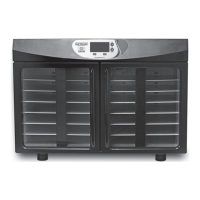
CARE OF YOUR WARMER
ACCESSING THE USER-DEFINED FEATURES
1. Unplug the warmer before cleaning.
2. Keep the inside of the warmer clean. If spatters or fluid adhere to walls, wipe with a damp cloth. Mild detergent may be used if the warmer gets very dirty.
The use of harsh detergent or abrasives is not recommended. NEVER clean the warmer with alcohol or solvent-based cleansers. Alcohol or solvents on door(s)
or status indicator display columns can weaken and cause cracking of these components.
3. The outside warmer surfaces should be cleaned with a large, damp cloth, as needed. To prevent damage to the operating parts inside the warmer, water should
not be allowed to seep into the ventilation openings or any other openings on the cabinet exterior. Use cloths that have been dampened with mild detergent
solution only, but not so wet as to drip liquid or cause liquid to pool in warmer.
4. If external electrical components become wet, including the display columns, power cord, power switch on front of cabinet and external fuse access (if so
equipped), clean with a soft, dry cloth and allow to air dry. DO NOT use harsh detergents or abrasives on any external components.
5. Cleaning inside the warmer outer panels and inside the warmer base should be performed only by qualified service personnel after taking precautions to drain all
stored voltage potential. Contact Sage Products for authorized service.
6. Inspect warmer and power cord for wear or damage annually.
7. Warmer does not require maintenance or calibration.
Adjusting the Temperature - Fahrenheit (°F) or Celsius (°C)
The warmer is capable of warming products to a user-defined temperature. The user has the ability to adjust the temperature between 100°F and 125°F
(38°C - 52°C) for configuration B, or between 100°F and 125°F (38°C - 52°C) for configuration C. NOTE: Temperature performance of unit will vary.
1. Press the MENU key below the display from the default temperature display screen.
2. Using the UP/DOWN arrow keys located to the right of the display, highlight SET TEMPERATURE and press the SELECT key below the display.
3. When prompted, enter the following key sequence: UP ARROW, DOWN ARROW, UP ARROW.
4. Using the UP/DOWN arrow keys, select the desired temperature for the contents of the warmer.
5. After the desired temperature is selected, press the SAVE/EXIT key located below the display. If you wish to discard the changes, press the CANCEL key located
below the display.
6. The warmer will then display the temperature set point on the main screen. If the temperature of the warmer falls outside of the set point ± 5°F, the display will
read the actual temperature of the warmer.
Adjusting the Temperature Display Units (°F or °C)
The warmer is capable of displaying temperature in units of Celsius or Fahrenheit.
1. From the default temperature display screen, press the °C key located below the display if Fahrenheit is displayed and Celsius is desired. If Celsius is displayed
and Fahrenheit is desired, press the °F key located below the display.
Using the Inventory Tracking Feature
The warmer has the ability to track the number of packages used over a period of time. The inventory tracking feature can display the amount of packages removed
from the warmer for a specific month, or over the previous twelve-month period.
1. From the default temperature display screen, press the MENU key located below the display.
2. Using the UP/DOWN arrow keys located to the right of the display, highlight CHECK INVENTORY and press the SELECT key below the display.
3. The UP/DOWN arrow keys located to the right of the display can be used to select the month that you wish to be displayed. The display will initially display the
current month’s usage and the usage over the previous twelve months. The total displayed is cumulative.
4. When done, press the EXIT key located below the display to return to the temperature display screen.
FreeRTOS Software: This device uses FreeRTOS, version 5.1.1, which is licensed under a modified GPL. For a copy of the FreeRTOS source code, or details of the
modified GPL, please visit www.FreeRTOS.org. You may also obtain a copy of version 5.1.1 of the FreeRTOS source code from Sage Products Customer Service by
emailing customerservice@sageproducts.com or calling 1-800-323-2220.
- 6 -


 To Next Page
 Loading...