Adding Commands to the Profile
1 In the Explorer mode you will now see a folder for the your new profile. Double-click on the
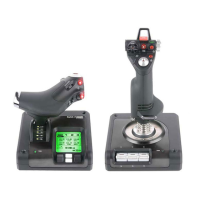
folder and you will see it open out to show 2 sub-folders - the Command List and Saitek X36
Flight Controller.
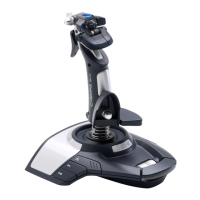
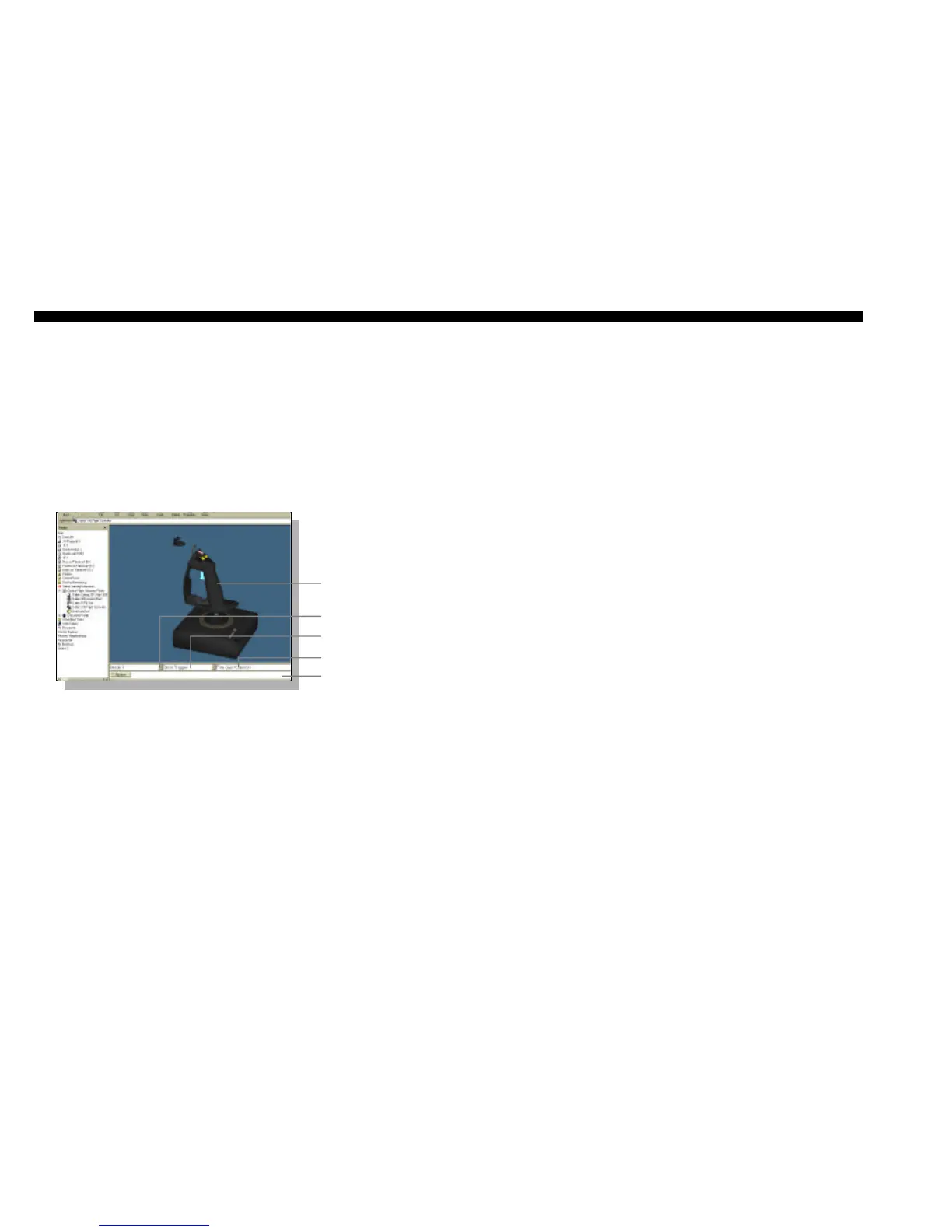
2 Click on the folder called Saitek X36 Flight Controller and a 3-D model of the controller will
appear on the screen.
3 If you place the mouse pointer on the 3-D model and hold down the left mouse button, you
can rotate the image.
4 Next, click on any control on the controller.You will see that the control turns blue (indicating
that it is ready for programming) and that the text boxes at the bottom of the screen show its
attributes (see the SGE diagram to see what each box denotes).
5 The long bar at the bottom of the screen is the Command Editor. Simply click on and high-
light the current keyboard setting and replace it by pressing the new keyboard command.
Note: If you look in the manual that came with your game, it will tell you what keyboard com-
mands are associated with what actions in the game.
WARNING: THE SGE AUTOMATICALLY SAVES THE CHANGES YOU MAKE WITHOUT THE
USE OF A SAVE BUTTON. THEREFORE, IF YOU MAKE A MISTAKE, SIMPLY HIGHLIGHT THE
COMMAND LINE AND TYPE IN THE CORRECT ENTRY.
For a full guide to programming your Saitek X36 Flight Controller with SGE, see the Saitek Gaming
Extensions: User Manual supplied on the Saitek Product Companion CD that came with this prod-
uct.
Technical Support
The Saitek Website
If you have access to an Internet connection, many of your technical queries may be answered
with a simple visit to the Saitek Website at:
http://www.saitek.com
The technical support area will provide you with all the information you need to get the most out
of your controller, solve any problems you might have and provide you with the latest game con-
figurations.
The site also contains regularly updated material including information about:
L Current and forthcoming products
L Links to useful sites
L Driver upgrades
L Game configuration
Saitek Gaming Extensions (SGE)
Saitek Gaming Extensions (SGE) is the software Saitek supplies to configure your Saitek game
controller for enhanced functionality. SGE delivers a powerful set of features, allowing you to tailor
your game controller to the ultimate configuration for the ultimate gameplay. Despite a level of
sophistication previously unseen in the market, the software remains simple and intuitive to use.
Features of SGE:
L Automatic profile activation within current game
L Personalize the controller settings for your favorite games
L Configure your controller with an on-screen rotational 3D model and interface
L Multiple profile option for each controller (ideal if a controller is used by several people)
L Program special moves with sophisticated timing features
L Special game setups available from the Saitek website and the Product Companion CD
Quick Start Guide to Programming Your Controller
Creating a Profile for a Game
1 Open the SGE software by double-clicking on the SGE icon.
2 Next, double-click on New Game Wizard and then on Next.
3 You will now see a list of all the .exe files on your PC to which SGE can be assigned.
Highlight the name of the game you wish to create a profile for, eg, tomb4.exe, then click on
Next.
4 On the following screen, leave both options ticked and click on Next, then highlight the con-
troller and click on Next again.
5 Finally, review the information offered on the final screen and click on Finish.
3D model of the
game controller
Shift State
Name of Control
Currently Assigned
Button
Command Editor
54


 To Next Page
 Loading...