SAMLEX AMERICA INC. | 99
SECTION 5 | SD Card
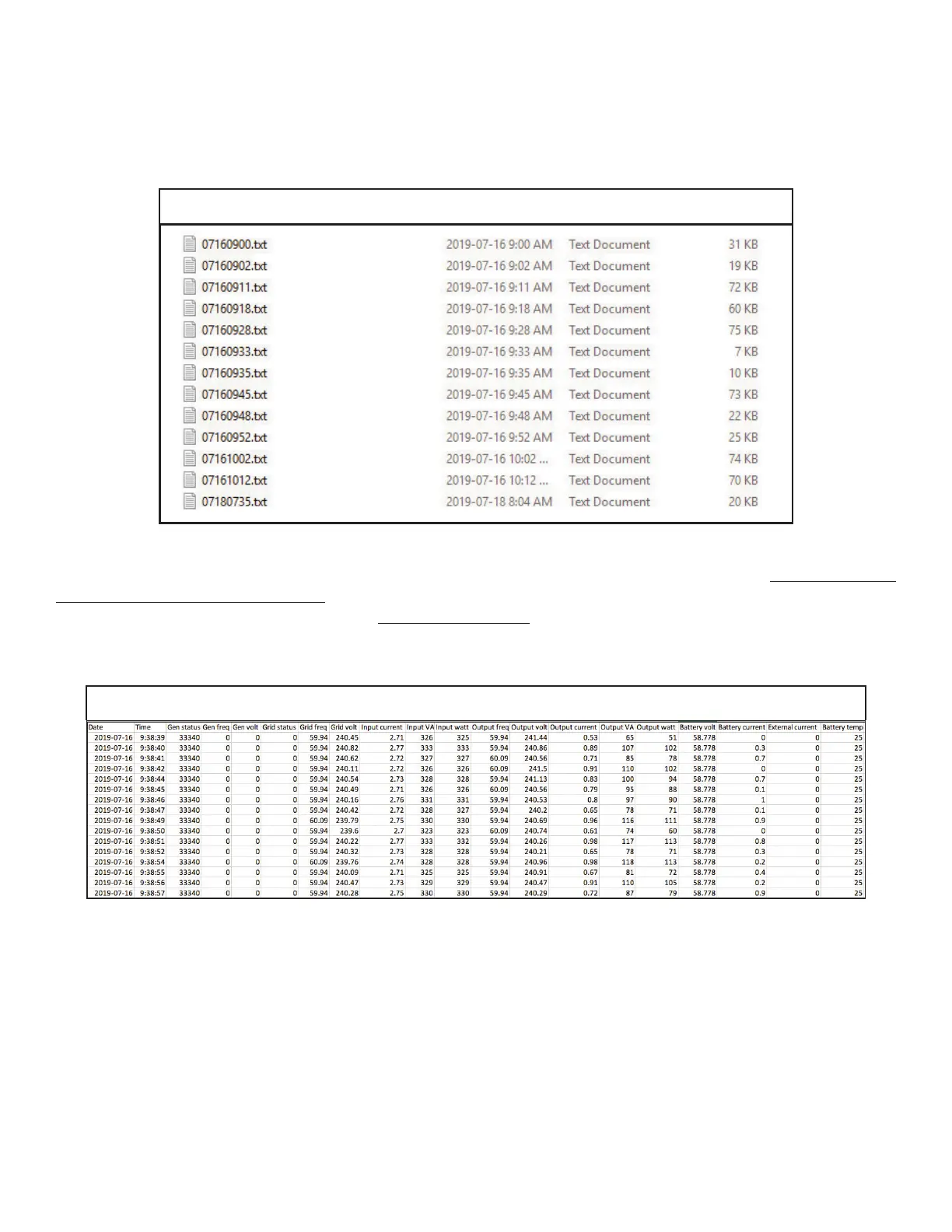
TABLE 5.1 Example of Data Log Folder in SD Card's Root Directory
Table 5.2 shows an example of one of the File’s contents opened with a general purpose Text Reader. The 1st Row
shows the Model No. of the EVO™.The 2nd Row shows Data elds separated by semicolon i.e. ";" (see details of the
Data elds at Section 5.2.2 and 5.2.3). The 3rd Row onwards shows the status of the Data Fields at time interval equal
to the programmed value of DATALOG TIME (See Section 4.8.2.10).
NOTE: Event / Error Code will be logged as soon as they occur.
TABLE 5.2 Contents of Data Log File
Follow procedure given below to open Data Log Files in Excel:
• Start Microsoft Ofce Excel.
• Click File Menu Button / Microsoft Ofce Button on the left hand corner.
• Click "Open" from the Drop Down Menu.
• Navigate to the Directory where the Log Files downloaded from the SD Card are located.
• Click on "File Types"selection button at the bottom right corner (shows "All Excel Files" as default) and select
Text les from the Drop Down Menu.
• All Text Files (.txt) will be displayed. The screen will look like Fig 5.1.


 To Next Page