You can exchange the numbers of two channels, in order to:
◆ Modify the numeric order in which the channels have
been automatically stored.
◆ Give easily remembered numbers to the channels that
you watch most often.
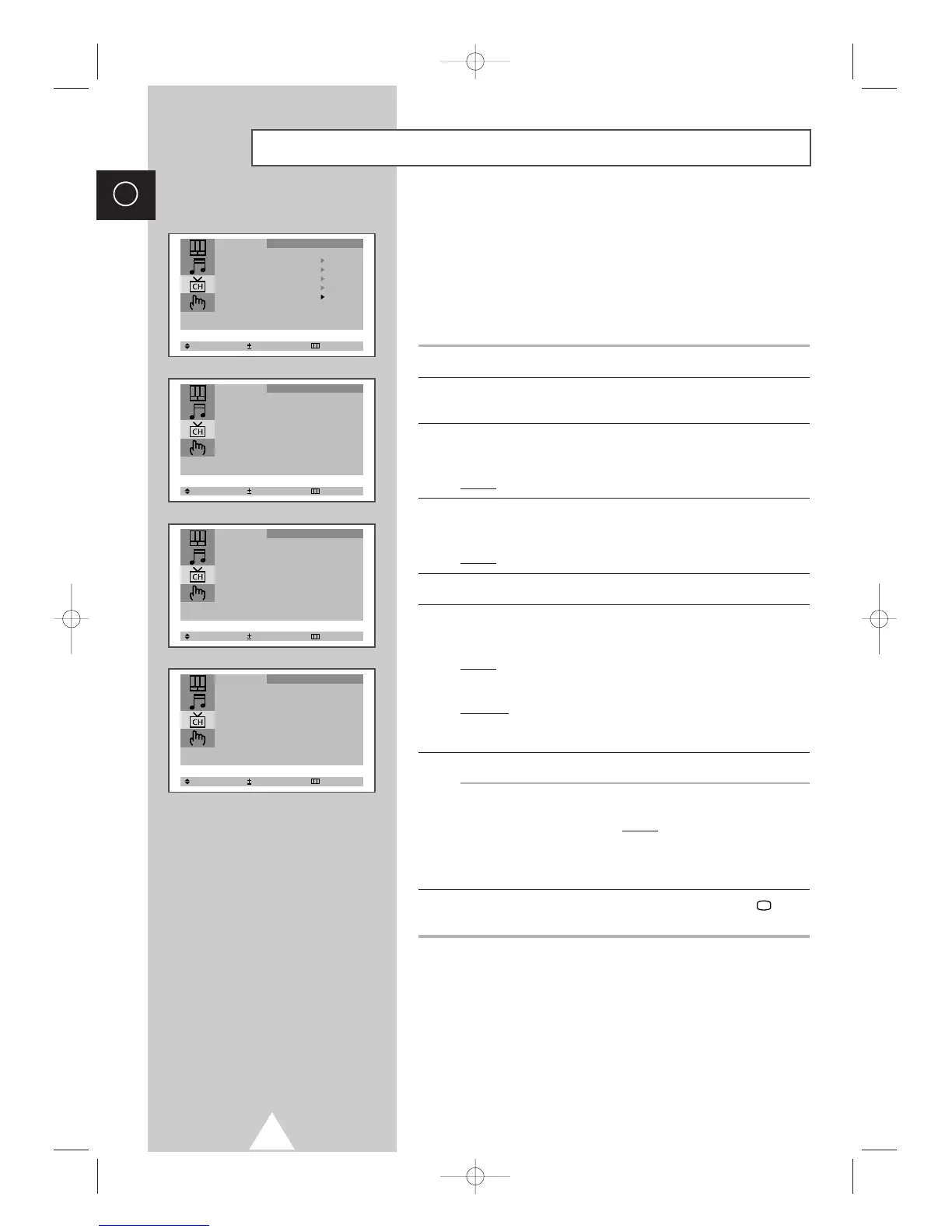
1 Press the MENU button.
2 Press the ▲ or ▼ button to select the “Channel” and press the + or
– button.
3 Press the ▲ or ▼ button to select the “Sort” and press the + or –
button.
Result:
The “Sort” menu is displayed with the “From” selected.
4 Press the + or – button until the channel number that you wish to
change is displayed.
Result:
The selected channel’s picture is displayed.
5 Press the ▲ or ▼ button to select the “To”.
6 Press the + or – button until the new number by which you wish to
identify the channel is displayed.
Result: The selected channel is exchanged with the one
previously stored to the chosen number.
Example: If you select “ P 1” for the “From” and “P 3” for the “To”:
◆ Channel 1 becomes channel 3.
◆ Channel 3 becomes channel 1.
7 To... Press the...
Confirm the exchange ◆▲ or ▼ button to select the “Store”.
of channel numbers ◆ + or – button.
Result: “OK” is displayed.
➣
You can exchange other
channel numbers by selecting
“From” and returning to step 4.
8 When you have finished sorting channels, press the TV button
or, press the MENU button repeatedly to return to normal viewing
16
ENG





 To Next Page