EasyManua.ls Logo

Samsung 6400 - 02. Using the Samsung Smart Control; Buttons and Functions

Samsung 6400
58 pages
Print Icon
To Next Page IconTo Next Page
To Previous Page IconTo Previous Page
Loading...
02~Using
the Samsung Smart
Control
Buttons
and
Functions
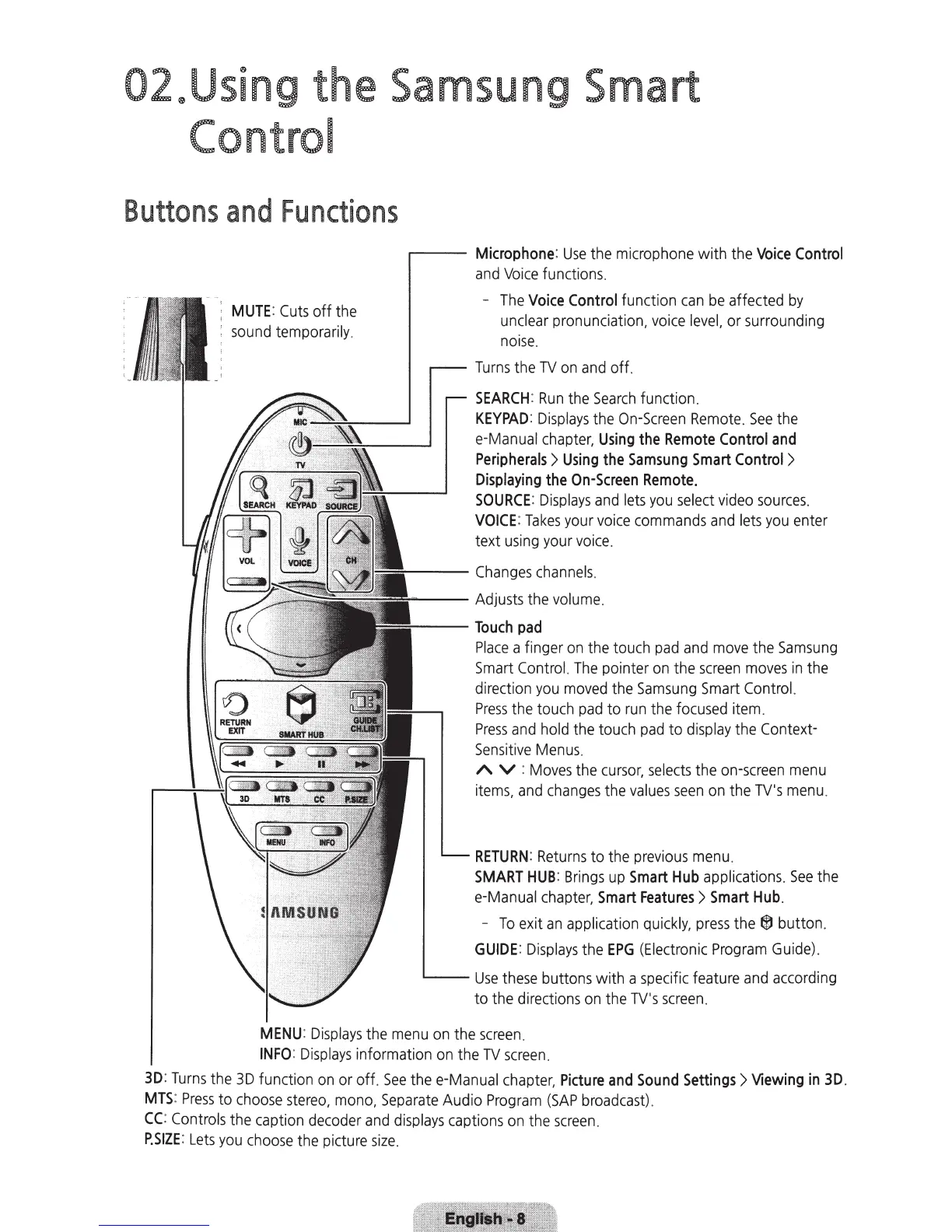
MUTE
:
Cuts
off the
sound
temporarily.
....----
Microphone
:
Use
the
microphone
with the
Voice
Control
and
Voice
functions.
-
The
Voice
Control
function
can
be
affected
by
unclear
pronunciation,
voice
level,
or surrounding
noise
.
Turns
the
TV
on
and
off.
SEARCH
:
Run
the
Search
function.
KEYPAD:
Displays
the
On-Screen
Remote
.
See
the
e-Manual
chapter,
Using
the
Remote
Control
and
Peripherals>
Using
the
Samsung
Smart
Control
>
Displaying
the
On-Screen
Remote.
SOURCE
:
Displays
and
lets
you
select
video
sources.
VOICE
:
Takes
your
voice
commands
and
lets
you
enter
text
using
your
voice
.
~--
Changes
channels
.
---
Adjusts
the
volume
.
,___
__
Touch
pad
Place
a finger
on
the
touch
pad
and
move
the
Samsung
Smart
Control
.
The
pointer
on
the
screen
moves
in
the
direction
you
moved
the
Samsung
Smart
Control.
Press
the
touch
pad
to
run
the
focused
item.
Press
and
hold
the touch
pad
to
display
the Context-
Sensit
i
ve
Menus
.
A V :
Moves
the
cursor,
selects
the
on-screen
menu
items
.
and
changes
the
values
seen
on
the
TV's
menu
.
RETURN:
Returns
to
the
previous
menu.
SMART
HUB
:
Brings
up
Smart
Hub
applications.
See
the
e-Manual
chapter,
Smart
Features>
Smart
Hub
.
-
To
exit
an
application
quickly,
press
the®
button.
GUIDE
:
Displays
the
EPG
(Electronic
Program
Guide)
.
L---
Use
these
buttons with a
specific
feature
and
according
to the directions
on
the
TV's
screen.
MENU
:
Displays
the
menu
on
the
screen
.
INFO
:
Displays
information
on
the
TV
screen
.
3D:
Turns
the
3D
function
on
or
off.
See
thee-Manual
chapter,
Picture
and
Sound
Settings>
Viewing
in
3D
.
MTS
:
Press
to
choose
stereo
.
mono.
Separate
Audio
Program
(SAP
broadcast)
.
CC:
Controls
the caption
decoder
and
displays
captions
on
the
screen
.
P.SIZE:
Lets
you
choose
the
picture
size.

Related product manuals