÷
Using the Touch Pad and the Directional Buttons
- In the TV's menu, navigate to Support > Smart Control Tutorial to view a tutorial that shows how to use
the touch pad_
- If the touch pad's sensitivity is too high or Bow,navigate to the System > Smart Control Settings menu, and
then seBectthe Touch Sensitivity option to change the touch pad sensitivity_
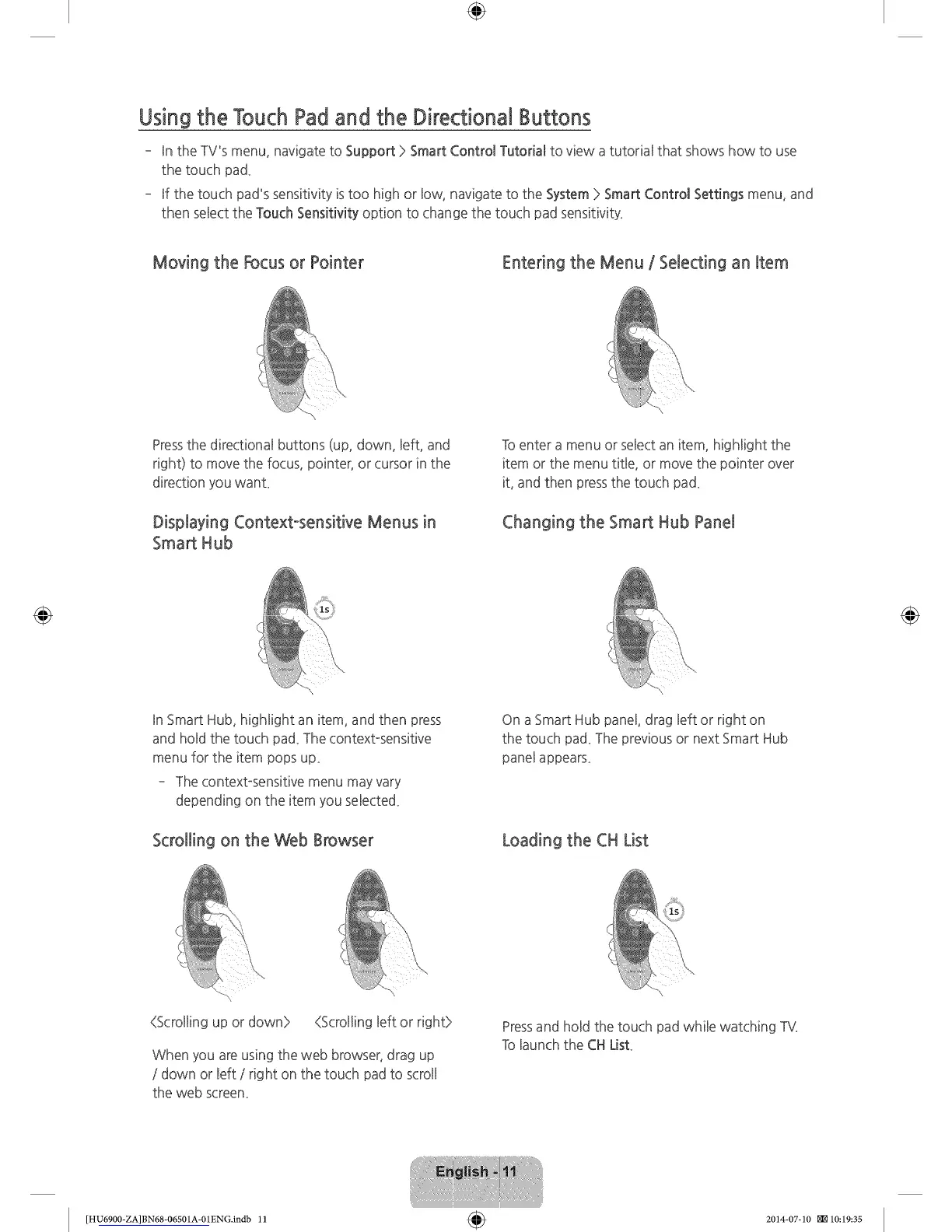
Moving the Focus or Pointer Entering the Menu / Selecting an Item
Pressthe directional buttons (up, down, Beft,and
right) to move the focus, pointer, or cursor in the
direction you want_
Displaying Context-sensitive Menus in
Smart Hub
To enter a menu or select an item, higHight the
item or the menu title, or move the pointer over
it, and then press the touch pad_
Changing the Smart Hub Panel
In Smart Hub, highlight an item, and then press
and hold the touch pad_The contextosensitive
menu for the item pops up_
The contextosensitive menu may vary
depending on the item you selected_
Scrolling on the Web Browser
On a Smart Hub panel, drag left or right on
the touch pad_The previous or next Smart Hub
panel appears_
Loading the CH List
(Scrolling up or down> {Scrolling left or right>
When you are using the web browser, drag up
/ down or left / right on the touch pad to scroll
the web screen_
Pressand hold the touch pad while watching TV,
To launch the CH List
[HU6900-ZA]BN68-06501A-01ENG.indb 11 _ 2014-07-10 _10:19:35





 To Next Page