Switching BetweenVideo Sources
Pressthe SOURCEbutton to switch between external devices connected to the IV. _r example, to switch to
a game console connected to the second HDMI connector, press the SOURCEbutton_ ]he Source List appears
across the top of the screen_From the Source Bist,seBectMDMIZ
- ]he connector names may vary depending on the producL
Using the Remote Control to Control External Devices
MENU > System > Universa! Remote Setup
The universal remote control feature Betsyou control cabBeboxes, glu°ray pBayers,home theaters, and other
third-party externaBdevices connected to the ]°V using the ]°V_sremote control Foreach external device you
want to control, you must run the universaBremote set up process_]°he first step in the process isconnecting
the IRextender cabBe(included) to the ]°V and positioning the transmitter end of the cable in front of the
device you want to control_
- You can also use the Anynet+ (HDMIoCEC) function to operate external Samsung devices with your ]°V_s
remote control without any additional setup_
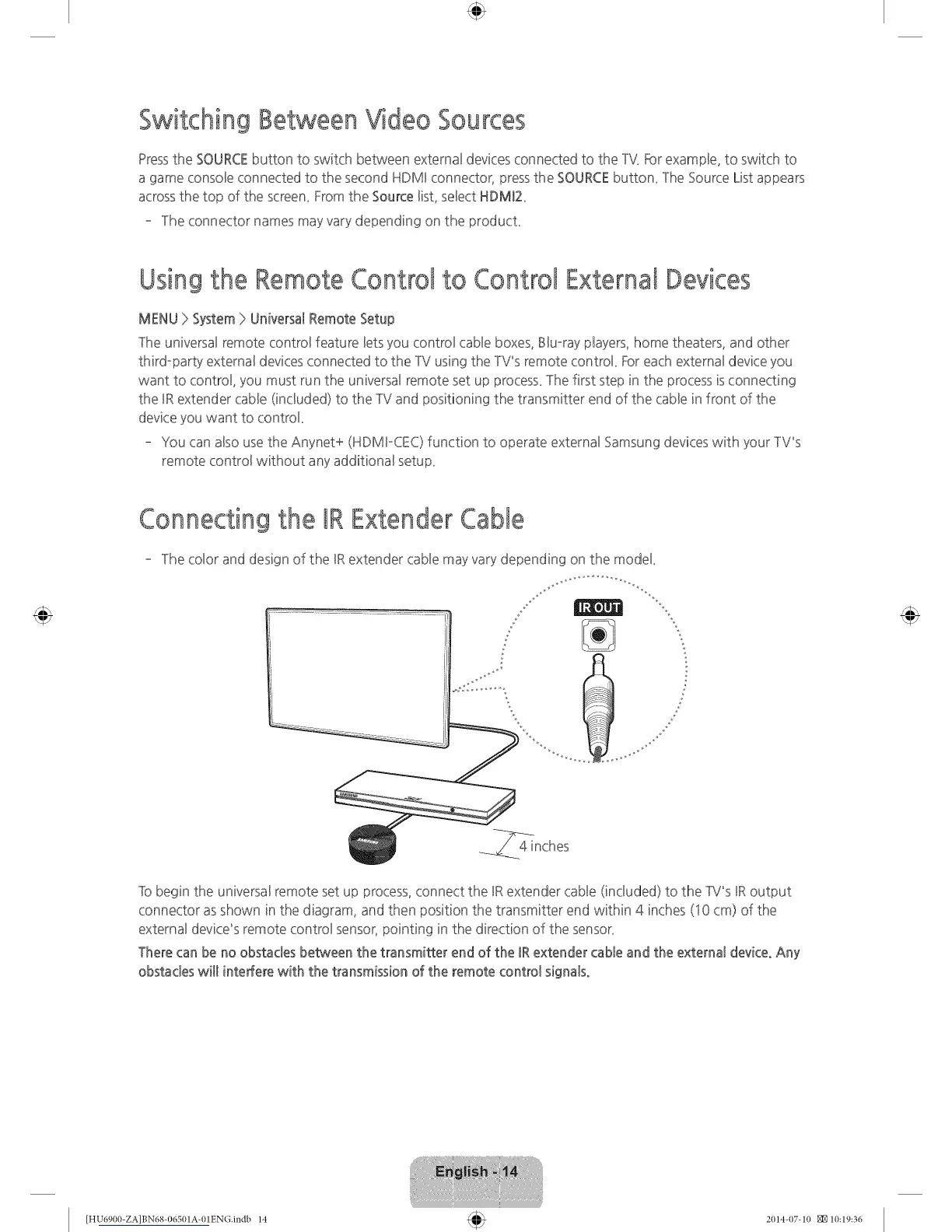
Connecting the IRExtenderCable
- The color and design of the IRextender cable may vary depending on the model
]b begin the universal remote set up process, connect the IRextender cable (included) to the ]°V_sIRoutput
connector as shown in the diagram, and then position the transmitter end within 4 inches (10 cm) of the
external device's remote control sensor, pointing in the direction of the sensor_
There can be no obstacles between the transmitter end of the IRextender cable and the externa! device° Any
obstacles will interfere with the transmission of the remote control signalSo
[HU6900-ZAlBN684)6501A4)lENG.indb 14 2014-07-1(1 _ 10:19:36






 To Next Page