A
Listening to Audio or Music in Surround Sound Mode
o The Surround Sound mode will be updated soon.
o If the audio source is in 2-channel format, sound will be produced only through the speakers that correspond to
Front Left and Front Right.
o If the network connection is not stable, Surround Sound Mode may be cancelled automatically.
o When setting Surround Sound Mode, setting speakers of equal output power as both Front Left and Front Right
is recommended.
❚
Listening to Surround Sound Using Several Audio Devices
o You can set up Surround Sound mode using the Multiroom App or the menu on your TV. See the instructions
below.
`
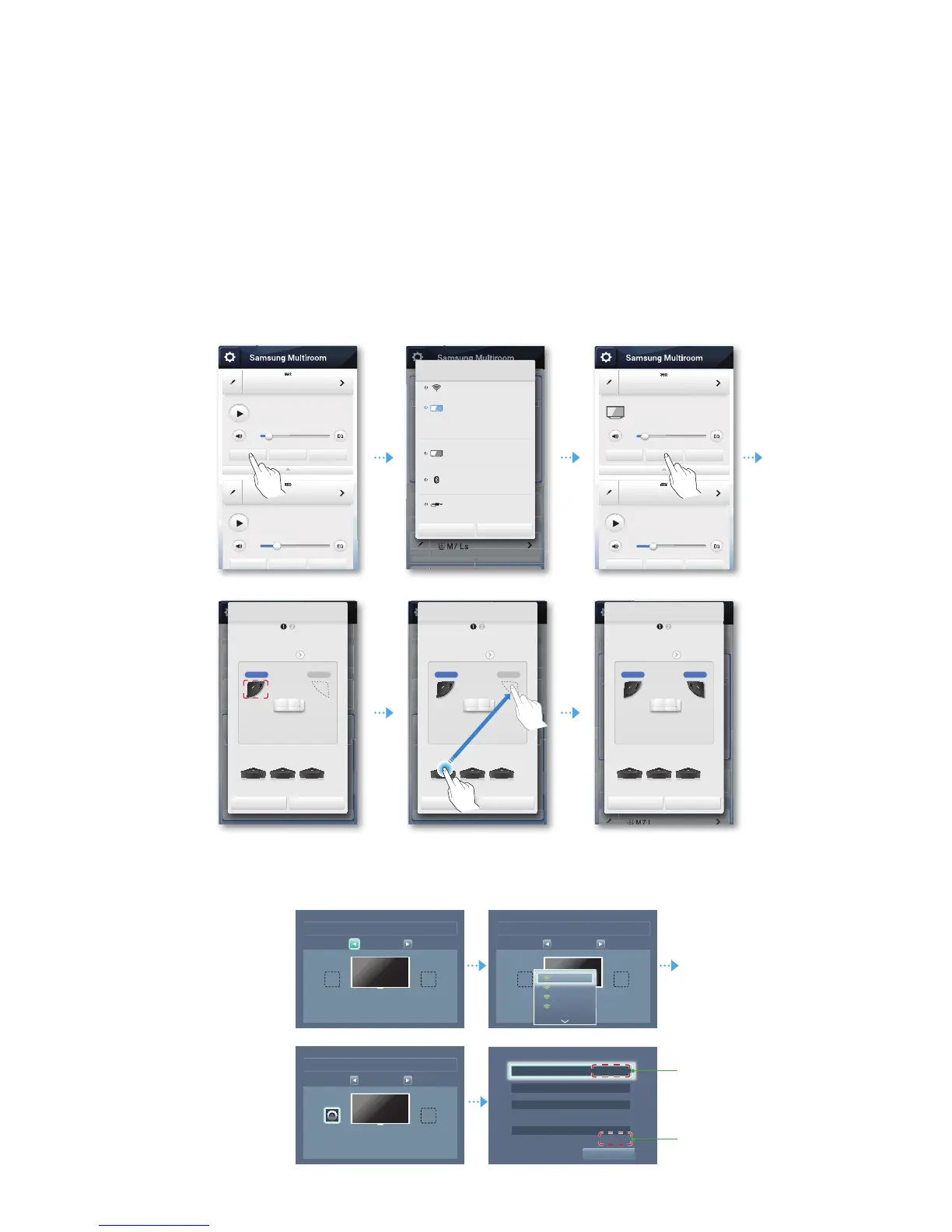
Setting Up TV Surround Sound Using the Multiroom App
`
Setting Up TV Surround Sound Using Your TV's Menu
o Settings
Sound
Speaker Settings
Multiroom Link
Surround
8
4
Multiroom Link
Settings
Surround
Front Left
2CH
Front Right
Speaker Settings
TV Sound Output Multiroom Link
XX XXXXXXXXXXX
~
XX XXXXXXXXXXX
~
XX XXXXXXXXXXX
~
XX XXXXXXXXXXX
XX XXXXXXXXXXX
Multiroom Link
~
Settings Surround
OK
Multiroom Link
Settings
Surround
Front Left Front Right
[Samsung] M* 1
[Samsung] M* 2
[Samsung] Soundbar 1
[Samsung] Soundbar 2
2CH
Multiroom Link
Settings
Surround
Front Left Front Right
[Samsung] M* 1
2CH
k
e
[Samsung] M* 1
[Samsung] M*2
No Music
No Music
Source
Source
Surround
Surround
Group
Group
[Samsung] M* 1
[Samsung] M*2
[TV] Samsung Model Name 1
No Music
Source
Source
Surround
Surround
Group
Group
Multiroom Audio 1
[Samsung] Soundbar 1
No Music
Source Surround Group
Source
Wi-Fi
[TV] Samsung Model Name 1
Connect your speakers and
[TV] Samsung Model Name 1 via Wi-Fi to
enjoy surround sound.
TV soundConnect
Bluetooth
AUX
Cancel OK
Multiroom Audio 1
Multiroom Audio 1
[Samsung] Soundbar 1
Source Surround Group
Stereo & Surround : Setup
2CH
1. Select the number of channels you
would like to set up.
[Samsung] M* 1
[Samsung] M* 2 [Samsung] M* 3 [Samsung] M* 4
Front L Front R
2. Drag speakers to the positions that
best match your desired layout.
Cancel Next
Stereo & Surround : Setup
2CH
1. Select the number of channels you
would like to set up.
[Samsung] M* 1 [Samsung] M* 2
[Samsung] M* 3 [Samsung] M* 4 [Samsung] M* 5
Front L Front R
2. Drag speakers to the positions that
best match your desired layout.
Cancel Next
Multiroom Audio 1
Multiroom Audio 1
[Samsung] Soundbar 1
Source Surround Group
Stereo & Surround : Setup
2CH
1. Select the number of channels you
would like to set up.
[Samsung] M* 1
[Samsung] M* 2 [Samsung] M* 3 [Samsung] M* 4
Front L Front R
2. Drag speakers to the positions that
best match your desired layout.
Cancel Next









 To Next Page