Use Your Phone
visit sprint.com/support for complete user guide 5
Messaging
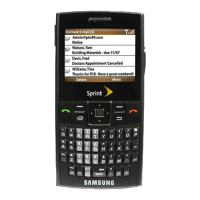
Send a Message
1. P
ress
> Messages > Send Message.
2. Select Go to Contacts to select a contact.
— or —
Press MULTIPLE (left softkey) > Go to Contacts
to select multiple recipients, and then press
CONTINUE (left softkey).
— or —
Press NEW ADDRESS (right softkey) to enter a
phone number or email address directly, and
then press CONTINUE (left softkey).
3. Use your keyboard to enter a message or press
OPTIONS (right softkey) to select additional
options.
4. To send a text message with no attachments, skip
to step 8.
5. Select <Add attachments> and select a
category of file to attach (My Albums, Take new
picture, Take new video, or Voice).
6. Select a location where your file is stored. (You
can also choose to take a new picture or to
record a new voice or audio clip.)
7. Select files to attach.
8. If you are satisfied with your message, press
SEND (left softkey).
Keep in touch your way using text and picture messaging or email. Easy access to Yahoo!
®
Mail, AOL & AIM Mail, or MSN Hotmail.



 To Next Page