28 English
Connections
Connecting to the Network
This player lets you view network based services (See pages 55~63) such as Internet@TV and BD-LIVE,
as well as receive software upgrades through a network connection. We recommend using an AP (Access
Point) or IP router for the connection. For more information on router connection, refer to the user manual
of the router or contact the router manufacturer for technical assistance.
Cable Network
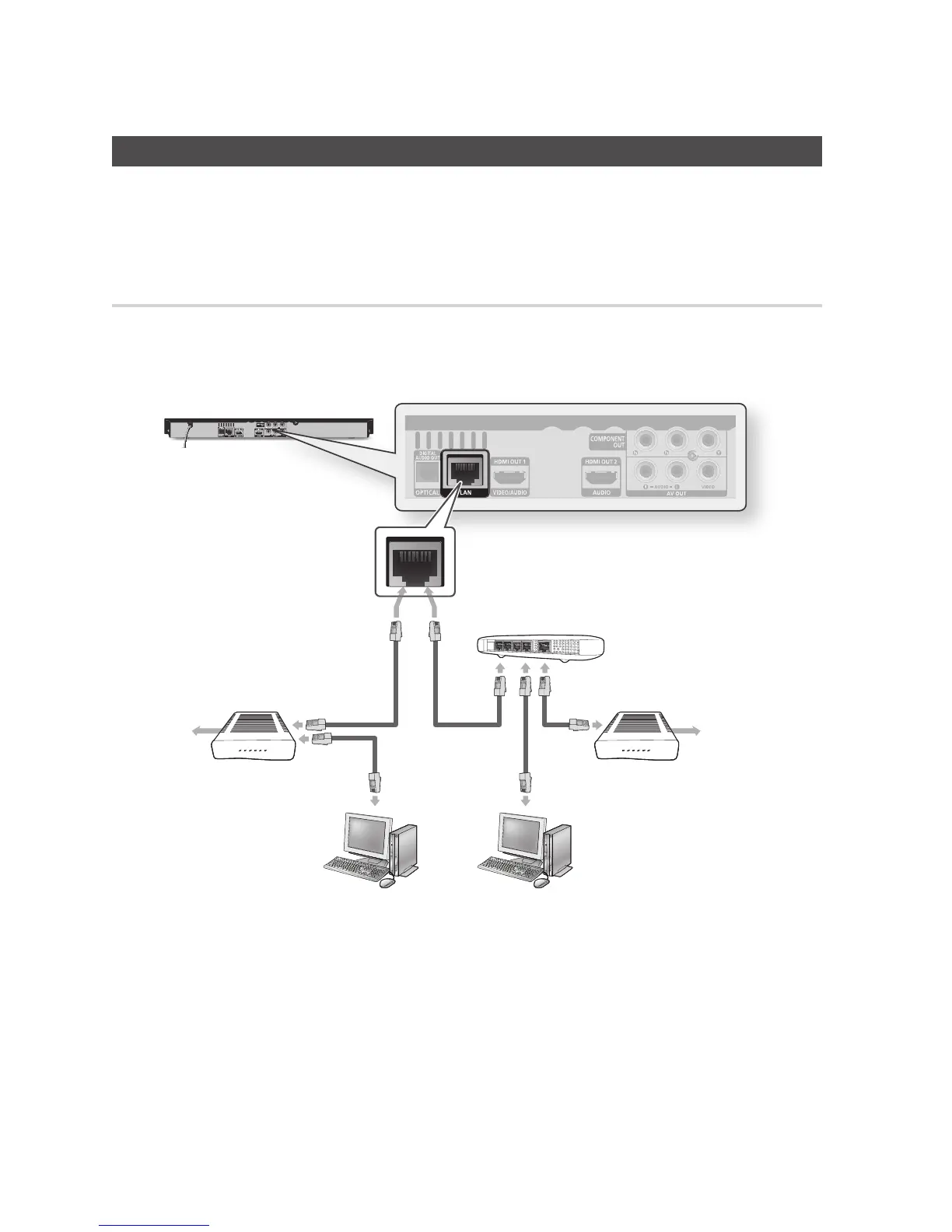
Using the Direct LAN Cable (UTP cable), connect the LAN terminal of the player to the LAN terminal
of your modem or router.
Set the network options. (See pages 39~43)
NOTE
Internet access to Samsung’s software update server may not be allowed, depending on the router you use or the ISP’s
policy. For more information, contact your ISP (Internet Service Provider).
DSL users, please use a router to make a network connection.
To use the AllShare function, you must connect your PC to your network as shown in the figure.
The connection can be wired or wireless.
1.
2.
✎
▪
▪
▪
Broadband
service
Broadband modem
(with integrated router)
Router
Broadband modem
Broadband
service
Or
Networking with PC for
AllShare function
(See pages 62~63)



 To Next Page