EasyManua.ls Logo

Samsung BD-C6900 - User Manual

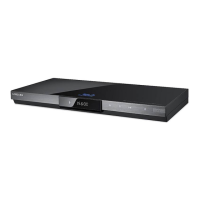
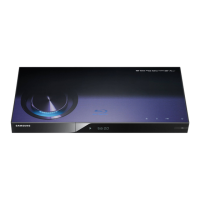
Samsung BD-C6900
135 pages
Print Icon
To Next Page IconTo Next Page
Loading...
imagine the possibilities
Thank you for purchasing this Samsung product.
To receive a more complete service,
please register your product at
www.samsung.com/register
Blu-ray Disc Player
user manual
BD-C6900
01942Y-BD-C6900-CHN-ENG.indb 1 2010-03-16 오후 1:09:50

Table of Contents

Questions and Answers

  • J
    Joshua GonzalesAug 20, 2025
    Why is my Samsung BD-C6900 remote control not working?
    • N
      Nathan PerezAug 20, 2025
      If your Samsung Blu-ray Player remote control isn't working, try these steps: First, check and replace the batteries if needed. Ensure you're within 20 feet of the player when using the remote. If problems persist, remove the batteries, press and hold any button(s) for a few minutes to reset the remote's microprocessor, then reinstall the batteries and try again.
  • A
    Amber BradleyAug 22, 2025
    How to fix no audio on Samsung BD-C6900 Blu-ray Player?
    • C
      colleenreynoldsAug 22, 2025
      If you're experiencing a lack of audio with your Samsung Blu-ray Player, ensure that you have selected the correct Digital Output in the Audio Options Menu.
  • F
    Frank StokesAug 25, 2025
    What to do if Samsung BD-C6900 disc does not play?
    • M
      Mrs. Lori SmithAug 25, 2025
      If your Samsung Blu-ray Player isn't playing discs, make sure the disc is inserted with the label side facing up. Also, verify that the Blu-ray Disc/DVD region code is compatible with your player.
  • B
    Brandon AllenAug 26, 2025
    How to troubleshoot no HDMI output on Samsung BD-C6900 Blu-ray Player?
    • J
      jennifer39Aug 27, 2025
      To troubleshoot a lack of HDMI output on your Samsung Blu-ray Player: Check the HDMI connection between the player and your TV. Also, confirm that your TV supports the HDMI input resolution (480p, 720p, 1080i, or 1080p) being output by the player.
  • R
    Ralph MaddoxAug 27, 2025
    Why is video playing intermittently on my Samsung BD-C6900 Blu-ray Player?
    • S
      shannonrhodesAug 27, 2025
      If video playback is intermittent on your Samsung Blu-ray Player, it may be due to network issues. Verify that your network connection is stable and that the network cable is properly connected without being overloaded. If you're using a wireless connection, ensure it's stable between the server and the player.
  • E
    ewileyAug 29, 2025
    How to fix noisy or distorted picture on Samsung BD-C6900?
    • C
      christopherreynoldsAug 29, 2025
      If the picture on your Samsung Blu-ray Player is noisy or distorted, ensure the disc is clean and free of scratches. If necessary, clean the disc carefully.
  • M
    marc94Aug 31, 2025
    What to do if I forgot the password on my Samsung BD-C6900 Blu-ray Player?
    • W
      wcabreraAug 31, 2025
      If you've forgotten the password for your Samsung Blu-ray Player, you can reset all settings to factory defaults. To do this, press and hold the STOP button ( ) on the front panel for more than 5 seconds while there is no disc inside. Note that this will erase all user data stored on the BD.
  • R
    Richard ShepherdSep 2, 2025
    What to do if my Samsung BD-C6900 HDMI output resolution is not supported?
    • J
      jamie20Sep 2, 2025
      If you cannot see a picture on your TV because the HDMI output resolution of your Samsung Blu-ray Player is not supported, reset the player to its factory settings. Press and hold the STOP ( ) button on the front panel for more than 5 seconds without a disc inside. Keep in mind that this will erase all stored user BD data.
  • R
    robert09Sep 4, 2025
    How to stabilize AllShare connection between TV and PC on Samsung Blu-ray Player?
    • T
      tuckershannonSep 4, 2025
      If the AllShare connection between your TV and PC is unstable when using your Samsung Blu-ray Player: Ensure that IP addresses within the same sub-network are unique to prevent IP collision. Also, check if a firewall is enabled and, if so, disable it to see if it resolves the issue.
  • K
    Kimberly SandersSep 6, 2025
    Why doesn't the disc menu appear on my Samsung BD-C6900 Blu-ray Player?
    • R
      Rachel LloydSep 6, 2025
      If the disc menu doesn't appear on your Samsung Blu-ray Player, it may be because the disc itself does not have disc menus.

Summary

Key Features

Safety Information

General Safety Warnings

Covers electric shock, laser beam, opening unit, and general precautions.

General Safety Warnings and Cautions

Covers electric shock, laser beam, opening unit, and general precautions.

Power Cord and Fuse Details

Information on mains lead, fuses, and plug suitability.

Getting Started

Front Panel Overview

Description of buttons and ports on the front panel.

Rear Panel Connections

Description of all rear panel terminals and their functions.

Remote Control Overview

Description of remote control buttons and functions.

Setting the Remote Control for TV

How to program the remote to control the TV.

Controllable TV Codes List

List of TV brands and corresponding remote codes.

Connections

Connecting to TV via HDMI Cable

Detailed steps and notes for HDMI connection to a TV.

Connecting to TV via DVI Cable

Steps for connecting to a TV using HDMI-DVI cable.

Connecting to TV via Component Cables

Steps for connecting to a TV using component video cables.

Connecting to TV via Video;Audio Cables

Steps for connecting to a TV using composite video/audio cables.

Connecting to Audio System via HDMI

Steps for connecting to an audio system with HDMI.

Connecting to 7.1 Channel Audio System

Steps for connecting to a 7.1 channel audio system.

Connecting to Audio System (Dolby Digital, DTS)

Steps for connecting to Dolby Digital/DTS amplifiers.

Wireless Network Setup

Steps for setting up a wireless network connection.

Wired Network Setup

Steps for setting up a wired network connection.

Setup

Initial Setup Process

Guide to the initial setup process.

Digital Output Selection Details

Detailed table for selecting digital audio output formats.

Wired Network Setup - Auto Connection

Automatic setup for wired network connection.

Wireless Network Setup - PBC (WPS) Method

Easiest method for wireless setup using PBC.

Wireless Network Setup - Manual Connection

Manual setup for wireless network, including obtaining settings from Windows.

Network Testing and Status

Testing and checking network and Internet connection status.

Software Upgrade Procedures

Instructions for upgrading software via Internet, USB, or CD/DVD.

Network Connection Setup

Steps for configuring network settings (Wired/Wireless/PBC).

3 D Viewing Precautions

Warnings and recommendations for 3D viewing.

Digital Audio Output Configuration

Setting audio output format based on amplifier capabilities.

Network Setup and Configuration

Steps and details for setting up network connection.

Wired Network Setup - Manual Connection

Manual setup for wired network connection, including getting values from Windows.

Wireless Network Setup - Auto Search

Using auto search to connect to wireless networks.

Basic Functions

Disc Playback Operations

Controls for playing discs and navigating menus.

Network Services

Getting Started with Internet@TV Interface

Steps to start and navigate the Internet@TV interface.

AllShare Function Setup

Steps to set up and use the AllShare function with PC Share Manager.

Appendix

Troubleshooting: Remote and Disc Issues

Solutions for remote control problems and disc playback errors.

Troubleshooting: BD-LIVE Connectivity and Errors

Solutions for BD-LIVE connection problems and errors.

3 D Viewing Safety Information

Important safety warnings for 3D viewing.

Main Features

Samsung BD-C6900 Specifications

General IconGeneral
HDMIYes
Weight1800 g
Audio systemDolby Digital, Dolby Digital Plus, Dolby True HD, DTS HD HRA, DTS-HD Master Audio
HDMI version1.4
Internal memory1000 MB
Dimensions (WxDxH)430 x 205 x 43 mm
Dynamic range (1kHz)100 dB
USB 2.0 ports quantity1
Audio formats supportedLPCM, MP3, WMA
Video formats supportedAVCHD, H.264, MKV, MP4, MPEG2, VC-1, WMV9
Power consumption (standby)0.1 W
Power consumption (typical)14.6 W
Signal-to-Noise Ratio (SNR)110 dB
Audio output channels7.1 channels
Total Harmonic Distortion (THD)0.003 %
Networking featuresWireless LAN

Related product manuals