EasyManua.ls Logo

Samsung BD-C6900 - User Manual

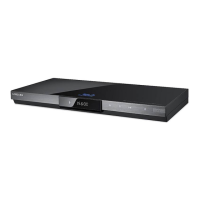
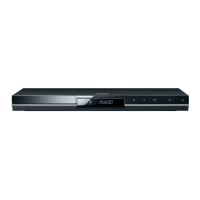
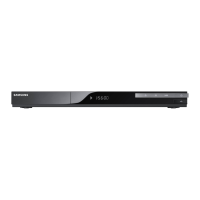
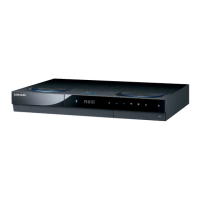
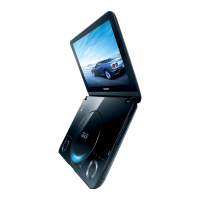
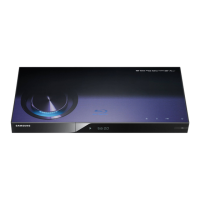
Samsung BD-C6900
135 pages
Print Icon
To Next Page IconTo Next Page
Loading...
imagine the possibilities
Thank you for purchasing this Samsung product.
To receive a more complete service,
please register your product at
www.samsung.com/register
Blu-ray Disc Player
user manual
BD-C6900
01942Y-BD-C6900-CHN-ENG.indb 1 2010-03-16 오후 1:09:50

Table of Contents

Questions and Answers

  • J
    Jillian EdwardsSep 7, 2025
    How to unblock the screen on my Samsung Blu-ray Player?
    • A
      Angela WallsSep 8, 2025
      To unblock the screen on your Samsung Blu-ray Player, press and hold the STOP ( ) button on the front panel for more than 5 seconds while there is no disc inside. This will revert all settings to the factory defaults and erase all stored user BD data.
  • L
    Lori FlowersSep 9, 2025
    Why does the prohibition message appear on my Samsung Blu-ray Player?
    • I
      imendezSep 10, 2025
      The prohibition message on your Samsung Blu-ray Player appears when an invalid button is pressed, the Blu-ray Disc/DVD software doesn’t support the feature you're trying to use (e.g., angles), or you've requested a title, chapter number, or search time that is out of range.
  • J
    jamesjimenezSep 12, 2025
    Why does play mode differ from setup menu selection on Samsung BD-C6900 Blu-ray Player?
    • D
      dmorganSep 12, 2025
      If the play mode differs from the Setup Menu selection on your Samsung Blu-ray Player, it's possible that the disc isn't encoded with the function selected in the Setup Menu.
  • J
    Jason PughSep 13, 2025
    Why can't I change the screen ratio on my Samsung Blu-ray Player?
    • K
      Kelly TuckerSep 13, 2025
      If you cannot change the screen ratio on your Samsung Blu-ray Player, it's because the screen aspect ratio is fixed on the Blu-ray Disc/DVD. This is not a problem with the player itself.
  • B
    bakeranneSep 15, 2025
    Why can't I see files in shared folders on my Samsung BD-C6900 Blu-ray Player?
    • D
      Destiny HallSep 15, 2025
      If you can see folders shared through PC Share Manager on your Samsung Blu-ray Player but not the files, it's because Share Manager only displays Image, Music, and Movie files. Files that don't fall into these categories will not be shown.
  • J
    Jacob BentleySep 18, 2025
    What to do if an error occurs when using BD-LIVE service on Samsung BD-C6900 Blu-ray Player?
    • J
      Jay PayneSep 18, 2025
      When using the BD-LIVE service on your Samsung Blu-ray Player, ensure that the connected memory device has at least 1GB of free space. You can check the available size in BD Data Management.

Summary

Key Features

Safety Information

General Safety Warnings

Covers electric shock, laser beam, opening unit, and general precautions.

General Safety Warnings and Cautions

Covers electric shock, laser beam, opening unit, and general precautions.

Power Cord and Fuse Details

Information on mains lead, fuses, and plug suitability.

Getting Started

Front Panel Overview

Description of buttons and ports on the front panel.

Rear Panel Connections

Description of all rear panel terminals and their functions.

Remote Control Overview

Description of remote control buttons and functions.

Setting the Remote Control for TV

How to program the remote to control the TV.

Controllable TV Codes List

List of TV brands and corresponding remote codes.

Connections

Connecting to TV via HDMI Cable

Detailed steps and notes for HDMI connection to a TV.

Connecting to TV via DVI Cable

Steps for connecting to a TV using HDMI-DVI cable.

Connecting to TV via Component Cables

Steps for connecting to a TV using component video cables.

Connecting to TV via Video;Audio Cables

Steps for connecting to a TV using composite video/audio cables.

Connecting to Audio System via HDMI

Steps for connecting to an audio system with HDMI.

Connecting to 7.1 Channel Audio System

Steps for connecting to a 7.1 channel audio system.

Connecting to Audio System (Dolby Digital, DTS)

Steps for connecting to Dolby Digital/DTS amplifiers.

Wireless Network Setup

Steps for setting up a wireless network connection.

Wired Network Setup

Steps for setting up a wired network connection.

Setup

Initial Setup Process

Guide to the initial setup process.

Digital Output Selection Details

Detailed table for selecting digital audio output formats.

Wired Network Setup - Auto Connection

Automatic setup for wired network connection.

Wireless Network Setup - PBC (WPS) Method

Easiest method for wireless setup using PBC.

Wireless Network Setup - Manual Connection

Manual setup for wireless network, including obtaining settings from Windows.

Network Testing and Status

Testing and checking network and Internet connection status.

Software Upgrade Procedures

Instructions for upgrading software via Internet, USB, or CD/DVD.

Network Connection Setup

Steps for configuring network settings (Wired/Wireless/PBC).

3 D Viewing Precautions

Warnings and recommendations for 3D viewing.

Digital Audio Output Configuration

Setting audio output format based on amplifier capabilities.

Network Setup and Configuration

Steps and details for setting up network connection.

Wired Network Setup - Manual Connection

Manual setup for wired network connection, including getting values from Windows.

Wireless Network Setup - Auto Search

Using auto search to connect to wireless networks.

Basic Functions

Disc Playback Operations

Controls for playing discs and navigating menus.

Network Services

Getting Started with Internet@TV Interface

Steps to start and navigate the Internet@TV interface.

AllShare Function Setup

Steps to set up and use the AllShare function with PC Share Manager.

Appendix

Troubleshooting: Remote and Disc Issues

Solutions for remote control problems and disc playback errors.

Troubleshooting: BD-LIVE Connectivity and Errors

Solutions for BD-LIVE connection problems and errors.

3 D Viewing Safety Information

Important safety warnings for 3D viewing.

Main Features

Samsung BD-C6900 Specifications

General IconGeneral
HDMIYes
Weight1800 g
Audio systemDolby Digital, Dolby Digital Plus, Dolby True HD, DTS HD HRA, DTS-HD Master Audio
HDMI version1.4
Internal memory1000 MB
Dimensions (WxDxH)430 x 205 x 43 mm
Dynamic range (1kHz)100 dB
USB 2.0 ports quantity1
Audio formats supportedLPCM, MP3, WMA
Video formats supportedAVCHD, H.264, MKV, MP4, MPEG2, VC-1, WMV9
Power consumption (standby)0.1 W
Power consumption (typical)14.6 W
Signal-to-Noise Ratio (SNR)110 dB
Audio output channels7.1 channels
Total Harmonic Distortion (THD)0.003 %
Networking featuresWireless LAN

Related product manuals