English 25
05 Setup
Accessing the Settings Menu
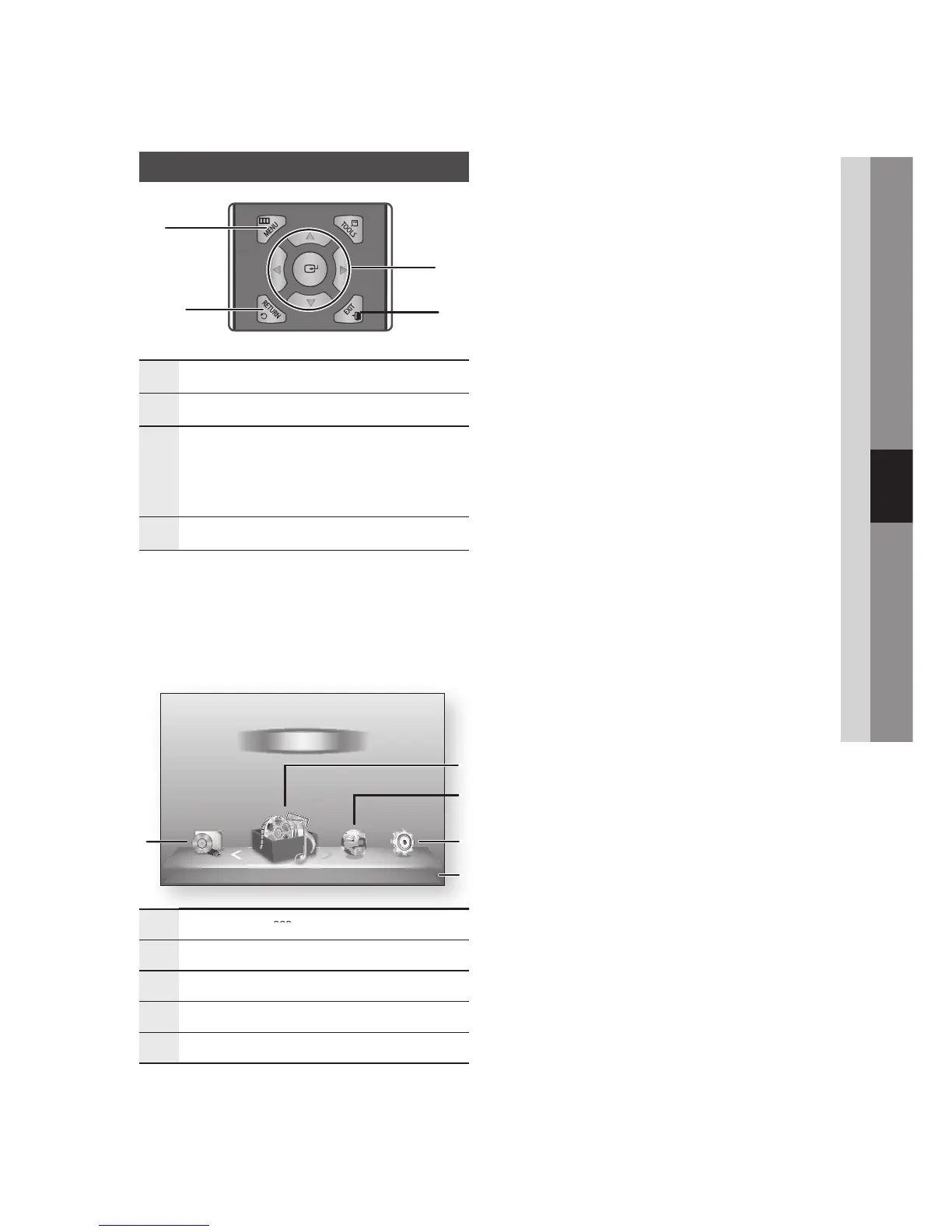
1
MENU Button :
Press to move to the Home menu.
2
RETURN Button : Return to the previous menu.
3
ENTER / DIRECTION Button :
Move the cursor or select an item.
Activate the currently selected item.
Confirm a setting.
4
EXIT Button :
Press to exit the current menu.
To access the Settings menu and sub-menus,
follow these steps:
Press the 1. POWER button.
The Home Menu appears.
Home Menu•
1
Selects My Devices.
2
Selects My Contents.
3
Selects Internet.
4
Selects Settings.
5
Displays the buttons available.
Press the ◄► buttons to select 2. Settings,
and then press the ENTER button.
Press the ▲▼ buttons to select the desired 3.
submenu,
and then press the ENTER button.
Press the ▲▼ buttons to select the desired 4.
item,
and then press the ENTER button.
Press the 5. EXIT button to exit the menu.
✎
NOTE
When the player is connected
▪
to a network, select
Smart Hub from the Home menu.
Download
the desired content from Samsung Apps.
(See pages 56~58)
The access
▪
steps may differ depending on the menu
you selected.
The OSD (On Screen Display) may change in this
▪
player after you upgrade the software version.











 To Next Page