22 English
Connections
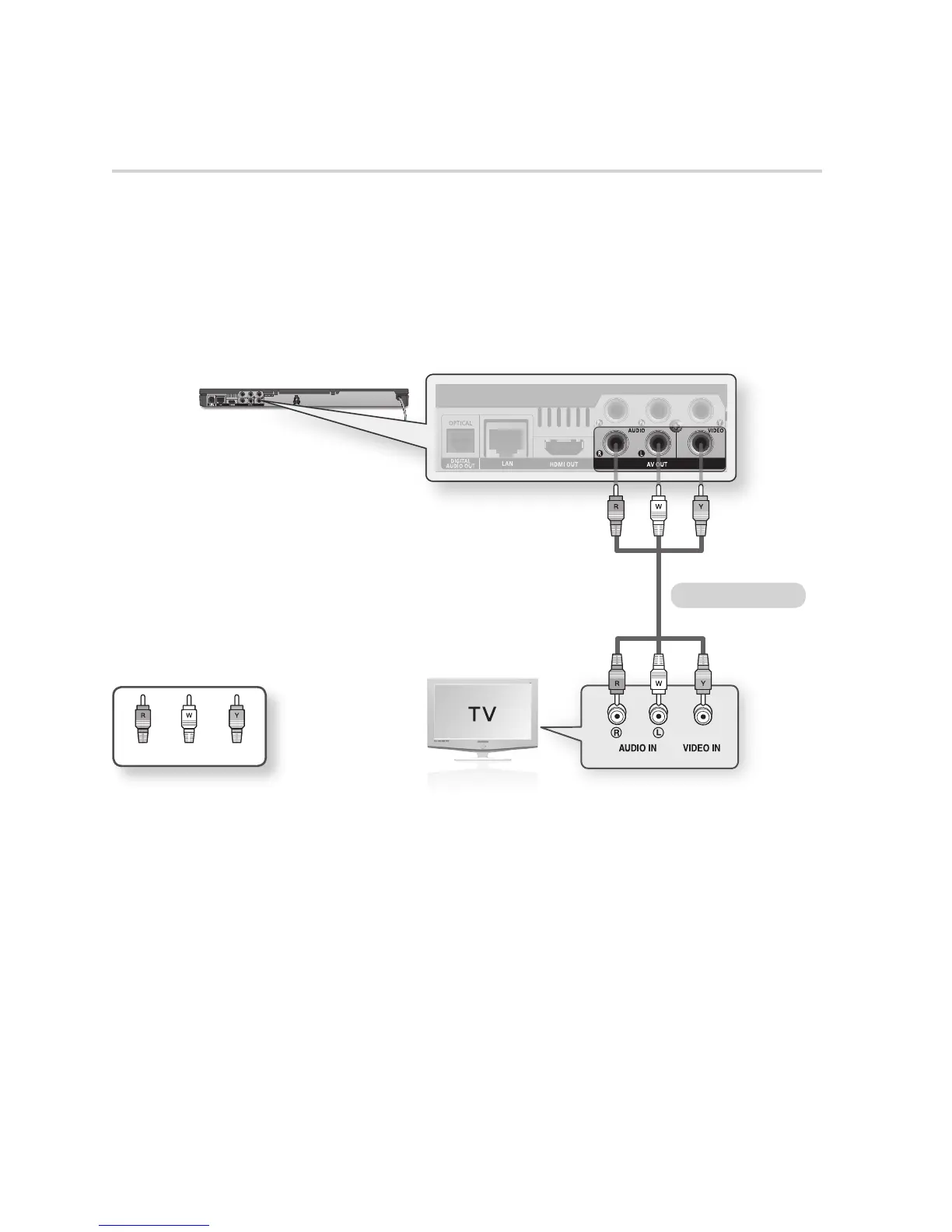
Case 3 : Connecting to a TV with an Audio/Video cable - Good Quality
Using an Audio/Video cable, connect the VIDEO OUT (yellow) / AUDIO OUT (red and white)
terminals on the rear of the player to the VIDEO IN (yellow) / AUDIO IN (red and white) terminals of
your TV.
Turn on the player and TV.
Press the input selector on your TV remote control until the “VIDEO” signal from the player appears
on the TV screen.
If you have set the remote control to operate your TV (See page 19), press the TV SOURCE
button on the remote control and select VIDEO as the external source of the TV.
NOTE
Noise may be generated if the audio cable is placed too close to the power cable.
If you want to connect to an AV receiver, please refer to the AV receiver connection pages. (See pages 23~24)
The number and position of input terminals may vary depending on your TV set. Please refer to the user manual of your
TV.
CAUTION
Do not connect the player to your TV through a VCR. Video signals fed through VCRs may be affected by copyright
protection systems and the picture will be distorted on the television.
1.
2.
3.
•
✎
▪
▪
▪
!
▪
WhiteRed Yellow
Audio/Video cable










 To Next Page