EasyManua.ls Logo

Samsung BN68-02900A-05 - User Manual

Samsung BN68-02900A-05
163 pages
Print Icon
To Next Page IconTo Next Page
Loading...
© 2010 Samsung Electronics Co., Ltd. All rights reserved.
BN68-02900A-05
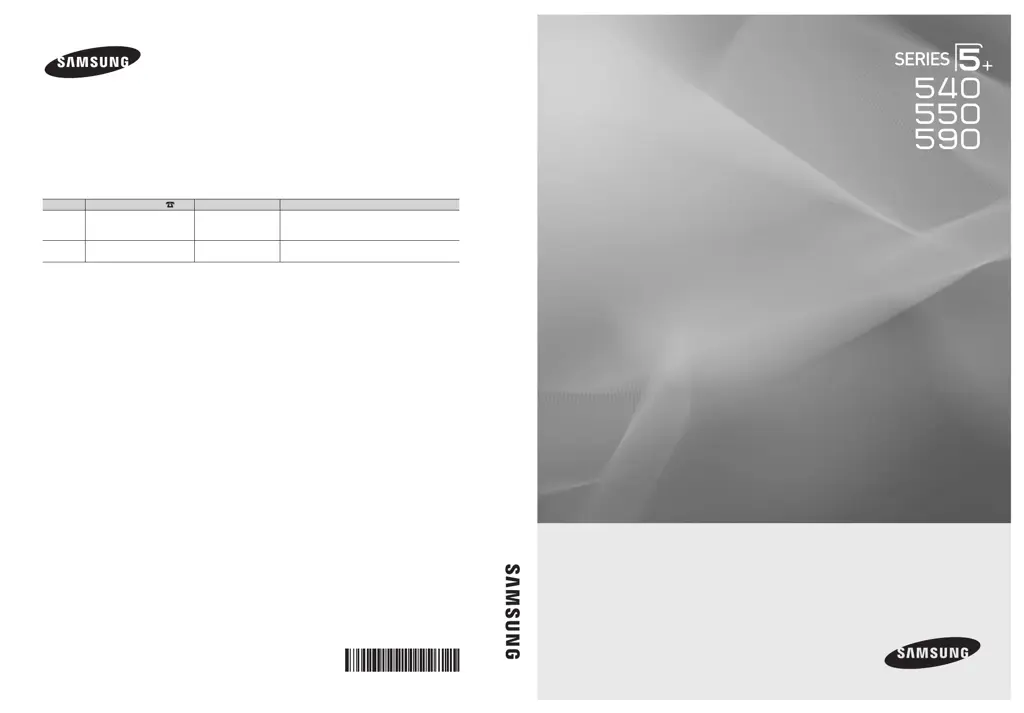
Plasma TV
user manual
imagine the possibilities
Thank you for purchasing this Samsung product.
To receive more complete service, please register
your product at
www.samsung.com/register
Model _____________ Serial No. _____________
Contact SAMSUNG WORLDWIDE
If you have any questions or comments relating to Samsung products, please contact the SAMSUNG customer care center.
Comment contacter Samsung dans le monde
Si vous avez des suggestions ou des questions concernant les produits Samsung, veuillez contacter le Service Consommateurs
Samsung.
Comuníquese con SAMSUNG WORLDWIDE
Si desea formular alguna pregunta o comentario en relación con los productos de Samsung, comuníquese con el centro de
atención al cliente de SAMSUNG.
Country
Customer Care Center
Web Site Address
CANADA 1-800-SAMSUNG (726-7864) www.samsung.com Samsung Electronics Canada Inc., Customer Service
55 Standish Court Mississauga, Ontario L5R 4B2
Canada
U.S.A 1-800-SAMSUNG (726-7864) www.samsung.com Samsung Electronics America, Inc. 85 Challenger
Road Ridgeeld Park, NJ 07660-2112
Plasma TV user manual
[PC550(63)-NA]BN68-02900A-05L03.indb 1 2010-08-25 오후 2:28:50

Table of Contents

Questions and Answers

  • L
    Lindsey DorseyAug 11, 2025
    Why is Anynet+ not working on my Samsung Plasma TV?
    • P
      powellrebeccaAug 12, 2025
      If Anynet+ is not working, ensure the connected device is Anynet+ compatible, and only one receiver is connected. Verify the power cord and HDMI cable are properly connected. Also, check that Anynet+ (HDMI-CEC) is enabled in the setup menu and the TV remote is in TV mode. Note that Anynet+ may not function during channel searches or initial setup. After connecting or disconnecting the HDMI cable, rescan devices or power cycle the TV. Finally, ensure the Anynet+ function on the external device is enabled.
  • B
    Brittany PriceAug 18, 2025
    What to do if the connected device is not displayed on my Samsung Plasma TV?
    • A
      Annette BurnsAug 18, 2025
      If the connected device isn't displayed, first confirm it supports Anynet+ functions. Check that the HDMI cable is correctly connected and that Anynet+ (HDMI-CEC) is enabled in the Anynet+ setup menu. Try rescanning for Anynet+ devices. Note that only HDMI cable connections are supported for Anynet+, and some cables may not support Anynet+. If the connection was interrupted due to a power issue or cable disconnection, repeat the device scan.
  • K
    Kelly BurnettAug 23, 2025
    How to start Anynet+ on Samsung BN68-02900A-05?
    • K
      Kimberly DavisAug 23, 2025
      To start Anynet+, ensure the Anynet+ device is properly connected to the TV and that Anynet+ (HDMI-CEC) is set to On in the Anynet+ Setup menu. Then, press the TOOLS button to display the Anynet+ menu and select the desired option.
  • J
    Joshua ChavezAug 30, 2025
    How to exit Anynet+ on a Samsung BN68-02900A-05 Plasma TV?
    • D
      Dawn YoungAug 30, 2025
      To exit Anynet+, select View TV in the Anynet+ menu. Alternatively, press the SOURCE button on the TV remote control and select a non-Anynet+ device. You can also press 5, PRE-CH, and FAV.CH to change the TV mode, but note that the channel button only works when a tuner-embedded Anynet+ device is not connected.
  • P
    Paige MoralesSep 4, 2025
    What to do if the message “Connecting to Anynet+ device...” appears on the screen of Samsung BN68-02900A-05 Plasma TV?
    • A
      Aaron ContrerasSep 4, 2025
      When the message “Connecting to Anynet+ device...” appears, you cannot use the remote control while Anynet+ is configuring or switching to a view mode. Wait until the Anynet+ setting or view mode switching is complete before using the remote control.

Samsung BN68-02900A-05 Specifications

General IconGeneral
BrandSamsung
ModelBN68-02900A-05
CategoryPlasma TV
LanguageEnglish

Related product manuals