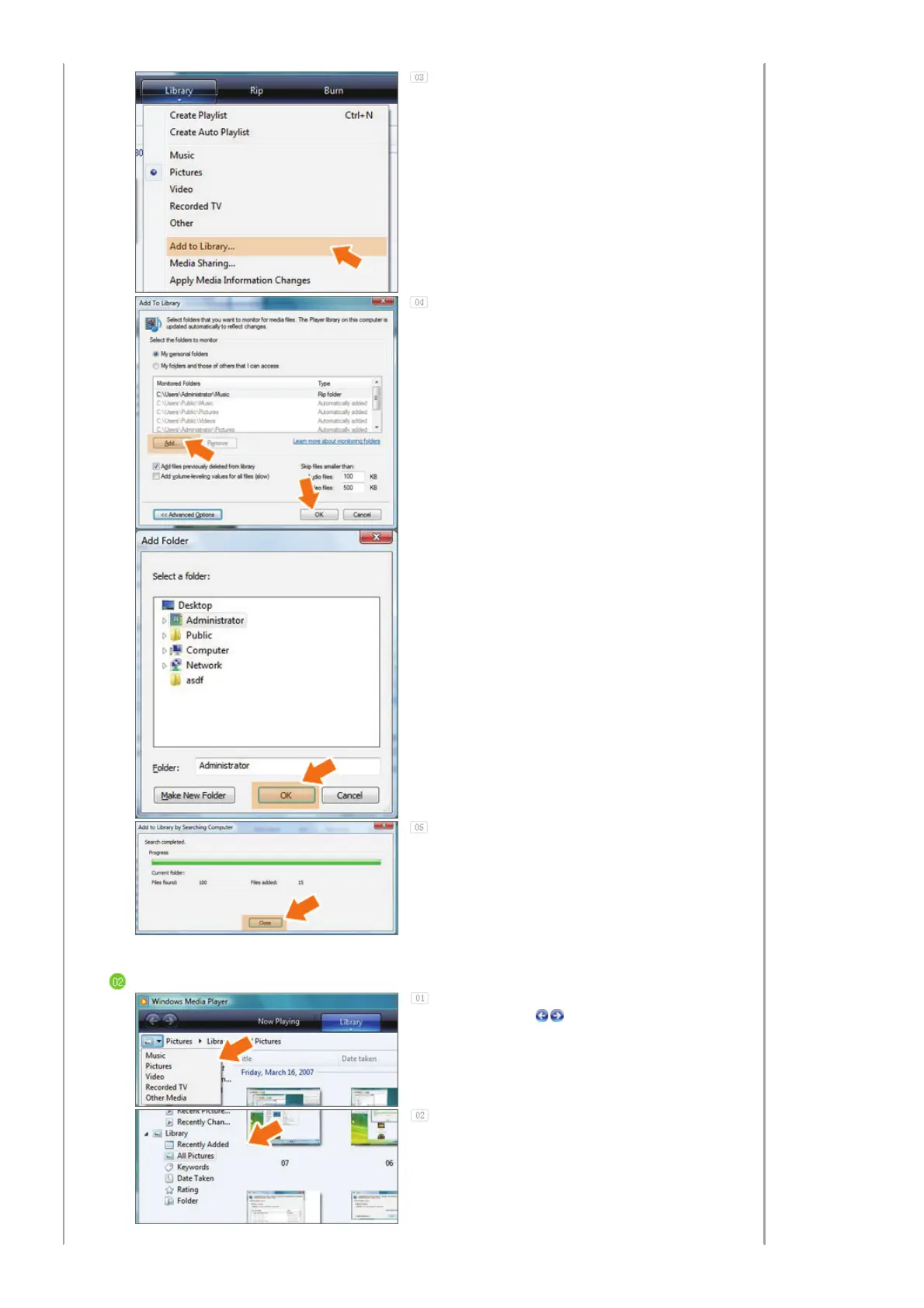
Click [Add To Library] in the [Library] tab.
In the [Add To Library] window, select [My
personal folders] under the [Select the folders to
monitor] section and select the folder containing
photos and click [Add].
Select the folder to share and click [OK] to add
it.
When you click [OK], the [Add To Library]
window is closed and the [Add to Library by
Searching Computer] is displayed. Wait until it
finishes the operation and click [Close] when it is
completed.
Checking Shared Photos
In the Windows Media Player, set the Category,
which is under the [ , ] symbol at the top left,
to [Picture].
In the [Library], select Recently added, All
Pictures, Keywords, Date Taken, Ratin
, or Folder
settings and check whether the added photos
exist in the library.


 To Next Page