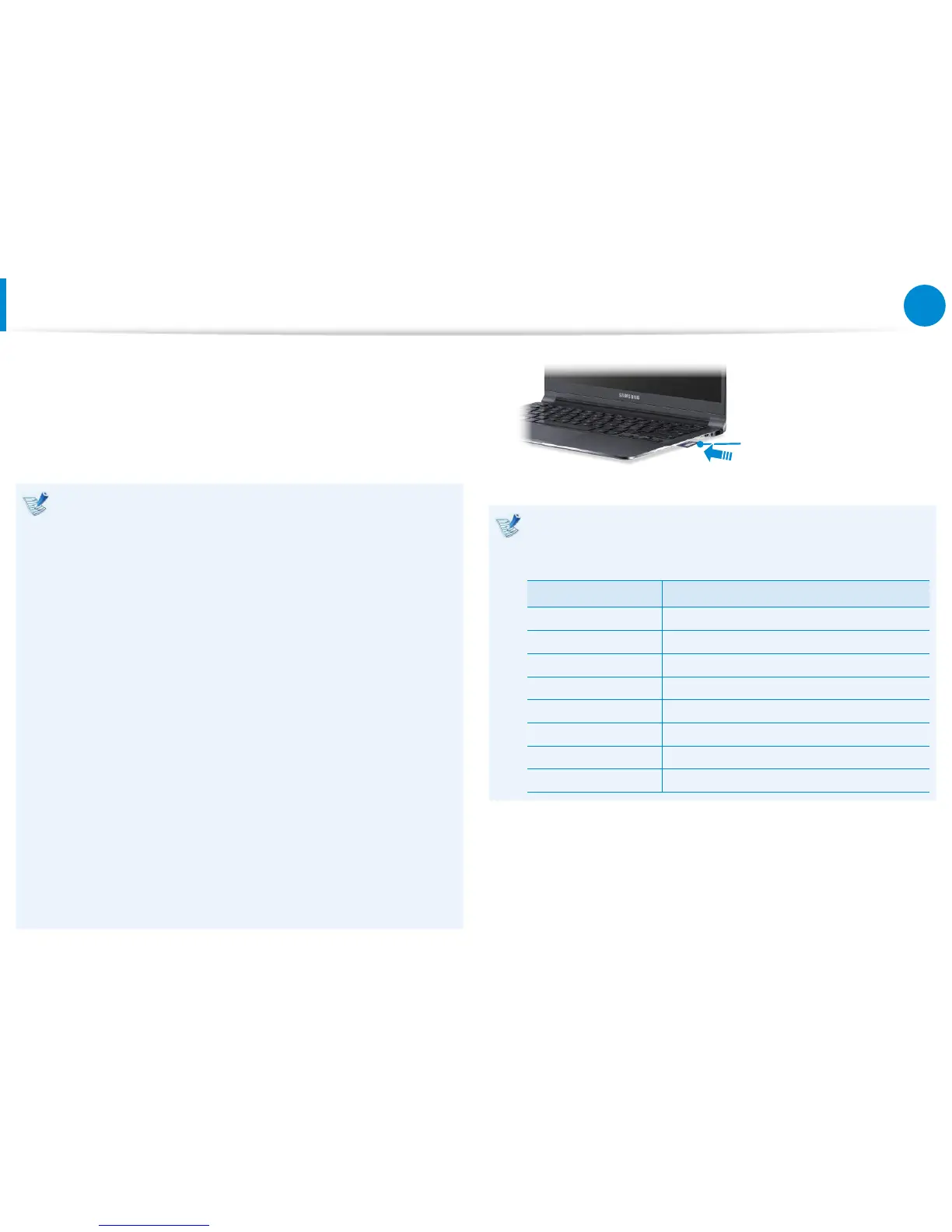
Multi Card Slot
(Optional)
Using the multi-card slot, you can read and write data on various
types of memory cards.
When you insert a memory card, make sure to insert the memory
card in the correct direction. Pushing an incorrectly inserted
memory card may damage the card itself or the slot.
You can use memory cards as a removable disk and •
conveniently exchange data with digital devices such as a
digital camera, etc.
Separately purchase memory cards of your desired •
capacity.
The color of the multi-card slot may dier from the picture •
in this manual.
Before using the slot, remove the dummy card from inside •
the slot. (Only for models providing dummy cards.)
Insert the memory card into the multi-card slot in the •
direction printed on the slot.
For memory cards marked with ‘*’, you must insert them •
into a specied adapter and then insert the adapter into
the multi-card slot.
Inserting such memory cards directly into the multi-card
slot without using a specied adapter may damage the
computer.
The computer may not recognize the device depending on •
the status of the specied adapter.
The data transfer rate may dier depending on the •
specication of the memory card.
Example) SD Card
Memory Card Naming
The following table shows the full names of memory cards
for each abbreviation.
Abbreviation Memory Card’s Name
SD Secure Digital
*mini SD mini Secure Digital
*micro SD micro Secure Digital
SDHC Secure Digital High Capacity
*mini SDHC mini Secure Digital High Capacity
*micro SDHC micro Secure Digital High Capacity
SDXC Secure Digital eXtended Capacity
*micro SDXC micro Secure Digital eXtended Capacity



 To Next Page