38
ENG
Viewing the Picture In Picture (PIP) (depending on the model) (continued)
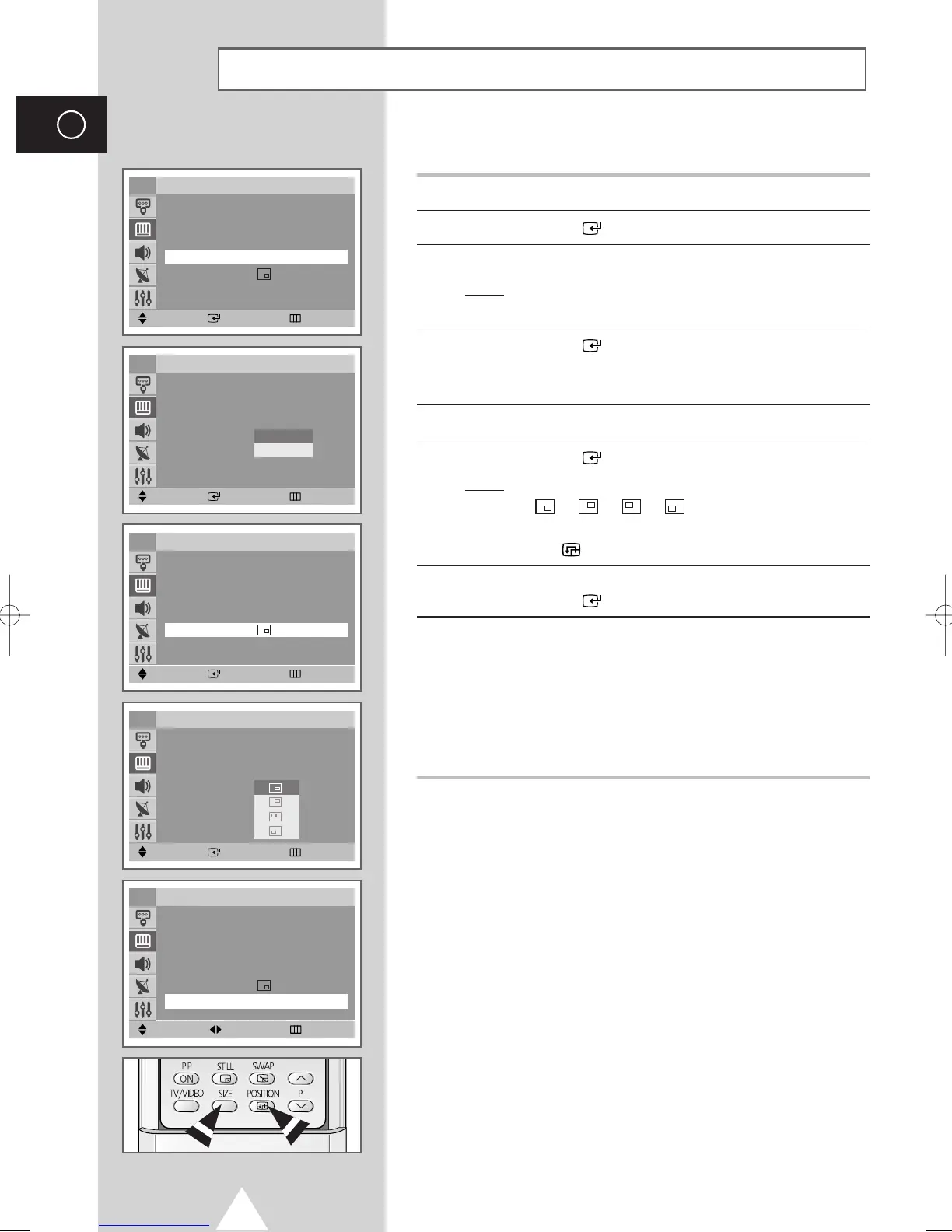
14 Press the ▼ or ▲ button to select Size.
15 Press the ENTER ( ) button.
16 Select a size of sub picture by pressing the ▼ or ▲ button.
Result
: The sizes are displayed in the following order:
Small
-
Large
17 Press the ENTER ( ) button.
➢
You can select these options simply by pressing the SIZE
button.
18 Press the ▼ or ▲ button to select Position.
19 Press the ENTER ( ) button.
Result
: The positions available are displayed.
---
➢
You can select these options simply by pressing the
Position ( ) button.
20 Select a position of the sub picture by pressing the † or … button.
Press the
ENTER ( ) button.
21 Press the † or … button to select Programme. You can select the
channel that you want to view through sub picture by pressing the
œ or √ button.
➢
◆ When the Source is set to TV, you can select the
channel of sub picture.
◆ You can select the channel of the sub picture simply by
pressing the
† or … button.
Move Enter Return
TV
PIP
PIP : On
√√
Source : TV
√√
Swap
√√
Size : Large
√√
Position :
√√
Programme : P 1
Move Enter Return
TV
PIP
PIP : On
√√
Source : TV
√√
Swap
√√
Size : Large
√√
Position :
√√
Programme : P 1
Small
Large
Move Enter Return
TV
PIP
PIP : On
√√
Source : TV
√√
Swap
√√
Size : Large
√√
Position :
√√
Programme : P 1
Move Enter Return
TV
PIP
PIP : On
√√
Source : TV
√√
Swap
√√
Size : Large
√√
Position :
√√
Programme : P 1
Move Adjust Return
TV
PIP
PIP : On
√√
Source : TV
√√
Swap
√√
Size : Large
√√
Position :
√√
Programme : P 1
AA68-03418A-00Eng_UMG_TM76 6/2/04 11:49 AM Page 38



 To Next Page