EasyManua.ls Logo

Samsung DVD-R4000 - User Manual

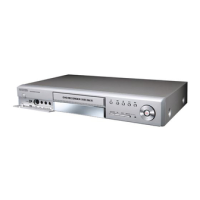
Samsung DVD-R4000
80 pages
Print Icon
To Next Page IconTo Next Page
Loading...
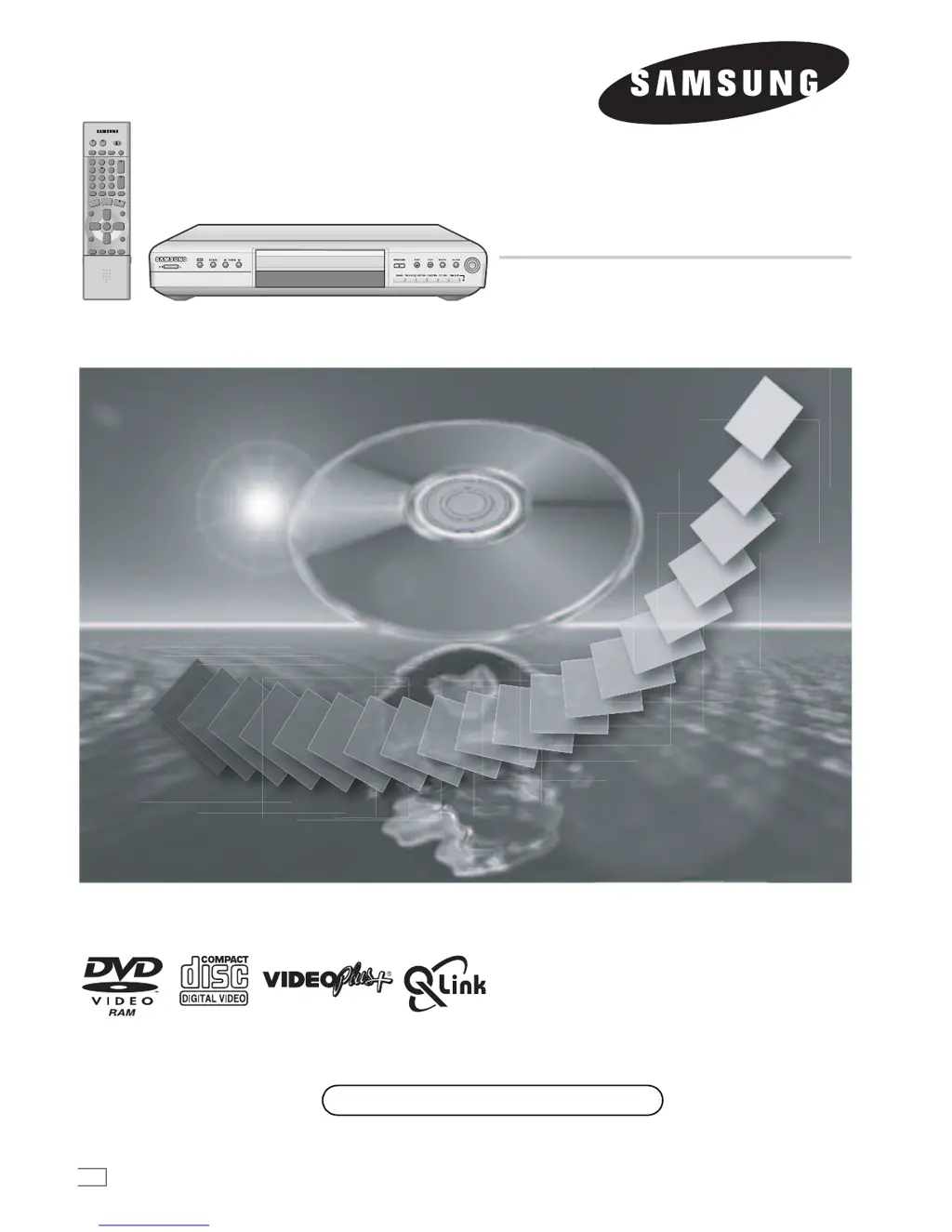
DVD Video Recorder
Operating Instructions
Model No. DVD-R4000
Before connecting, operating or adjusting this product,
please read these instructions completely.
Please keep this manual for future reference.
RQT6996-B
EB
Web Site: http://www.samsungdvd.com

Table of Contents

Questions and Answers

  • P
    Paul RiceAug 16, 2025
    How to fix a Samsung DVD-R4000 that has no power?
    • J
      Joshua BartlettAug 16, 2025
      If your Samsung DVD Recorder isn't powering on, ensure the AC mains lead is securely inserted into the household mains socket. If the unit is hot and displays “U14”, wait for the message to disappear. If the issue persists, try resetting the unit: press the power button to switch to standby (press and hold for 10 seconds if needed), or disconnect the AC mains lead for one minute, then reconnect and power on.
  • J
    James MartinezAug 22, 2025
    How to fix Samsung DVD-R4000 when it has no power and switches to standby mode?
    • D
      David SmithAug 22, 2025
      If your Samsung DVD Recorder isn't powering on or keeps switching to standby mode, try these steps: * Ensure the AC power cord is securely plugged into a working outlet. * The unit might be in power-saving mode. You can disable this feature in the settings (Set Up—Off Timer— Off). * Press the [Í, DVD POWER] button to turn the unit on. * A safety device might have been activated. Try pressing [Í, DVD POWER] to turn the unit on.
  • A
    Andre CharlesAug 25, 2025
    Why is my Samsung DVD-R4000 remote not working?
    • R
      reynoldsstaceyAug 26, 2025
      If your Samsung DVD Recorder remote control isn't working or you can't operate the television with it, consider the following: * Ensure that [DVD, TV] is switched to “DVD” when operating the DVD Recorder. * The remote control and the unit may be using different codes. Try changing the code on the remote control or the main unit. * Replace the batteries with new ones. * Point the remote control directly at the sensor on the main unit. * Remove any obstacles between the remote and the main unit. * If operating a television, [DVD, TV] should be switched to “TV”.
  • J
    Jimmy NguyenAug 28, 2025
    What to do if my Samsung DVD-R4000 DVD Recorder is on but not working?
    • M
      Maria PadillaAug 28, 2025
      If your Samsung DVD Recorder is on but not responding, here are a few things to check: * Some operations might be restricted by the disc itself. * If “U14” is displayed, the unit is hot. Wait for it to disappear. * Try resetting the unit: First, press [Í, DVD POWER] to put it in standby. If it doesn't switch off, hold [Í, DVD POWER] for about 10 seconds. Alternatively, unplug the power cord, wait a minute, and plug it back in. Then, press [Í, DVD POWER] to turn the unit back on.
  • B
    bradjonesAug 31, 2025
    Why is there no sound or distorted sound from my Samsung DVD Recorder?
    • M
      morrisrachelAug 31, 2025
      If you're experiencing issues like no sound, low volume, or distorted sound with your Samsung DVD Recorder, or if you can't switch the audio type, try these solutions: * Check all audio connections. * If you're using an amplifier, verify its input mode. * If V.S.S. is causing distortion, turn it off. * Press [AUDIO] to select the correct audio type. * If using a digital connection, set “Dolby Digital” to “PCM” or use analog audio cables. * Note that you cannot change the audio type when a DVD-R is in the disc tray.
  • A
    Adam PhillipsSep 3, 2025
    What to do if my Samsung DVD-R4000 has no picture?
    • I
      Ian JohnsonSep 3, 2025
      If you're experiencing picture issues with your Samsung DVD Recorder, first ensure that the television’s input setting (e.g., AV1) is correct. If television reception worsens after connecting the unit, it may be due to signal division; consider using a signal booster. Check the settings on your television. Also, verify the settings for “TV Aspect”, “Norm (4:3) TV Settings (DVD-Video)” or “Norm (4:3) TV Settings (DVD-RAM)” in the Connection menu. Try adjusting the television’s vertical hold. To display on-screen messages, go to Display in the SETUP menus and select “Automatic” for “On-Screen Messages”. To display the grey background, go to Display in the SETUP menus and select “On” for “Grey Background”.
  • E
    ecervantesSep 10, 2025
    Why is there no sound coming from my Samsung DVD-R4000?
    • K
      Kelly SmithSep 12, 2025
      If you're experiencing no sound, low volume, or distorted sound with your Samsung DVD Recorder, first check all connections and the input mode on your amplifier, if you're using one. If V.S.S. is turned on, turn it OFF, as it can cause distortion. To select the desired audio type, press the [AUDIO] button on the remote control. For stereo or NICAM broadcasts, go to Sound in the SETUP menus and choose the correct setting with “Bilingual Audio Selection.” If you are using a digital connection, try using analog audio cables instead. Note that you cannot change the audio type when using DVD-R.
  • M
    Monica PhelpsSep 12, 2025
    Why is there ghosting when progressive output is on with my Samsung DVD-R4000 DVD Recorder?
    • A
      austincarolynSep 12, 2025
      To address ghosting or lack of picture quality change when progressive output is on with your Samsung DVD Recorder: * Set “Progressive” to “OFF”. This issue should be resolved by using interlace output.

Summary

Control Reference Guide

Remote Control and Main Unit Overview

Provides an overview of the remote control buttons and main unit controls.

The Units Display Indicators

Explains the various indicators and symbols shown on the unit's display screen.

Safety and Setup Procedures

General Warnings and Precautions

Details critical safety warnings, cautions, and essential information before operation.

Checking Included Accessories

Lists the items included in the product package for user verification.

Connecting the DVD Recorder

Step-by-step guide for connecting the unit using Scart, RF, and S-Video cables.

Automatic Setup and TV Screen Type Selection

Guides users through automatic channel tuning and selecting the TV screen aspect ratio.

Disc Operations and Playback

Usable Disc Types

Lists disc types compatible with the unit for recording and playback.

Playing Discs and Navigation

Explains fundamental operations like playing, stopping, pausing, and menu navigation.

Disc Information and Management

Guides on titling discs and protecting them from accidental erasure.

Erasing, Formatting, and Finalizing Discs

Procedures for erasing programmes, formatting discs, and finalizing DVD-R for compatibility.

Recording Functions

Recording Modes and Times

Explains various recording quality modes and their corresponding recording durations.

VIDEO Plus+ and Manual Programming

Step-by-step guides for setting up timer recordings using VIDEO Plus+ codes or manual entries.

Chasing Play and Simultaneous Recording

Explains features allowing playback during recording or watching recorded content.

Advanced Features, Settings, and Support

Programme Navigation and Play List Management

Guides on browsing recorded programmes and creating/editing play lists.

Using Display Menus

Explains how to access and use various on-screen menus for playback options.

Maintenance and Disc Handling

Provides instructions for cleaning the unit and proper handling of discs.

Troubleshooting Guide and Error Displays

Details self-diagnosis, error messages, and solutions for common problems.

Technical Specifications

Lists detailed technical data and product specifications.

Samsung DVD-R4000 Specifications

General IconGeneral
TypeDVD Recorder
Disc CompatibilityDVD-R, DVD-RW, DVD+R, DVD+RW, CD-R, CD-RW
Video Recording FormatMPEG-2
Audio Recording FormatDolby Digital
Video OutputComposite, S-Video, Component
TunerNTSC
Output Resolution480i, 480p
DVD Recording FormatDVD-R, DVD-RW
Recording FormatMPEG2
DVD Playback FormatDVD-Video, DVD-R, DVD-RW, DVD+R, DVD+RW
Audio OutputDigital Optical
Recording ModesXP, SP, LP, EP
InputsComposite, S-Video
OutputsComposite, S-Video, Component

Related product manuals