EasyManua.ls Logo

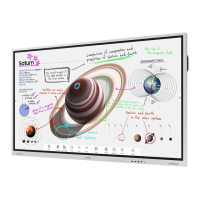
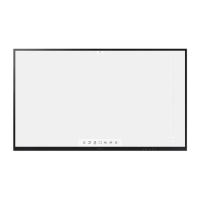
Samsung Flip WM55R - User Manual

Samsung Flip WM55R
74 pages
Print Icon
To Next Page IconTo Next Page
Loading...
User Manual
The colour and the appearance may differ depending on the product, and the content in the
manual is subject to change without prior notice to improve the performance.
Recommended hours of use per day of this product is under 16 hours. If the product is used for
longer than 16 hours a day, the warranty may be void.
An administration fee may be charged in the following situations:
(a) An engineer is called out at your request, but it is found that the product has no defect
(i.e., where the user manual has not been read).
(b) You bring the unit to a repair centre, but it is found that the product has no defect (i.e.,
where the user manual has not been read).
You will be informed of the administration fee amount before a technician visits.
© Samsung
Samsung owns the copyright for this manual. Use or reproduction of this manual in parts or entirety without the authorization of Samsung is prohibited.
Trademarks other than Samsung are property of their respective owners.
WM55R WM65R WM85R

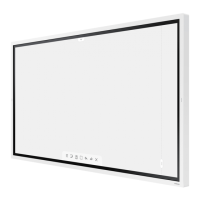
Table of Contents

Questions and Answers

  • M
    mackrobertAug 16, 2025
    How to fix blank spaces on Samsung Flip WM55R Monitor with HDMI connection?
    • K
      Kevin CraigAug 17, 2025
      If you notice blank spaces on all sides of your Samsung Monitor when connected via HDMI, it's typically not a monitor issue. To fix this, adjust the screen size within your graphics card's HDMI settings. If you don't see a screen size adjustment option, try updating your graphics card driver to the newest version.
  • D
    Daniel GarciaAug 19, 2025
    How to fix a blurry screen on a Samsung Flip WM55R Monitor?
    • L
      Lucas BryantAug 19, 2025
      To resolve a blurry screen on your Samsung Monitor, set the resolution and frequency to the recommended level.
  • J
    Jaime WatsonAug 22, 2025
    Why are there blank spaces on all four sides of my Samsung Flip WM55R Monitor screen when using an HDMI cable?
    • S
      steelekyleAug 22, 2025
      The blank spaces you're seeing aren't related to the Samsung Monitor itself. To fix this, try adjusting the screen size within your graphics card's HDMI settings. Also, ensure your graphics card driver is up to date. Contact your graphics card or computer manufacturer for specific instructions on adjusting screen settings.
  • T
    Tina NovakAug 26, 2025
    What to do if the Samsung Flip WM55R Monitor screen is not clear or appears blurry?
    • K
      Kimberly JohnsonAug 26, 2025
      If your Samsung Monitor screen appears blurry, set the resolution and frequency to the recommended level.
  • B
    bgardnerAug 28, 2025
    What to do if images on Samsung Monitor look distorted?
    • S
      Stacey WelchAug 28, 2025
      If the images on your Samsung Monitor appear distorted, check the cable connection to the product.
  • Z
    zstewartAug 31, 2025
    What to do if Samsung Flip WM55R screen is unstable and shaky?
    • K
      Kevin FuentesAug 31, 2025
      If your Samsung Monitor screen appears unstable and shaky, ensure that the resolution and frequency of both your PC and graphics card are within the monitor's compatible range. If necessary, adjust the screen settings.
  • C
    Christopher RodriguezSep 3, 2025
    What to do if Samsung Flip WM55R screen appears unstable and shaky?
    • T
      Taylor BrownSep 3, 2025
      If your Samsung Monitor screen appears unstable and shaky, ensure that the resolution and frequency of your PC and graphics card are set within a range compatible with the monitor. If needed, adjust the screen settings.
  • S
    Stephanie FaulknerSep 6, 2025
    Why do the images on my Samsung Monitor look distorted?
    • E
      Emily LoganSep 6, 2025
      If the images on your Samsung Monitor screen look distorted, check the connected cable. Using a cable not supplied by Samsung may cause compatibility issues.
  • S
    Steven AndersonSep 9, 2025
    What to do if my Samsung Flip WM55R Monitor screen appears unstable and shaky?
    • S
      Sara CobbSep 9, 2025
      Ensure the resolution and frequency of both your PC and graphics card are within the range compatible with the Samsung Monitor. If needed, adjust the screen settings referring to 'Preset Timing Modes'.
  • P
    Perry AguirreSep 12, 2025
    How to fix blank spaces on Samsung Flip WM55R Monitor when using HDMI?
    • M
      Marcus HarrisSep 12, 2025
      If you notice blank spaces on all four sides of the screen when connecting your Samsung Monitor to a PC via HDMI, the issue likely stems from your PC or graphics card settings, not the monitor itself. To fix this, adjust the screen size within the HDMI settings of your graphics card. If your graphics card settings lack a screen size adjustment option, try updating your graphics card driver to the latest version. For detailed instructions on adjusting screen settings, contact your graphics card or computer manufacturer.

Summary

Before Using the Product

Safety Precautions

Essential safety guidelines to prevent injury or damage.

Electricity and Safety

Precautions related to electrical connections and usage.

Installation

Instructions for correctly installing the product.

Operation

Guidance on how to use and operate the product.

Preparations

Ports and Connections

Details on various input/output ports and their functions.

Installation Guide

Comprehensive guide for product installation procedures.

Wall Mount Installation

Instructions for mounting the product on a wall.

Writing Features

PEN MODE Operations

Using the pen for writing, drawing, and editing.

Importing Content

Connecting to Mobile Devices

Screen mirroring and data transfer from phones/tablets.

Connecting to PCs

Methods for connecting and displaying PC content.

Menu and Settings

Picture Settings

Adjust display brightness, colour temperature, and input signal range.

Troubleshooting Guide

Problems and Solutions

Details common issues and provides solutions for them.

Specifications

General Specifications

Technical details of the product's hardware and environment.

Samsung Flip WM55R Specifications

General IconGeneral
Screen Size55 inches
Resolution3840 x 2160
Viewing Angle178°/178°
Weight28.9 kg
Response Time8 ms
VESA Mount400 x 400 mm
Aspect Ratio16:9
Refresh Rate60 Hz
Color Support1.07 billion colors
Operating SystemTizen 5.0
MagicInfoYes
Remote ManagementYes
Touch TechnologyInGlass
PortsHDMI, USB, RS232C
Built-in SpeakersYes
Touch Points20 points

Related product manuals