Basics
50
Screen capture
Capture a screenshot while using the device and write on, draw on, crop, or share the
captured screen. You can capture the current screen and scrollable area.
Capturing a screenshot
Use the following methods to capture a screenshot. Captured screenshots will be saved in
Gallery
.
•
Key capture: Press and hold the Home key and the Power key simultaneously.
Alternatively, press and hold the Volume Down key and the Power key simultaneously.
•
Swipe capture: Swipe your hand to the left or right across the screen.
•
Air command capture: Detach the S Pen from the slot to open the Air command panel,
and then tap
Screen write
.
•
It is not possible to capture a screenshot while using some apps and features.
•
If capturing a screenshot by swiping is not activated, launch the
Settings
app, tap
Advanced features
, and then tap the
Palm swipe to capture
switch to activate it.
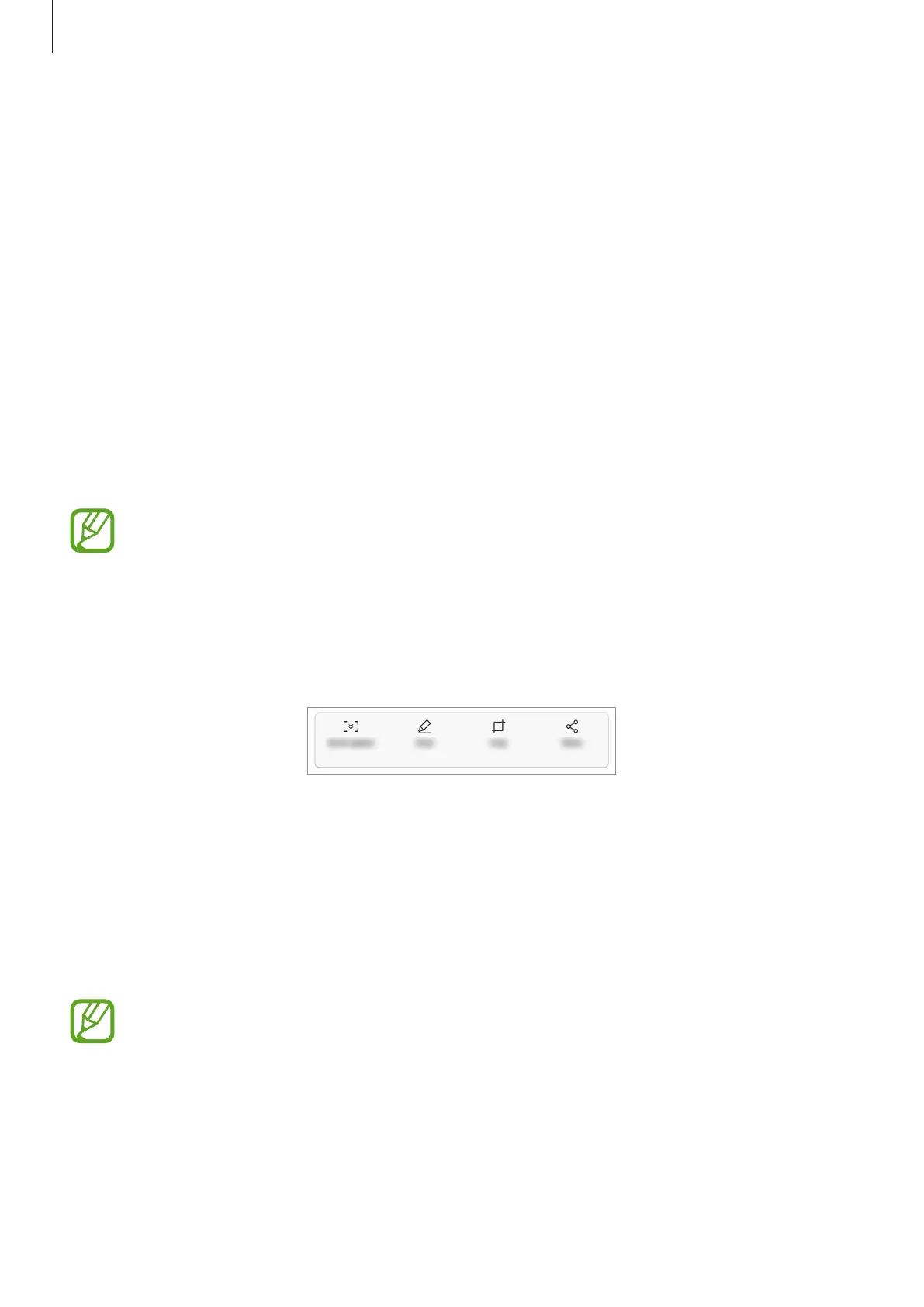
After capturing a screenshot, use the following options on the toolbar at the bottom of the
screen:
•
Scroll capture
: Capture content that continues across multiple screens, such as a
webpage. When you tap
Scroll capture
, the screen will automatically scroll down and
more content will be captured.
•
Draw
: Write or draw on the screenshot. Refer to Screen write for more information.
•
Crop
: Crop a portion from the screenshot. The cropped area will be saved in
Gallery
.
•
Share
: Share the screenshot with others.
If the options are not visible on the captured screen, launch the
Settings
app, tap
Advanced features
, and then tap the
Smart capture
switch to activate it.










 To Next Page