Apps and features
65
Using the camera button
•
Touch and hold the camera button to record a video.
•
If you drag the camera button to the icon, you can record a video without holding
the button.
•
To take burst shots, swipe the camera button to the edge of the screen and hold it. If
you tap
→
on the preview screen and tap
Swipe Shutter button to
→
Create
GIF
, you can create GIFs.
•
If you add another camera button, you can move it anywhere on the screen and
take pictures more conveniently. On the preview screen, tap
→
→
Shooting
methods
and tap the
Floating Shutter button
switch to turn it on.
Editing the shooting modes list
To edit the shooting modes list, tap
MORE
on the list, tap
Edit
, and then drag modes to
where you want.
Using zoom features
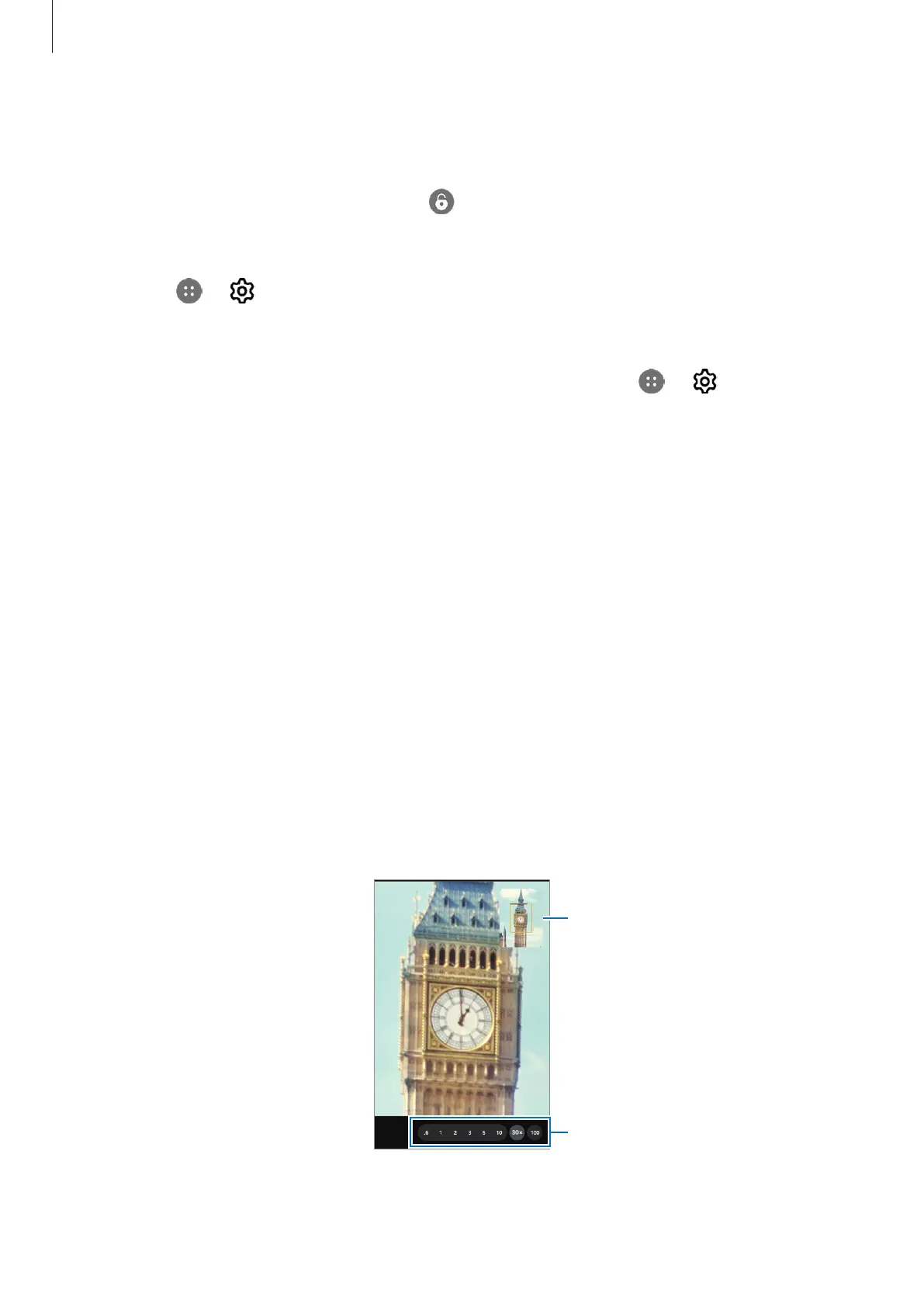
To zoom in or out while using the rear camera, select the desired zoom icon on the
preview screen.
You can also select the desired zoom level from the zoom level list that appears when
you tap the zoom icon.
To adjust the zoom more precisely, drag the zoom icon, pinch, or spread two fingers
apart on the preview screen.
If the zoom ratio exceeds a certain amount, a zoom guide map will appear to indicate
where you are zooming in on the image.
Zoom guide map
Zoom level list








 To Next Page