
 Need help?
Do you have a question about the Samsung Galaxy S9 Verizon and is the answer not in the manual?
Identifies key external hardware components of the Galaxy S9/S9+ including cameras, buttons, and ports.
Step-by-step guide for inserting a microSD card into the SIM/microSD card tray.
Instructions on charging the phone using the provided Adaptive Fast Charging charger.
Details on locking/unlocking screen with PIN, pattern, or biometrics like fingerprint and iris.
Explains how to choose between Easy and Standard modes for the phone's home screen interface.
How to customize the information displayed on the Edge screen for quick access.
Using the Bixby button for voice dictation, reminders, searches, and content access.
Information on getting apps from Google Play Store and Samsung Galaxy Apps.
Guide to copying contacts, photos, and data from an old phone using Smart Switch.
How to access the device User Manual and other help features on the phone or online.
Information on managing your Verizon account via the mobile app and customer service.
Details on features and rates for using the phone outside the United States.
Information regarding the phone's compatibility and performance with hearing aids.
 General
| Network Technology | GSM / CDMA / HSPA / EVDO / LTE |
|---|---|
| GPRS | Yes |
| EDGE | Yes |
| Announced | 2018, February |
| Status | Available. Released 2018, March |
| Dimensions | 147.7 x 68.7 x 8.5 mm (5.81 x 2.70 x 0.33 in) |
| Weight | 163 g (5.75 oz) |
| Build | Glass front (Gorilla Glass 5), glass back (Gorilla Glass 5), aluminum frame |
| SIM | Single SIM (Nano-SIM) or Hybrid Dual SIM (Nano-SIM, dual stand-by) |
| Display Type | Super AMOLED, HDR10 |
| Display Size | 5.8 inches, 84.8 cm2 (~83.6% screen-to-body ratio) |
| Aspect Ratio | 18.5:9 |
| Display Protection | Corning Gorilla Glass 5 |
| Chipset | Qualcomm SDM845 Snapdragon 845 (10 nm) |
| CPU | Octa-core (4x2.8 GHz Kryo 385 Gold & 4x1.7 GHz Kryo 385 Silver) |
| GPU | Adreno 630 |
| RAM | 4GB |
| Main Camera | 12 MP, f/1.5-2.4, 26mm (wide), 1/2.55", 1.4µm, dual pixel PDAF, OIS |
| Main Camera Features | LED flash, auto-HDR, panorama |
| Selfie camera | 8 MP, f/1.7, 25mm (wide), 1/3.6", 1.22µm, AF |
| Selfie Camera Features | Dual video call, Auto-HDR |
| Selfie Camera Video | 1440p@30fps |
| Loudspeaker | Yes, with stereo speakers |
| 3.5mm jack | Yes |
| WLAN | Wi-Fi 802.11 a/b/g/n/ac, dual-band, Wi-Fi Direct, hotspot |
| Bluetooth | 5.0, A2DP, LE, aptX |
| GPS | Yes, with A-GPS, GLONASS, BDS, GALILEO |
| NFC | Yes |
| Radio | FM radio (USA & Canada only) |
| Sensors | Iris scanner, fingerprint (rear-mounted), accelerometer, gyro, proximity, compass, barometer, heart rate, SpO2 |
| Battery | Li-Ion 3000 mAh, non-removable |
| Models | SM-G960U |
| Water Resistance | IP68 dust/water resistant (up to 1.5m for 30 mins) |
| Network | Verizon |
| 2G bands | GSM 850 / 900 / 1800 / 1900 |
| 3G bands | HSDPA 850 / 900 / 1700(AWS) / 1900 |
| 4G bands | LTE band 2(1900), 4(1700/2100), 5(850), 12(700), 13(700), 25(1900), 26(850), 41(2500) |
| Speed | HSPA 42.2/5.76 Mbps |
| Screen-to-body ratio | ~83.6% |
| Resolution | 1440 x 2960 pixels |
| OS | Android 8.0 (Oreo) |
| Card slot | microSDXC (uses shared SIM slot) |
| Internal Storage | 64GB 4GB RAM |
| Main Camera Video | 720p@960fps, HDR |
| Charging | Fast charging 15W, wireless charging |
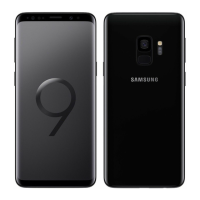
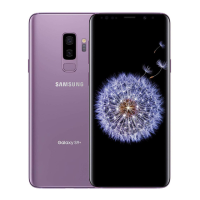
| Colors | Midnight Black, Coral Blue, Titanium Gray, Lilac Purple |
| SAR EU | 0.36 W/kg (head) |
| Pixel Density | 570 ppi |
| USB | USB Type-C 3.1 |




 To Next Page