EasyManua.ls Logo

Samsung GT-N7000 - User Manual

Samsung GT-N7000
192 pages
Print Icon
To Next Page IconTo Next Page
Loading...
GT-N7000
user manual

Table of Contents

Other manuals for Samsung GT-N7000

Questions and Answers

  • S
    Stephen BrownSep 4, 2025
    Why must I enter a PIN when using my Samsung Cell Phone for the first time?
    • J
      Joseph LopezSep 5, 2025
      When using your Samsung Cell Phone for the first time or when the PIN requirement is enabled, you must enter the PIN supplied with the SIM or USIM card.
  • S
    Savannah FigueroaAug 25, 2025
    Why is my Samsung GT-N7000 Cell Phone hot to the touch?
    • C
      Courtney BurgessAug 25, 2025
      If your Samsung Cell Phone is hot to the touch, this is normal and should not affect your device’s lifespan or performance.
  • L
    Lisa TorresAug 25, 2025
    What to do if my Samsung GT-N7000 Cell Phone battery does not charge properly?
    • B
      Benjamin MejiaAug 26, 2025
      If your Samsung Cell Phone battery isn't charging correctly, the battery terminals may be dirty. Wipe the gold coloured contacts with a clean, soft cloth and try charging again. If it still won't charge completely, replace it with a new battery, disposing of the old one properly according to local ordinances.
  • N
    Nicole MurraySep 12, 2025
    What to do if my Samsung Cell Phone shows error messages when launching the camera?
    • J
      Joe NicholsonSep 13, 2025
      If your Samsung Cell Phone displays error messages when launching the camera, charge the battery or replace it with a fully charged one. You can also free some memory by transferring files to a computer or deleting files from your device. Restart the device. If the issue continues, contact a Samsung Service Centre.
  • B
    Barbara KleinSep 22, 2025
    What to do when my Samsung Cell Phone battery is low?
    • S
      Sarah BrooksSep 22, 2025
      Recharge or replace the battery to continue using your Samsung Cell Phone.
  • Y
    yhaysSep 8, 2025
    What to do if my Samsung GT-N7000 Cell Phone won't connect to my PC?
    • J
      Jeremy AndersonSep 8, 2025
      If your Samsung Cell Phone does not connect to your PC, ensure that the USB cable you are using is compatible with your device and that you have the proper drivers installed.
  • N
    Natalie RomeroSep 1, 2025
    Why are my outgoing calls not connected on my Samsung Cell Phone?
    • Z
      zfreemanSep 1, 2025
      If your Samsung Cell Phone is not connecting outgoing calls, ensure that you have pressed the Dial key. Also, check that you have accessed the right cellular network and that you have not set call barring for the phone number you are dialling.
  • K
    kmedinaSep 23, 2025
    Why is a connection not established when I connect my Samsung Cell Phone to a PC?
    • W
      whitepatriciaSep 23, 2025
      If a connection isn't established when you connect your Samsung Cell Phone to a PC, ensure that the USB cable you are using is compatible with your device. Also, make sure you have the proper drivers installed.
  • C
    Cameron LittleSep 16, 2025
    How to fix error messages when launching the FM radio on my Samsung GT-N7000?
    • C
      Christian RomeroSep 16, 2025
      To resolve error messages when launching the FM radio on your Samsung Cell Phone, ensure that the headset is properly connected. If the issue persists, test the station with another radio receiver to determine if your device requires service.
  • D
    Daniel Gallegos DDSAug 28, 2025
    What to do if my Samsung GT-N7000 requires a PUK for SIM card?
    • J
      Jason WoodsAug 28, 2025
      If your Samsung Cell Phone requires a PUK for the SIM or USIM card, it means your SIM or USIM card is blocked, usually because you entered your PIN incorrectly several times. You must enter the PUK supplied by your service provider.

Summary

Assembling

Unpack

Check your product box for the following items: Mobile device, Battery, Quick start guide.

Install the SIM or USIM card and battery

Learn how to install the SIM or USIM card and battery into your device.

Charge the battery

Before using the device for the first time, you must charge the battery.

Getting started

Turn your device on and off

Instructions on how to turn your device on and off.

Get to know your device

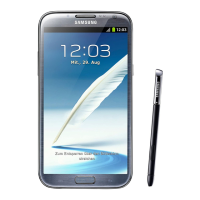
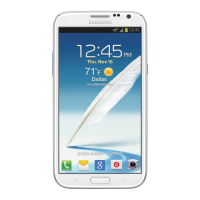
Familiarize yourself with the device layout and keys.

Use the S Pen and the touch screen

Learn basic actions for using the touch screen and S Pen.

Enter text

Learn how to enter text using the virtual keypad or handwriting.

Communication

Calling

Learn to use calling functions, such as making and answering calls.

Messaging

Learn to create and send text (SMS) or multimedia (MMS) messages.

Google Mail

Retrieve new email messages from the Google Mail webmail service.

Entertainment

Camera

Learn how to capture and view photos and videos.

Music

Learn to listen to your favourite music while on the go.

FM radio

Learn to listen to music and news on the FM radio.

Web

Internet

Learn to access and bookmark your favourite webpages.

Maps

Learn to use the Google Maps mapping service to find your location.

YouTube

Learn to view and share videos via the YouTube video sharing service.

Connectivity

Bluetooth

Learn about Bluetooth wireless technology and its features.

Wi-Fi

Learn to use your device's wireless networking capabilities.

GPS

Learn to activate location services for GPS functionality.

Tools

Clock

Learn to set and control alarms, and world clocks.

Calculator

Learn to perform mathematical calculations directly on your device.

My files

Learn to quickly and easily access all of your images, videos, music, and other files.

Settings

Access the Settings menu

Navigate and access various setting categories on your device.

Wireless and network

Change the settings for wireless network connections.

Call

Customize the settings for calling features.

Display

Change the settings for the display.

Location and security

Change settings for securing your device and SIM card.

Troubleshooting

The touch screen responds slowly or improperly

Troubleshoot issues with the touch screen responsiveness.

Your device freezes or has fatal errors

Resolve issues where the device freezes or becomes unresponsive.

Error messages appear when launching the camera

Resolve error messages when launching the camera application.

Safety precautions

Warning: Prevent electric shock, fire, and explosion

Important warnings about preventing electric shock, fire, and explosion.

Proper care and use of your mobile device

Guidelines for the proper care and usage of your mobile device.

Do not disassemble, modify, or repair your device

Avoid unauthorized disassembly, modification, or repair of the device.

Disclaimer

Samsung GT-N7000 Specifications

General IconGeneral
ModelGT-N7000
Also known asSamsung Galaxy Note
Announced2011, September
StatusDiscontinued
Dimensions146.9 x 83 x 9.7 mm (5.78 x 3.27 x 0.38 in)
Weight178 g (6.28 oz)
SIMMini-SIM
DisplaySuper AMOLED
Resolution800 x 1280 pixels, 16:10 ratio (~285 ppi density)
ProtectionCorning Gorilla Glass
Operating SystemAndroid 2.3.5 (Gingerbread), upgradable to 4.1.2 (Jelly Bean)
ChipsetExynos 4210 Dual
CPUDual-core 1.4 GHz Cortex-A9
GPUMali-400MP4
RAM1 GB
Internal storage16GB/32GB
External storagemicroSD, up to 32 GB (dedicated slot)
Main Camera8 MP, f/2.6, AF
Main Camera Video1080p@24~30fps
Front Camera2 MP
BatteryLi-Ion 2500 mAh, removable
ColorsBlack, White, Pink
NetworkGSM / HSPA
LoudspeakerYes
3.5mm jackYes
WLANWi-Fi 802.11 a/b/g/n, dual-band, Wi-Fi Direct, hotspot
GPSYes, with A-GPS
RadioStereo FM radio, RDS
USBmicroUSB 2.0 (MHL TV-out), USB On-The-Go
SensorsAccelerometer, gyro, proximity, compass, barometer
Screen-to-body ratio65.8%
Pixel density285 ppi
BluetoothA2DP
NFCOptional

Related product manuals