Need help?
Do you have a question about the Samsung HT-J7750W and is the answer not in the manual?
Important health and safety information for viewing 3D pictures. Read before use.
Check the box for the accessories and speaker components listed or shown.
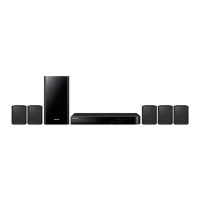
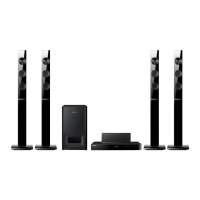
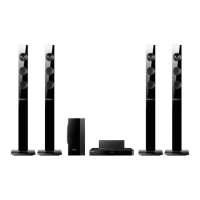
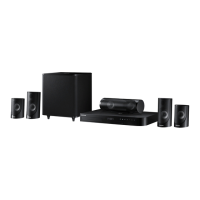
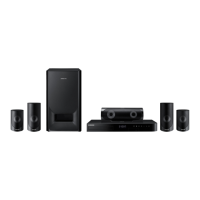
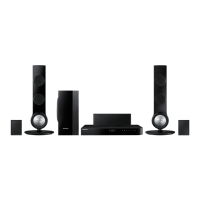
Lists and illustrates all the speaker components included with the product.
Diagram and description of the product's front panel controls and display icons.
Diagram and description of the product's rear panel connections and ports.
Overview of the remote control buttons and how to install batteries.
Instructions on speaker placement and connection for optimal sound.
Step-by-step guide for assembling speaker stands and mounting speakers.
How to connect speaker cables to the product and speakers using color coding.
Methods for connecting the product to a TV and various external audio/video devices.
Details on connecting external components via HDMI, AUX, and Optical audio inputs.
Instructions for connecting the product to a network router via wired or wireless connections.
Guide to completing the initial setup wizard for language, network, and resolution.
Overview of the Home screen layout and its main menu options and icons.
Steps to open the Settings menu and use the remote control for navigation.
Detailed explanation of Picture and 3D Settings functions like UHD Output.
Adjusts the product's output to match your TV's screen size for optimal viewing.
Samsung's feature for optimal connectivity and video resolution with Samsung products.
Set the HDMI video output resolution to various standards like 1080p or 720p.
Automatically adjusts HDMI output to 24 fps for improved picture quality on compatible TVs.
Configure speaker settings, volume levels, distance, and test speaker output.
Enables enjoying sound through remote speakers connected via your home network.
Calibrates sound quality based on hearing and ambient conditions for optimal audio.
Directs TV sound to home cinema speakers via HDMI ARC connection.
Set Digital Output to match AV receiver capabilities for optimal audio signal.
Controls dynamic range for Dolby Digital audio formats to adjust quiet and loud sounds.
Check network status and configure connection for internet services and software upgrades.
Connect Wi-Fi Direct devices peer-to-peer without a wireless router.
Configure BD-Live functions to access extra features on Blu-ray Discs.
Manage Smart Hub settings, terms, privacy policy, and reset to default.
Re-run initial setup, adjust boot time, language, and manage connected devices.
Set BD/DVD parental ratings, change PIN, and reset settings if PIN is forgotten.
Specify display brightness, time zone, and menu transparency settings.
Link and control other Samsung products with Anynet+ feature via HDMI.
Operating the radio, tuning stations, selecting mono/stereo, and preset tuning.
Record your favorite radio broadcasts onto a USB storage device.
Configure wired and wireless network connections for internet services and upgrades.
Automatic and manual setup procedures for connecting to a network via Ethernet cable.
Automatic, manual, and WPS setup procedures for connecting to wireless networks.
Easy wireless setup using WPS(PBC) function if your router supports it.
Connect Wi-Fi Direct devices peer-to-peer without a wireless router.
Update the product's software for performance improvements or additional services.
Download and install upgrade software directly from the Internet.
Set product to download new upgrade software automatically when connected.
Download update package to USB device and update product software.
How to insert, play, and manage commercial Blu-ray, DVD, and CD discs.
Guidelines for proper disc handling, cleaning, and storage to maintain playback quality.
Play photos, videos, and music from connected storage devices or network sources.
Methods to play files from USB devices or other storage media connected to the product.
Stream media content from PCs or mobile devices connected to the same network.
Control playback of video content from discs, USB, mobile devices, or PCs.
Identifies remote control buttons used for disc and file video playback operations.
Accessing and using the TOOLS menu for playback options like settings and scene selection.
View or start a movie from a specific scene by searching titles, chapters, or time.
Set playback to repeat a title, chapter, or specific section (A-B repeat).
Select picture modes like Dynamic, Standard, Movie, or User for optimal viewing.
Enable the equalizer to customize personal sound preferences.
Sort and filter video files by date, title, or folder; use options like Play Selected or Send.
Control playback of music content from discs, USB, mobile devices, or PCs.
Identifies remote control buttons for music playback operations like track navigation and play/pause.
On-screen controls for music playback, including track list, pause, play, and seek.
Sort and filter music files by track, album, artist, genre, or folder; use options.
Organize music files by track, album, artist, genre, or folder for easier browsing.
Features like Play Selected, Send, Encoding, Rename Playlist, Delete Playlist, Add to Playlist.
Set audio CD tracks to repeat one track or all tracks, or play in random order.
Set audio CD tracks to play at random for varied listening.
Create a playlist by selecting specific tracks from a commercial CD for custom playback.
Create playlists from self-recorded CDs, USB devices, or other media for custom playback.
Create and edit playlists stored on USB devices or other storage media.
Connect USB device with playlist, navigate to it, and start playback.
Modify playlist content by selecting or deselecting tracks, or using Select All/Deselect All.
Rip music CDs to USB devices in MP3 format for playback on the product or other devices.
Connect Bluetooth devices wirelessly to enjoy high-quality stereo sound without wires.
Step-by-step guide to pairing the Home Cinema with a Bluetooth device for audio streaming.
Instructions on how to disconnect a paired Bluetooth device from the Home Cinema.
How to switch modes or turn off the Home Cinema to disconnect from a Bluetooth device.
Turn on the Home Cinema automatically by connecting a previously paired smart device.
Play photo content from DVDs, USB, mobile devices, or PCs.
Use the TOOLS menu to adjust slideshow settings, rotate, zoom, and set picture modes.
Upload selected files (photos, music, videos) to online sites or devices.
Displays picture information, including details affected by disc or storage device.
Sort and filter photo files by date, title, or folder; use options like slideshow or send.
Select sound modes like DSP, Virtual Surround, SFE Mode, or Sports for optimized audio.
Enjoy vivid surround sound by adjusting audio depth with level options.
Steps to create or log in to your Samsung account for accessing services.
Guide to setting up Smart Hub before using SAMSUNG APPS for the first time.
Download, launch, and manage applications from the internet via the SAMSUNG APPS screen.
Steps to select, download, and install applications from the app store.
Check for available app updates, select apps to update, and perform the update.
View your smart device screen on the TV wirelessly using Screen Mirroring.
Access the internet using the Web Browser application on the product.
Understand and activate Pointer Browsing or Link Browsing for web navigation.
Overview of control panel icons in the web browser for navigation and functions.
Access the Settings menu to control browser operation, security, and settings.
Turn the Grabber function on/off to move web pages without dragging the scroll bar.
Restrict children's access to inappropriate web pages by allowing only registered sites.
Enable or disable Privacy mode to prevent the browser from retaining visited URLs.
Link product to internet service accounts like Pandora for automatic login.
Enjoy movie-related service contents available on BD-LIVE compliant discs.
Notes on HDMI output, 3D settings, TV aspect ratio, and BD Wise function.
Select correct Digital Output to avoid noise or no sound. Explains PCM vs. Bitstream.
Information regarding the front panel display brightness and buttons.
When Sound Output is set to TV Speaker, audio is produced by the TV speakers.
Lists compatible disc types and content formats the product can play.
Visual guide to logos of discs and formats supported by the product.
Explanation of region codes for discs and product; codes must match for playback.
Information on playing AVCHD format discs, a high-definition digital video format.
Details on supported file extensions, containers, codecs, and limitations for USB connection.
Lists supported video file extensions, containers, codecs, resolutions, frame rates, and audio codecs.
Lists supported music file extensions, types, codecs, and comments for playback.
Lists supported picture file extensions, types, resolutions, and comments for playback.
Table showing PCM and Bitstream output selections for Blu-ray and DVD audio streams.
Guides on setting resolution for Blu-ray, DVD, and digital content based on BD Wise.
Table of common symptoms and their corresponding check/remedy instructions.
Remedy for when the menu screen fails to appear, possibly due to disc type.
Troubleshooting steps if aspect ratio settings cannot be changed, referring to disc jacket.
Steps to reset the unit if the product is not working or makes strange noises.
Troubleshooting steps for poor radio reception, including antenna connection.
Troubleshooting for no TV audio when using D. IN or AUX functions, potentially muted.
Reasons why a feature may be unavailable or an action cannot be completed.
What to do if HDMI output resolution is too high for the TV, resulting in no picture.
Check HDMI cable connection and TV compatibility for HDMI input resolution.
Troubleshooting abnormal HDMI output, possibly due to HDCP incompatibility.
Troubleshoot connection issues with the BD-LIVE server and service errors.
Technical specifications including weight, dimensions, operating conditions, and audio/video outputs.
Specifications for each speaker in the 7.1 channel system: impedance, range, output, dimensions.
Specifications for the SWA-7000 wireless receiver module: weight, dimensions, operating conditions.
Information on Dolby, DTS, DivX, HDMI, Java, and other licenses and trademarks.
 General
| Disc types supported | DVD, DVD+R, DVD+RW, DVD-R, DVD-RW |
|---|---|
| Playback disc formats | Blu-Ray video |
| Optical disc player type | Blu-Ray player |
| Built-in HDD | No |
| Image formats supported | JPG |
| Apple docking compatibility | - |
| 3D | Yes |
| Video formats supported | AVCHD, DIVX, WMV, WMV7, WMV8, WMV9 |
| Analog signal format system | PAL |
| Audio decoders | Dolby Digital, Dolby Digital Plus, Dolby TrueHD, DTS 96/24, DTS Digital Surround, DTS-HD Master Audio |
| RMS rated power | 1330 W |
| Audio output channels | 7.1 channels |
| Audio formats supported | AAC, FLAC, LPCM, MP3, WMA |
| Preset stations quantity | 15 |
| Satellite speaker type | 2-way |
| Subwoofer type | Passive subwoofer |
| Product color | Black |
| Consumer Electronics Control (CEC) | Anynet+ |
| HDMI in | 2 |
| USB version | 2.0 |
| SCART ports quantity | 0 |
| Number of HDMI outputs | 1 |
| Power consumption (standby) | 0.29 W |
| Power consumption (typical) | 72.5 W |
| Package weight | 34700 g |
 Weight and Dimensions
| Main unit weight | 2700 g |
|---|---|
| Subwoofer weight | 5700 g |
| Center speaker weight | 1000 g |
| Satellite speaker weight | 4700 g |
| Main unit dimensions (WxDxH) | 430 x 312 x 55 mm |
| Subwoofer dimensions (WxDxH) | 200 x 350 x 390 mm |
| Front speaker dimensions (WxDxH) | 95 x 101 x 1215 mm |
| Center speaker dimensions (WxDxH) | 320 x 101 x 81 mm |
| Satellite speaker dimensions (WxDxH) | 95 x 101 x 1160 mm |


 To Next Page