EasyManua.ls Logo

Samsung HW-S80 D Series - User Manual

Samsung HW-S80 D Series
28 pages
Print Icon
To Next Page IconTo Next Page
Loading...
© 2024 Samsung Electronics Co., Ltd. All rights reserved.
User Guide
HW-S80*D / HW-S81*D / HW-S81*GD
HW-S70*D / HW-S71*D / HW-S71*GD
Thank you for purchasing this Samsung product.
To receive more complete service, please register your product at
www.samsung.com
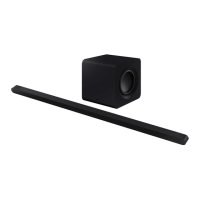
Figures and illustrations in this User Guide are provided for reference
only and may differ from actual product appearance.

Other manuals for Samsung HW-S80 D Series

Question and Answer IconNeed help?

Do you have a question about the Samsung HW-S80 D Series and is the answer not in the manual?

Summary

Product Overview

Top Panel Controls

Overview of buttons and indicators on the soundbar's top panel for basic operation.

Rear Panel Connections

Details of ports on the rear panel, including SERVICE, HDMI (eARC), and DC 19V.

Soundbar Remote Control Usage

Remote Control Operation

Guides on using the remote control, including buttons, power functions, and audio feedback.

Remote Control Functions

Detailed functions of remote control buttons like navigation, sound modes, volume, and Bluetooth pairing.

Advanced Remote Functions

Controls for speaker levels, tone, and advanced sound settings like SpaceFit Sound.

Hidden Button Functions

Explains hidden functions accessed via specific button combinations on the remote control.

Adjusting Soundbar Volume with TV Remote

How to control the soundbar volume using a TV's remote control for convenience.

Connecting the Soundbar

Power and Unit Connection

Steps to connect the soundbar and subwoofer to power outlets and ensure they are properly linked.

Manual Subwoofer Connection

Procedure for manually pairing the subwoofer with the soundbar if automatic connection fails.

Subwoofer Status LEDs

Explains the meaning of LED indicator lights on the subwoofer for status and troubleshooting.

Connecting Wireless Rear Speaker Kit

Instructions for connecting an optional rear speaker kit for enhanced surround sound.

Connecting to a TV

HDMI ARC;eARC Connection

How to connect the soundbar to a TV using HDMI ARC or eARC for audio output.

Bluetooth TV Connection

Steps to pair and connect the soundbar to a Samsung TV via Bluetooth for wireless audio.

Wi-Fi TV Connection

Guide to connecting the soundbar to a TV using a Wi-Fi network for audio streaming.

Dolby Atmos Connection

How to set up Dolby Atmos audio connection via HDMI or Wi-Fi for immersive sound.

Q-Symphony Function

Explains how to use the Q-Symphony feature for synchronized TV and soundbar audio playback.

Spacefit Sound Configuration

How to enable and use the SpaceFit Sound feature for optimized acoustics based on listening space.

Connecting a Mobile Device

Mobile Bluetooth Connection

Steps to connect a mobile device to the soundbar using Bluetooth for audio playback.

Bluetooth Disconnection

Instructions on how to disconnect a previously paired Bluetooth device from the soundbar.

Mobile Wi-Fi Connection

Guide to connecting a mobile device to the soundbar using Wi-Fi via the SmartThings app.

Group Play Configuration

How to use the Group Play feature to play audio on multiple devices simultaneously.

Apple AirPlay Streaming

Instructions for streaming audio from Apple devices to the soundbar using AirPlay.

Tap Sound Feature

How to use the Tap Sound feature to play audio by tapping a mobile device on the soundbar.

Wall Mount Installation

Installation Precautions

Important safety and preparation guidelines before installing the wall mount for the soundbar.

Wallmount Components

Lists and illustrates the parts included for wall mounting the soundbar securely.

Installing the Soundbar

Placement in Front of TV

Instructions for placing the soundbar on a TV stand in front of the television for optimal performance.

Software and Firmware Updates

Automatic and USB Updates

Details on how to update the soundbar's software automatically or via USB for new features.

Resetting the Soundbar

Procedure for resetting the soundbar to factory default settings to resolve issues.

Security Updates Information

Information on security updates to protect personal information and ensure device integrity.

Troubleshooting Common Issues

Power, Remote, and Soundbar Operation Issues

Solutions for soundbar not powering on, erratic behavior, remote control failures, and indicator lights.

Audio Output and Subwoofer Connectivity

Resolving issues related to no sound, subwoofer problems, or poor audio quality.

TV and Bluetooth Connection Problems

Troubleshooting TV connection failures via HDMI/eARC and Bluetooth pairing issues.

Wireless and Feature Connectivity Issues

Resolving Bluetooth dropouts, Wi-Fi connection failures, feature limitations, and audio output problems.

Overview

This document is a user guide for the Samsung Soundbar models HW-S80*D, HW-S81*D, HW-S81*GD, HW-S70*D, HW-S71*D, and HW-S71*GD. It covers checking components, product overview, remote control usage, connecting the soundbar, connecting to a TV, connecting mobile devices, and installation.

Function Description

The Samsung Soundbar is designed to enhance your audio experience, offering various sound modes and connectivity options. It functions as a central audio output for your TV and mobile devices, providing richer, more immersive sound. The soundbar can be used with a wireless subwoofer and, optionally, with a Samsung Wireless Rear Speaker Kit (sold separately) for true wireless surround sound.

Sound Modes: The soundbar offers several audio modes accessible via the remote control:

  • Surround: Provides a wider sound field than standard.
  • Game: Offers stereoscopic sound for an immersive gaming experience.
  • Standard: Outputs the original sound.
  • Adaptive Sound: Analyzes content in real-time to provide optimal sound.
  • DTS Virtual:X: Delivers immersive 3D sound.

Connectivity: The soundbar supports multiple connection types:

  • HDMI (eARC): Connects to a TV supporting Audio Return Channel for high-quality audio.
  • Bluetooth: Allows wireless connection to Samsung TVs and mobile devices for stereo sound.
  • Wi-Fi: Enables connection to a TV or mobile device via a wireless network, supporting features like Group Play and Apple AirPlay.
  • USB (Service Port): Used for software updates.

Special Features:

  • Q-Symphony: When connected to a compatible Samsung TV, this function allows simultaneous audio output through both the soundbar and TV speakers, creating a more three-dimensional surround sound effect.
  • SpaceFit Sound: Optimizes sound quality by analyzing the listening space using the soundbar's microphone. This can be enabled via the soundbar remote or through the Adaptive Sound+ mode on a Samsung TV.
  • Active Voice Amplifier: Analyzes external noise in real-time to ensure voice audio is always clear.
  • Voice Enhancement: Makes spoken dialogue easier to hear.
  • Night Mode: Optimizes settings for nighttime listening, reducing overall volume while maintaining clear dialogue.
  • Sound Grouping: Allows the soundbar main unit and surround speakers to play the entire sound, ideal for larger groups.
  • Private Rear Sound: Directs sound only to the surround speakers, useful for personal listening without disturbing others.
  • Tap Sound: Allows users to play content from a mobile device by simply tapping the device on the soundbar, establishing a Bluetooth connection.
  • Apple AirPlay: Stream music, podcasts, and other audio from Apple devices to the soundbar.

Usage Features

Remote Control: The soundbar comes with a remote control for easy operation.

  • Power: Turns the soundbar on/off.
  • Source: Changes the input source (e.g., TV ARC, Bluetooth, Wi-Fi).
  • Volume (+/-): Adjusts the overall volume.
  • Woofer (Bass) Level: Adjusts the subwoofer level from -12 to +6.
  • Sound Mode: Selects different audio modes (Surround, Game, Standard, Adaptive Sound, DTS Virtual:X).
  • Sound Control: Accesses advanced audio functions like SpaceFit Sound, Active Voice Amplifier, Voice Enhancement, Night Mode, Sync, and Virtual. Long-pressing this button allows adjustment of sound for specific frequency bands (150Hz to 10kHz).
  • CH Level: Adjusts the volume of individual speakers (Center, Front Top, Rear, Rear Top).
  • Tone Control: Adjusts treble or bass sound levels.
  • Bluetooth PAIR: Switches the soundbar to Bluetooth pairing mode.
  • Mute: Mutes/unmutes the sound.
  • Info: Displays current function information.
  • Up/Down/Left/Right: Navigates menus and controls functions like music skip and ID SET.

Connecting to TV:

  • HDMI ARC/eARC: Connect an HDMI cable from the TV's HDMI IN (ARC/eARC) port to the soundbar's HDMI (eARC) port. Ensure the TV's eARC function is enabled in its settings.
  • Bluetooth: Select Bluetooth mode on the soundbar and then on your Samsung TV. Choose "Ultra Slim Soundbar" from the TV's speaker list.
  • Wi-Fi: Connect both the soundbar and TV to the same wireless network. Select "Ultra Slim Soundbar (Wi-Fi)" as the TV's sound output.

Connecting Mobile Devices:

  • Bluetooth: Press the PAIR button on the remote or hold the Mic On/Off / Source button on the soundbar for 5 seconds to enter Bluetooth pairing mode. Select "Ultra Slim Soundbar" on your mobile device.
  • Wi-Fi (SmartThings App): Install the SmartThings app, add the soundbar, and follow the on-screen instructions.
  • Group Play: Use the SmartThings app to create a group with at least two audio devices connected to the same 5 GHz Wi-Fi network.
  • Apple AirPlay: Select the AirPlay icon in a supported app on your Apple device and choose the soundbar from the device list.
  • Tap Sound: Enable Tap Sound in the SmartThings app, then lightly tap your mobile device on the soundbar to establish a Bluetooth connection and play audio.

Installation:

  • In front of TV: Place the soundbar on a flat, solid surface, aligning its center with the TV. Ensure microphones are not obstructed.
  • Wall Mount: Use the provided wall mount guide, brackets, screws, and screw anchors. Ensure the wall is strong enough to support the soundbar's weight. If mounting below a TV, allow at least 5 cm clearance.

Maintenance Features

Software Update:

  • Auto Update: If connected to the internet, the soundbar automatically updates its software. Ensure a stable Wi-Fi connection.
  • USB Update: Download update files from samsung.com, unzip them to a USB drive, and connect the USB drive to the soundbar's SERVICE port.

Troubleshooting: The user guide provides solutions for common issues:

  • Soundbar not turning on: Check power cord connection.
  • Erratic operation: Power cycle the soundbar and external devices.
  • Remote control not working: Point directly at the soundbar, recharge/replace batteries.
  • Soundbar indicator solid red: Microphone is off; turn it on.
  • No sound output: Adjust volume, check cable connections, verify TV sound output settings, reset the soundbar.
  • No subwoofer sound: Check LINK LED on subwoofer (should be solid blue), reconnect if blinking or red, ensure no obstacles, move away from radio interference sources.
  • Sound jitter/delays/noise: Reposition soundbar/subwoofer to avoid obstacles or interference, change TV network connection to wired.
  • Subwoofer volume too low: Adjust subwoofer level, move subwoofer closer.
  • TV not connected via HDMI (eARC): Check HDMI cable, ensure HDMI-CEC is activated on TV, try direct connection to soundbar.
  • No sound in HDMI (eARC) mode: Change TV's audio output to PCM or Dolby Digital.
  • Bluetooth connection issues: Ensure soundbar is in "Bluetooth Pairing" mode, disconnect from other devices, remove from device lists and reconnect, power cycle, reset.
  • Sound drops out via Bluetooth: Ensure devices are close, no obstacles, and away from radio interference.
  • Wi-Fi connection issues: Check wireless router, power cycle router, move soundbar closer to router, reconfigure network settings if router is new.
  • Soundbar not turning on automatically with TV: Turn off TV first to re-enable power synchronization.
  • AVA function unavailable: Check if Q-Symphony is active or microphone is off.
  • No TV sound after switching soundbar mode: Disconnect any mobile devices connected to the soundbar.
  • Group Play not enabled: Check if devices are newer models (2024 or later), host device is Wi-Fi source, and all devices are on the same 5 GHz Wi-Fi network.

Reset Function:

  • To reset the soundbar, press the Volume (+) and (-) buttons simultaneously for at least 5 seconds while the soundbar is on. This resets all settings.

Deactivation Methods:

  • Bluetooth Port Deactivation: Press the TONE CONTROL button on the remote for 30 seconds to turn Bluetooth On/Off.
  • Wi-Fi Port Deactivation: Press the CH LEVEL button on the remote for 30 seconds to turn Wi-Fi On/Off.

Samsung HW-S80 D Series Specifications

General IconGeneral
TypeSoundbar
Dolby AtmosYes
DTS:XYes
BluetoothYes
HDMI Inputs1
HDMI Outputs1
HDMI eARCYes
Wi-FiYes
Voice AssistantAmazon Alexa

Related product manuals