
 Need help?
Do you have a question about the Samsung KS9500 and is the answer not in the manual?
Instructions for inserting batteries into the remote control for proper operation.
Guide to installing batteries into the Samsung Smart Control, ensuring correct polarity.
Instructions on how to use the TV Controller button on the rear of the TV.
Steps to connect the TV to the internet using a wireless router or modem.
Instructions for connecting the TV to a network using a LAN cable.
Explains how to navigate and use the features within the TV's embedded e-Manual.
Guide to completing the initial setup process when the TV is first activated.
Tips for resolving unstable Wi-Fi connections, checking distance and interference.
Solutions for issues with video applications like YouTube, involving network settings.
Explains the process of using Samsung's remote support service with a technician.
Detailed instructions and warnings for safely mounting the TV onto a wall.
Visual guide on how to organize and route cables neatly using the provided cable management system.
Steps and considerations for securing the TV to the wall to prevent accidental tipping.
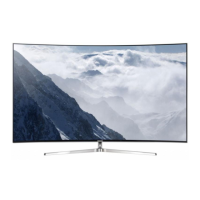
This document is a user manual for a Samsung 9 Series TV, providing comprehensive instructions on its setup, operation, and maintenance.
The Samsung 9 Series TV is a high-definition television designed for home entertainment. It offers access to online services through its Smart Hub feature and supports software updates to maintain optimal performance. The TV can be connected to a network wirelessly via a standard router or modem with a DHCP server, or through a wired LAN connection using a CAT 7 (*STP type) cable. It also supports mobile network connectivity using a separately sold Mobile Dongle inserted into a USB port.
The TV features an Eco Sensor that automatically adjusts screen brightness based on ambient light to optimize power consumption. It also includes various picture format options to prevent image burn-in on the LED screen, especially when displaying still images or content with static elements like channel logos.
The TV can be controlled using two types of remote controls: a standard remote control and a Samsung Smart Control (Voice Interaction version).
The standard remote control features Braille points on the Power, Channel, Volume, and Enter buttons for visually impaired users. Key functions include:
The Samsung Smart Control (Voice Interaction version) offers additional features:
The TV also has a TV Controller button on the rear, which can be used to turn on the TV and access a control menu for basic functions like Power off, Channel Up/Down, Volume Up/Down, and Source selection.
The e-Manual, embedded in the TV, provides detailed information on key features. It can be accessed via Settings > Support > Open e-Manual. It includes search, index, recent pages, "Try Now" for direct feature access, and links to related pages. A printable version is available on the Samsung website.
Initial Setup: The initial setup dialogue appears on first activation. It can also be accessed later via Settings > System > Start Setup.
Troubleshooting: The manual provides a troubleshooting section for common issues like the TV not turning on, no picture/sound from external devices, or remote control not working. It advises checking cable connections, input sources, and performing self-diagnosis tests. For Wi-Fi issues, it suggests checking network connection, password, distance to router, and reducing interference. For video app problems, it recommends changing DNS settings or resetting Smart Hub.
Remote Support: Samsung offers a remote support service where a technician can diagnose, adjust settings, perform factory resets, or install firmware updates remotely. To use this, call the Samsung Contact Centre, navigate to Support > Remote Management on the TV, agree to terms, and provide a PIN to the agent.
Mounting the TV: The manual provides instructions for mounting the TV on a wall, emphasizing the use of wall mount adapters (for KS9000 and KS9500 series models) and following the manufacturer's instructions to prevent injury or damage. VESA wall mount kit specifications are provided, including screw dimensions and quantities. It warns against using screws that are too long or fastening them too tightly. It also specifies that the TV should not be mounted at more than a 15-degree tilt and always by two people.
Cable Management: Instructions are given for arranging cables using the Cable guide and covering ports with the Cover Terminal to maintain a tidy appearance.
Ventilation: Proper ventilation is crucial. The TV should be installed with at least 10 cm clearance from walls or other objects to prevent overheating and potential fire. It recommends using only Samsung-provided parts for stands or wall mounts.
Attaching to the Stand: Instructions are provided for assembling the stand, ensuring all accessories are present.
Safety Precaution (Securing the TV to the wall): To prevent the TV from falling, especially with children, it advises using recommended cabinets/stands, anchoring furniture and the TV to a suitable support, and educating children about climbing dangers. It details how to secure the TV to a wall using brackets and a heavy-duty string, ensuring the TV is installed near the wall and the string connects brackets at the same height or lower.
Caring for the TV:
Decreasing Power Consumption: The TV enters Standby mode when turned off, drawing a small amount of power. To further decrease consumption, unplug the power cord when not using the TV for an extended period.
 General
| Resolution | 3840 x 2160 (4K UHD) |
|---|---|
| Display Technology | LED |
| Smart TV | Yes |
| Operating System | Tizen |
| Audio Output | 60W (4.2 channel) |
| HDMI Ports | 4 |
| USB Ports | 3 |
| Panel Type | VA |
| Backlight | Edge-lit |
| Curved | Yes |
| Contrast | Mega Contrast |
| Color | Quantum Dot Color |
| Processor | Quad-Core |
| Wi-Fi | Yes (802.11ac) |
| Bluetooth | Yes |
| Screen Size | 65 inches |
| HDR Support | HDR10 |
| Refresh Rate | 120Hz |
| Weight (Without Stand) | 65-inch: 31.1 kg |





 To Next Page
