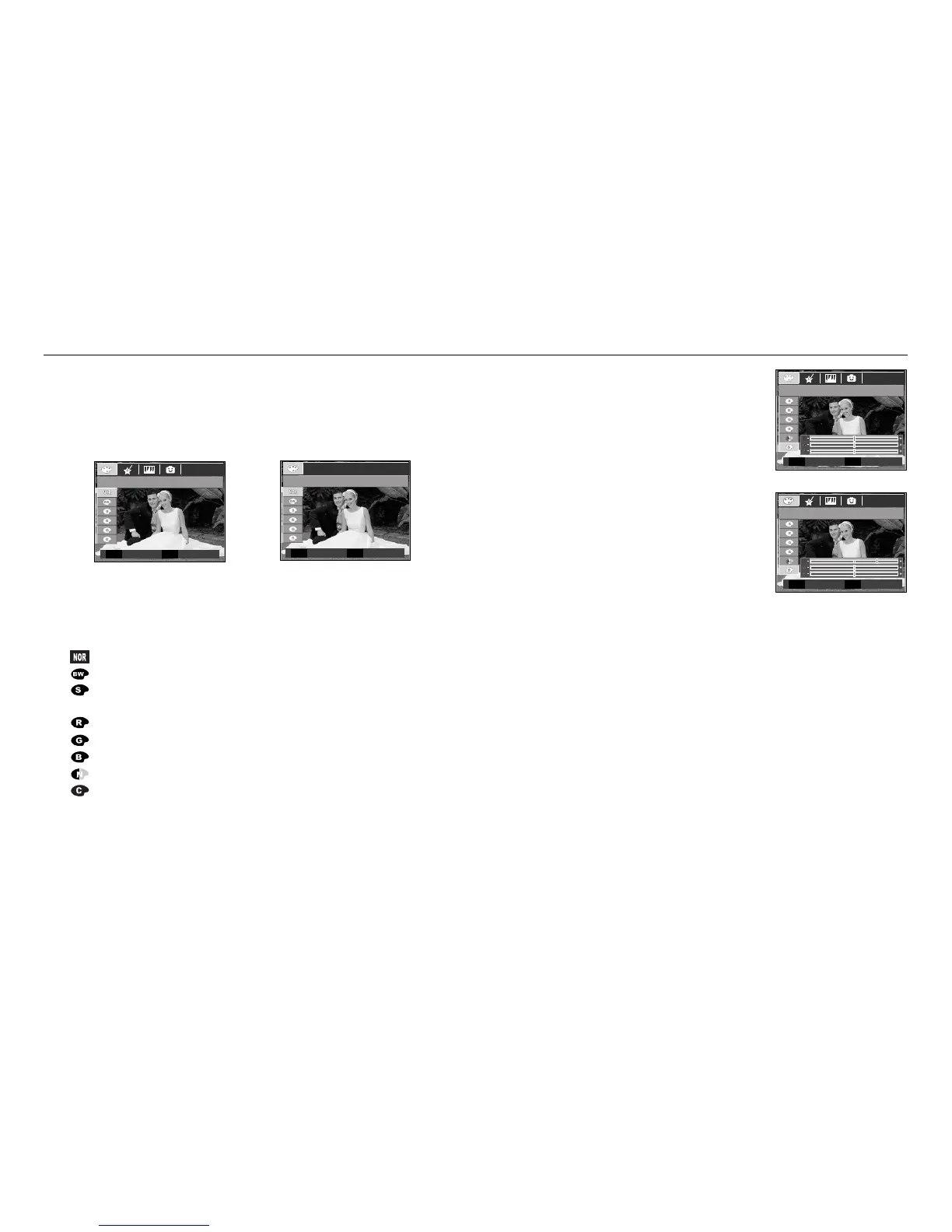
1. Select a desired sub menu by pressing the Up/Down button and press the OK
button.
: No effect is added to the image.
: Captured images will be stored in black and white.
: Captured images will be stored in a sepia tone
(a gradient of yellowish brown colours).
: Captured images will be stored in a red tone.
: Captured images will be stored in a green tone.
: Captured images will be stored in a blue tone.
: Save the image in negative mode.
: Captured image will be saved in set RGB tone.
2. Press the shutter button to capture an image.
E (Effect) button : Colour
《35》
By using the camera’s digital processor, it is possible to add special effects
to your images
■ Press the E button in an available recording mode. (p.34)
■ Custom colour : You can change the R (Red),
G (Green) and B (Blue) values of
the image.
- Up/Down button : Selects R, G, B
- Left/Right button : Changes the values
※ In the Auto mode, the Custom Color can't be selected.
[Still image mode]
[Movie clip mode]
COLOR
COLOR
이동 해제
EE
Move Exit
E
Move Exit
E
Custom Color
Move Set
OK
Custom Color
Move Set
OK


 To Next Page