EasyManua.ls Logo

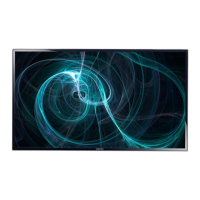
Samsung ME55B - User Manual

Samsung ME55B
225 pages
Print Icon
To Next Page IconTo Next Page
Loading...
BN46-00098G-03
User Manual
ME32B
ME40B
ME46B
ME55B
The color and the appearance may differ depending on
the product, and the specifications are subject to
change without prior notice to improve the performance.

Table of Contents

Questions and Answers

  • Z
    zavalaannaAug 12, 2025
    Why does the Samsung ME55B remote control not work?
    • T
      Tony LindseyAug 13, 2025
      The remote control might not function if the RS-232C cable is disconnected, or the program closes unexpectedly while the Remote Control function is disabled. To fix this, restart the program and enable the Remote Control setting.
  • B
    bonnie52Aug 16, 2025
    How to fix a Samsung Monitor when the display does not appear on the system information chart?
    • N
      Nicole TylerAug 16, 2025
      If the display you want to control isn't showing up on the system information chart for your Samsung Monitor, here are a few things to check: * First, ensure the RS232C cable is properly connected to the correct serial port. * Second, make sure no other display is connected with a duplicate ID, as this can cause data collision and prevent the display from being shown. * Finally, verify that the display ID is within the range of 0 to 99. If needed, change the ID using the Display menu.
  • C
    Catherine FrostAug 20, 2025
    What to do if the Samsung ME55B Monitor display does not appear on the Control Info Grids?
    • Z
      zyorkAug 20, 2025
      If the display you are trying to control isn't showing up on the Control Info Grids for your Samsung Monitor, ensure that the display is powered on. You can check the power status in the system information chart. Also, make sure you've selected the correct input source that the display is connected to.
  • K
    Kyle MasseyAug 25, 2025
    What to do if displays power on/off at different times on Samsung Monitor?
    • V
      Virginia GarciaAug 25, 2025
      If displays power on or off at different times, even with On Time or Off Time set, synchronize the connected displays by adjusting the time on the PC.
  • J
    James SuttonAug 28, 2025
    How to fix a Samsung ME55B when the display doesn't appear on the system information chart?
    • B
      Brian SavageAug 28, 2025
      First, check the RS232C cable connection, ensuring it's properly connected to the correct serial port. Next, verify that no other display is connected with a duplicate ID, as this can cause data collision. Finally, confirm that the display ID is within the range of 0 to 99 by changing the ID in the Display menu if necessary.
  • C
    Christian HughesAug 31, 2025
    Why do Samsung ME55B displays power on/off at different times?
    • S
      Samuel LambertAug 31, 2025
      If your Samsung Monitor displays are powering on or off at different times despite setting an On Time or Off Time, adjust the time on your PC. This will synchronize the time between the connected displays.
  • K
    Keith CoxSep 4, 2025
    What to do if the display I want to control does not appear on the other Control Info Grids on Samsung ME55B Monitor?
    • D
      dwilliamsSep 4, 2025
      First, verify that the display is powered on by checking the power status in the system information chart. Then, make sure you have selected the correct input source to which the display is connected.
  • B
    Briana OliverSep 8, 2025
    What to do if the Samsung ME55B Monitor remote control does not work?
    • W
      wsimonSep 8, 2025
      If the remote control for your Samsung Monitor isn't working, it might be because the RS-232C cable was removed, or the program closed unexpectedly while the Remote Control function was disabled. To fix this, restart the program and enable the Remote Control setting.

Summary

Before Using the Product

Safety Precautions

Important safety instructions, warnings, and the meaning of safety symbols.

Electricity and Installation Safety

Guidelines for safe electrical connections and critical warnings for product installation.

Product Operation Safety

Safety measures and warnings related to operating the product.

Preparations and Installation

Checking Contents and Components

Ensuring all items are present after unpacking and verifying included components.

Parts Overview and Control Panel

Identification of product parts, including the control panel buttons and their functions.

Remote Control Functions

Explanation of the buttons and functions of the remote control for product operation.

Installation Guide and Safety

Important considerations and guidelines before proceeding with product installation.

Wall Mount Installation Procedures

Instructions and specifications for securely mounting the product on a wall.

Connecting Source Devices

Connecting to a PC

Instructions on connecting and using a PC with the product via various cable types.

Changing Display Resolution

Steps to adjust screen resolution on Windows XP, Vista, and 7 for optimal picture quality.

Connecting to Video Devices

Guides for connecting various video devices using AV, Component, and HDMI cables.

MagicInfo Software Setup

Steps for connecting the network box and configuring the MagicInfo software.

Screen Adjustment

Picture Mode Selection

Selecting appropriate picture modes based on input source for optimal viewing.

Backlight, Contrast, Brightness Settings

Adjusting core picture quality settings like backlight, contrast, and brightness.

Picture Size and Aspect Ratio

Options for adjusting picture size, aspect ratio, and position for different content.

Advanced Picture Settings

Detailed settings for fine-tuning picture quality, including color, gamma, and tone.

Sound Adjustment

Sound Mode Selection

Choosing sound modes like Standard, Music, Movie, or Clear Voice for optimal audio.

Sound Effect Options

Configuring sound effects such as SRS TruSurround HD, TruDialog, and Equalizer.

Speaker Settings

Configuring speaker output and auto volume settings for optimal sound.

Media Playback Functions

Favorites Management

Viewing and managing favorite channels or media files.

Channel Management

Adding, deleting, and organizing channels, including setting favorites.

Video and Photo Playback

Playing video files from USB and viewing photos or slide shows.

Music Playback and Playlist Creation

Playing music files and creating custom playlists.

Network Settings and Connectivity

Connecting to a Wired Network

Methods for connecting the product to a LAN using various cable configurations.

Automatic and Manual Network Setup

Configuring network settings automatically via DHCP or manually with static IP.

Connecting to a Wireless Network

Steps for connecting to a wireless network using a LAN adapter and security protocols.

WPS and One Foot Connection Setup

Methods for wireless network setup using WPS (PBC) and One Foot Connection.

System Settings

Plug & Play Configuration

Assisted setup for basic configurations like language, network, and clock.

Time and Timer Settings

Configuring clock, sleep timer, and on/off timers for automatic product operation.

Eco Solution Features

Settings for energy saving, eco sensor, and auto power off to reduce consumption.

Security and PIN Management

Setting up safety locks, button locks, and program rating locks for security.

Troubleshooting Guide

Requirements Before Service

Steps to test the product and check basic issues before contacting customer service.

Screen and Sound Issues

Solutions for common screen problems like blank screens, no signal, and distortion.

Remote Control and Source Device Issues

Troubleshooting steps for remote control malfunctions and source device problems.

Q&A for Common Issues

Answers to frequently asked questions regarding frequency, resolution, and power saving.

Product Specifications

General Specifications

Technical details including dimensions, VESA mount, signal connectors, and power.

Preset Timing Modes

Recommended display modes, resolutions, and frequencies for optimal picture quality.

License Information

Details on software licenses, trademarks, and open source notices.

Contact SAMSUNG WORLDWIDE

Contact information for Samsung customer support centers globally.

Samsung ME55B Specifications

General IconGeneral
Response Time8 ms
Aspect Ratio16:9
Refresh Rate60 Hz
Viewing Angle (Horizontal/Vertical)178° / 178°
Screen Size55 inches
Resolution1920 x 1080
ConnectivityHDMI, VGA

Related product manuals