10.5 <
Installing accessories>
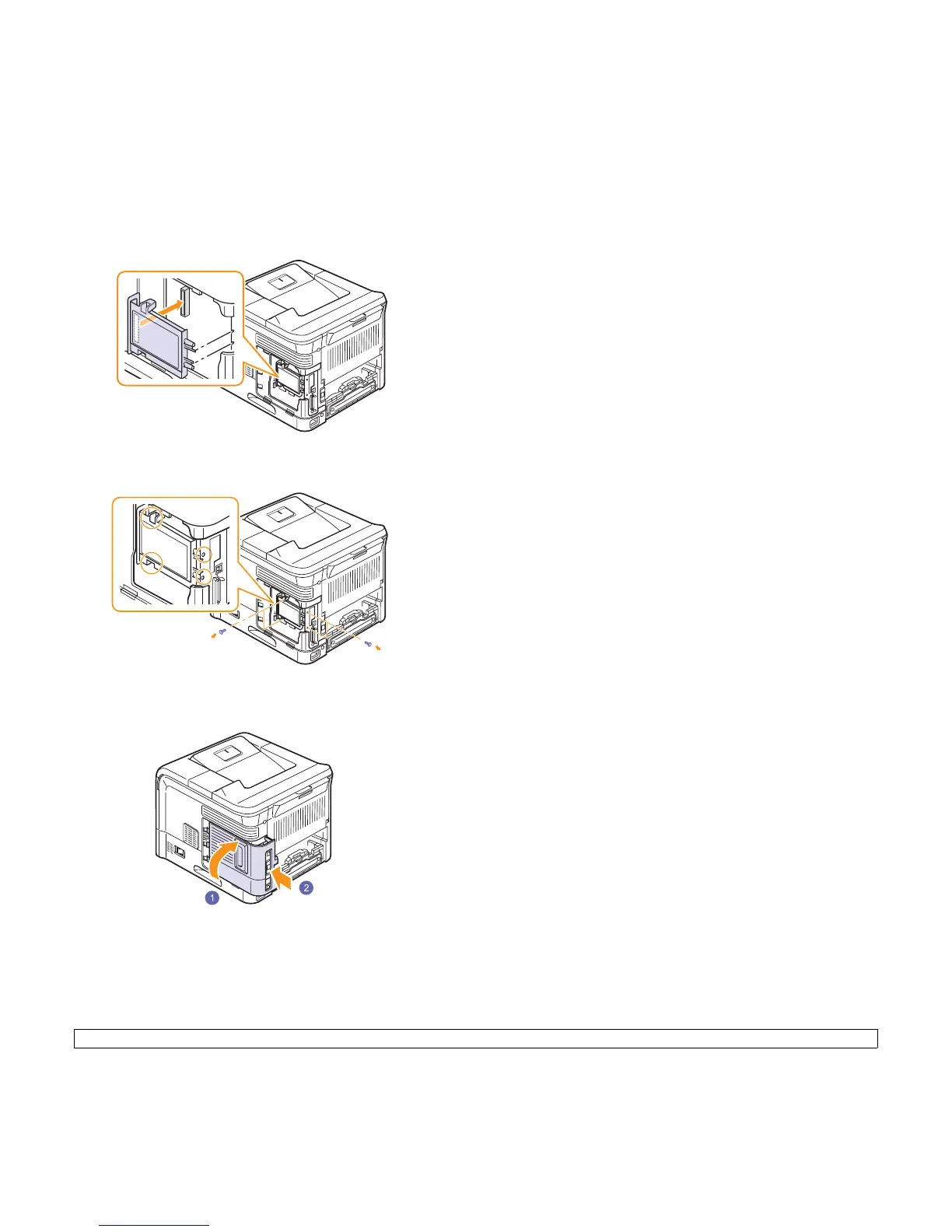
4 Align the connector on the hard disk with the connector on the
control board. Push the hard disk in until it is latched into place.
5 Fasten the four screws supplied with your new hard disk.
6 Close the control board cover by aligning the groove on it with the
notch on the printer and sliding it.
7 Reinstall the duplex-slot cover or the duplex unit.
8 Reconnect the power cord and printer cable, and turn the printer
on.
9 Print a configuration page from the control panel to check if the
hard disk is correctly installed. See page 8.1.
Setting the hard disk in the printer properties
After installing the hard disk, you need to select it in the printer properties
to enable its use. Take the following steps:
1 Click the Windows Start menu.
2 For Windows 2000, select Settings and then Printers.
For Windows XP/2003, select Printers and Faxes.
For Windows Vista/2008, select Control Panel > Hardware and
Sound > Printers.
For Windows 7, select Control Panel > Hardware and Sound >
Devices and Printers.
For Windows Server 2008 R2, select Control Panel > Hardware >
Devices and Printers.
3 Select the Samsung ML-4550 Series PCL 6 printer icon or
Samsung ML-4550 Series PS printer icon.
4 Click the right mouse button on the printer icon and select
Properties.
5 In PCL 6 Properties, click the Printer tab and then check Optional
Hard Disk Drive (HDD).
In PS Properties, click the Device Option or Device Settings tab
and set the Optional Hard Disk Drive (HDD) option to Installed.
6 Click OK.





 To Next Page