This document is a user manual for Samsung NC221, NC221-S, NC221-TS, NC221-TW, NC221W, NC241, NC241-TS, NC241-TW, and NC241W models. It provides comprehensive information on the device's functions, technical specifications, usage, and maintenance.
Function Description
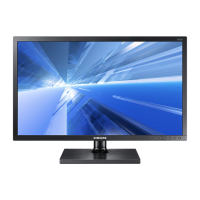
The Samsung NC221/NC241 series monitors are designed to decode and display screens from a server PC transmitted over a network (LAN), functioning similarly to conventional monitors. They offer improved performance compared to standard RDP solutions, supporting resolutions up to 1920x1080 pixels for high-quality graphic work. These monitors enhance security by connecting to a server PC, allowing users to access the Internet, create documents, and edit figures. Additionally, they support external input source devices like DSC, MP3 players, and external storage devices via USB ports for multimedia playback. The DVI OUT port allows for video conferencing and co-working by displaying the network display screen on another display device.
Important Technical Specifications
The manual provides general specifications for both the NC221 and NC241 series:
- Panel:
- Image Size:
- NC221 series: 22 Class (21.5 Inches / 54.6 cm)
- NC241 series: 24 Class (23.5 Inches / 59.8 cm)
- Display Area:
- NC221 series: 476.64 mm (H) x 268.11 mm (V), 18.8 inches (H) x 10.6 inches (V)
- NC241 series: 521.28 mm (H) x 293.22 mm (V), 20.5 inches (H) x 11.5 inches (V)
- Display Color: 16.7M
- Maximum Pixel Clock: 148.50 MHz (Analog / Digital)
- Server Connector: Gigabit Ethernet port (LAN Port)
- Power Supply: 100 to 240V (standard voltage may vary by country)
- Signal Connectors: RGB IN, DVI OUT
- Speakers: 1 W x 2 (stereo)
- VESA Mount: 100 mm x 100 mm (3.9 inches x 3.9 inches)
- USB: USB 2.0 x 6 (Down Stream)
- Environmental Considerations:
- Operating Temperature: 50 ˚F – 104 ˚F (10 ˚C – 40 ˚C), Humidity: 10 % – 80 %, non-condensing
- Storage Temperature: -4 ˚F – 113 ˚F (-20 ˚C – 45 ˚C), Humidity: 5 % – 95 %, non-condensing
The device is a Class B digital apparatus. Specifications are subject to change without prior notice to improve performance.
Usage Features
The manual details various usage features, particularly those related to "PCoIP" (PC over IP) functionality:
- PCoIP Connectivity: The monitor connects to a host PC via a LAN cable, allowing it to display the host PC's screen. It supports external storage devices, MP3 players, and other multimedia devices via USB.
- On Screen Display (OSD): The OSD local GUI is accessible when a PCoIP session is not active. It allows users to connect to a host device through the "Connect" window and access "Options" for various settings.
- Configuration Window: This window, accessible via OSD or Administrative Web Interface, allows configuration of network settings (IPv6, DHCP, FQDN, Ethernet Mode, 802.1X Security), device labeling (PCoIP Device Name, Description, Generic Tag), discovery settings (SLP Discovery), session connection types (Direct to Host, VMware View Connection Server), language, power settings, display settings (EDID override, display cloning), and audio settings (Local USB Audio Driver, sound output).
- Diagnostics Window: Provides run-time information for troubleshooting, including Event Log, Session Statistics (PCoIP Packets Sent/Received/Lost, Bytes Sent/Received, Round Trip Latency), PCoIP Processor uptime, and Ping functionality.
- User Settings Window: Allows users to define certificate checking mode, mouse and keyboard settings, PCoIP protocol image quality, and display topology.
- Password Window: Used to update the administrative password for the device.
- Wake On LAN/USB: These features allow the product to be powered on by a pre-determined command over a network (Wake On LAN) or by detecting changes in keyboard or mouse input (Wake on USB).
- Firmware Update: The firmware can be updated via the administrative web page.
- Screen Setup: Users can adjust brightness, contrast, sharpness, SAMSUNG MAGIC Bright modes (Custom, Standard, Game, Cinema, Dynamic Contrast), coarse, and fine settings for optimal picture quality.
- Configuring Tint: Allows adjustment of SAMSUNG MAGIC Color (Off, Demo, Full, Intelligent), Red, Green, Blue, Color Tone (Cool 2, Cool 1, Normal, Warm 1, Warm 2, Custom), and Gamma settings.
- Resizing or Relocating the Screen: H-Position and V-Position settings allow users to move the screen horizontally and vertically. Menu H-Position and Menu V-Position adjust the OSD menu position.
- Setup and Reset: Includes options to reset all settings to factory defaults, change the OSD language, set display time, and adjust menu transparency.
- Information Menu: Displays current input source, frequency, and resolution.
- Volume Configuration: Allows adjustment of volume in the initial screen.
- MultiScreen Software: Enables users to partition the monitor into multiple sections.
Maintenance Features
The manual outlines several maintenance and safety guidelines:
- Cleaning: The monitor should be powered off and unplugged before cleaning. The screen should be wiped with a clean, soft, dry cloth, avoiding alcohol, solvent, or surfactant-based cleaning agents. The exterior can be cleaned with a damp, soft cloth.
- Securing Installation Space: Ensure adequate ventilation space around the product (at least 10 cm or 3.9 inches on all sides) to prevent overheating and damage.
- Precautions for Storage: Contact Samsung Customer Service Center if internal cleaning is required.
- Safety Precautions:
- Do not open the product due to high voltage inside.
- Avoid using damaged power cords or plugs, or loose power sockets.
- Do not overload power sockets.
- Do not touch the power plug with wet hands.
- Ensure the power plug is fully inserted and connected to a grounded socket.
- Do not bend, pull, or place heavy objects on the power cord.
- Keep power cords and the product away from heat sources.
- Remove dust from plug pins and power sockets.
- Do not unplug the power cord while the product is in use.
- Use only Samsung-supplied power cords.
- Keep the power socket unobstructed for easy disconnection.
- Hold the plug when disconnecting the power cord.
- Do not place candles, insect repellants, or cigarettes on top of the product, or install it near heat sources.
- Avoid installing in narrow, poorly ventilated spaces.
- Keep plastic packaging bags away from children.
- Do not install on unstable or vibrating surfaces.
- Avoid installing in vehicles or places exposed to dust, moisture, oil, or smoke.
- Do not expose to direct sunlight or hot objects.
- Keep out of reach of young children.
- Avoid contact with edible oils.
- Take care not to drop the product when moving it.
- Do not set the product down on its front.
- Ensure the bottom edge of the product does not protrude when installed on a cabinet or shelf.
- Do not disassemble, repair, or modify the product.
- Turn off and disconnect all cables before moving the product.
- If strange noises, burning smells, or smoke occur, immediately disconnect power and contact customer service.
- Do not allow children to hang from or climb on the product.
- If the product falls or is damaged, disconnect power and contact customer service.
- Do not place heavy objects, toys, or sweets on top of the product.
- Disconnect the power cord if a thunderstorm or lightning strike occurs.
- Do not drop objects on the product or apply impact.
- Do not move the product by pulling the power cord or cables.
- If gas leakage is found, do not touch the product or power plug; ventilate the area immediately.
- Do not use or keep combustible spray or inflammable substances near the product.
- Ensure vents are not blocked.
- Do not insert metallic or inflammable objects into vents or ports.
- Do not place liquid-containing objects or metallic objects on top of the product.
- Activate power-saving mode or a moving-picture screen saver if not using for an extended period.
- Disconnect power if not using for an extended period (e.g., vacation).
- Use the product at the recommended resolution and frequency.
- Avoid looking at the screen too closely for extended periods.
- Do not hold the monitor upside-down or by the stand when moving.
- Avoid using humidifiers or stoves around the product.
- Rest eyes for more than 5 minutes for every 1 hour of use.
- Avoid touching the screen when hot.
- Store small accessories out of reach of children.
- Exercise caution when adjusting angle or height to prevent injury.
- Do not increase headphone volume too high.
- Anti-theft Lock: The product supports an anti-theft lock (sold separately) for secure use in public places.
- Troubleshooting Guide: Provides solutions for common issues like power LED off, "Check Signal Cable" message, "Not Optimum Mode" display, distorted images, blurry screen, unstable/shaky screen, ghost images, too bright/dark screen, inconsistent color, distorted colors, white not looking white, no sound, low volume, and beeping sound during PC booting. It also guides users on how to change frequency, resolution, and set power-saving mode.
- Correct Disposal: Information on correct disposal of the product (Waste Electrical & Electronic Equipment) and batteries to promote sustainable reuse and prevent harm to the environment.

 Need help?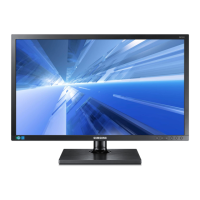



 To Next Page
 General