2
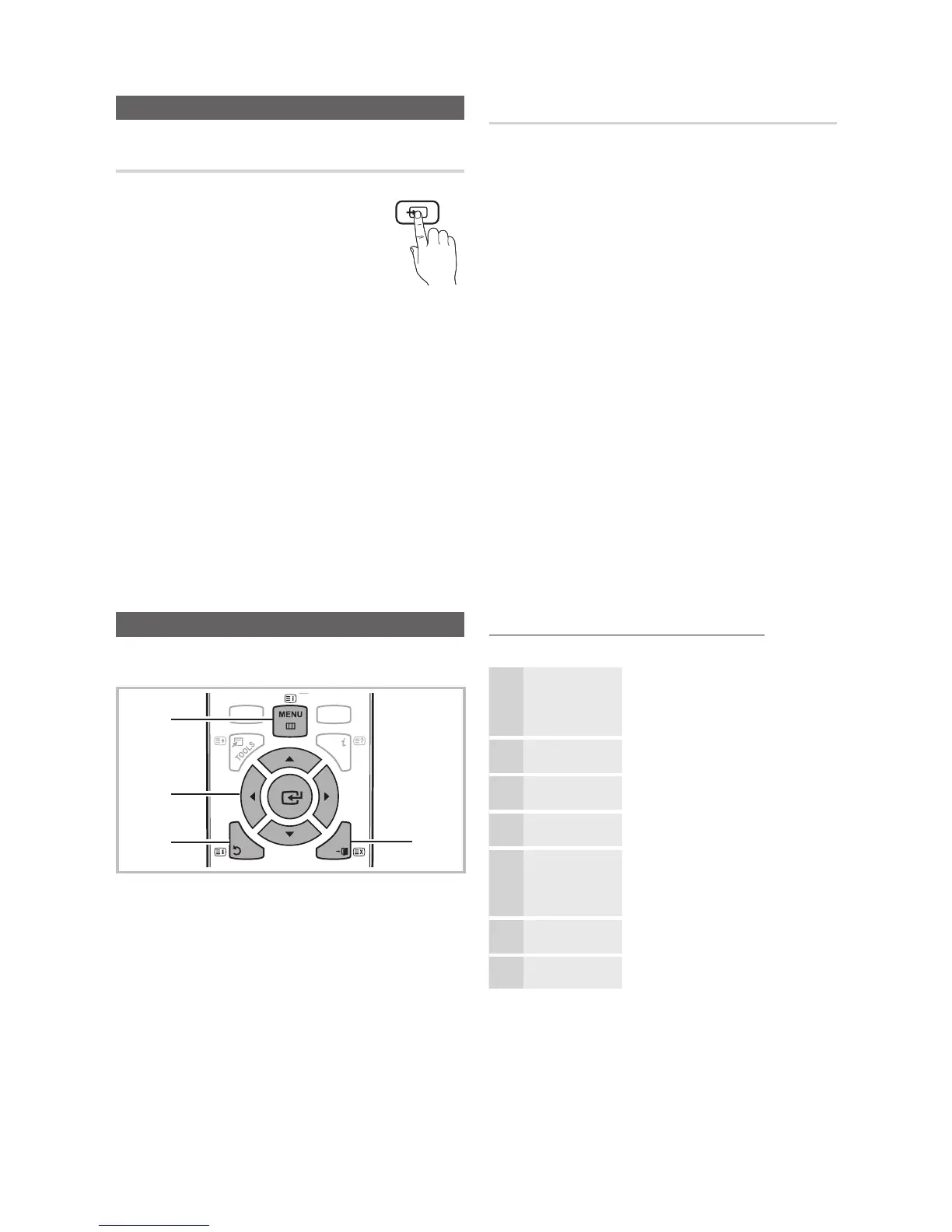
3 4
1
1 MENU button: Displays the main on-screen menu.
2 ENTER
/ Direction button: Move the cursor and
select an item. Confirm the setting.
3 RETURN button: Returns to the previous menu.
4 EXIT button: Exits the on-screen menu.
How to Operate the OSD (On Screen Display)
The access step may differ depending on the selected menu.
1
MENU
The main menu options appear on
the screen:
Picture, Sound, Channel, Setup,
Input, Application, Support.
2
/ Select an icon with the or
button.
3
ENTER
Press ENTER
to access the
sub-menu.
4
/
Select the desired submenu with
the or button.
5
/
Adjust the value of an item with the
or button. The adjustment in
the OSD may differ depending on
the selected menu.
6
ENTER
Press ENTER
to complete the
configuration.
7
EXIT
Press EXIT.
Changing the Input Source
Source List
Use to select TV or other external input
sources such as DVD / Blu-ray players /
cable box / STB satellite receiver connected
to the TV.
■
TV / Ext. / AV / Component / HDMI1/DVI
/
HDMI2 / USB
✎
In the Source List, connected
inputs will be highlighted.
✎
Ext. always stay activated.
Edit Name
■ VCR / DVD / Cable STB / Satellite STB / PVR STB /
AV Receiver / Game / Camcorder / PC / DVI PC /
DVI Devices / TV / IPTV / Blu-ray / HD DVD / DMA:
Name the device connected to the input jacks to make
your input source selection easier.
✎
When connecting an HDMI/DVI cable to the HDMI IN
1(DVI) port, you should set to DVI PC or DVI Devices
mode under Edit Name.
[PC430-Euro]BN68-02692A-00L09.indb 10 2010-03-02 오전 12:25:47





 To Next Page