This document is a user manual for a Samsung Free Standing Refrigerator, providing comprehensive information on its installation, operation, maintenance, and troubleshooting.
Function Description
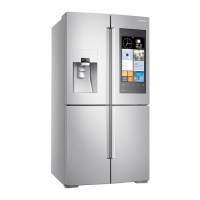
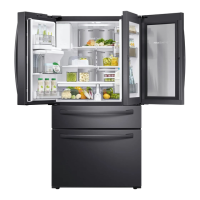
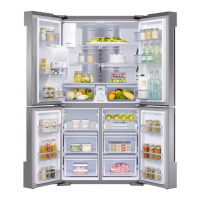
The Samsung Refrigerator is a free-standing appliance designed for domestic food storage. It features a multi-door configuration with distinct compartments: a Fridge, a Freezer, and a FlexZone. The refrigerator includes an Auto Ice Maker (Ice Master) that dispenses cubed or crushed ice, and a water dispenser for chilled water. The FlexZone is a versatile compartment that can be set to different temperature modes, including a dedicated White Wine setting, and comes with a Wine Rack for specialized storage. The appliance is equipped with a user-friendly LCD display, referred to as the Family Hub, which serves as the primary interface for controlling various functions and accessing smart features. It supports Samsung Smart Home integration, allowing users to monitor and control the refrigerator remotely via a smartphone app. Additionally, it incorporates SMART GRID (Demand Response) functionality for energy management, enabling the refrigerator to adjust energy consumption based on utility company signals to save costs during peak demand times.
Important Technical Specifications
The manual provides clearance dimensions for two models: RF22K* and RF28K*.
For both models:
- Width "B": 35 3/4" (908 mm)
- Height "C": 70 3/4" (1797 mm)
- Overall Height "D": 71 7/8" (1825 mm)
The Depth "A" varies:
- RF22K*: 28 7/8" (733 mm)
- RF28K*: 34 1/4" (871 mm)
Installation requires a solid, level surface, away from direct sunlight and heat sources, with an ambient temperature range of 50 °F (10 °C) to 110 °F (43 °C).
The water line for the ice maker and dispenser requires a water pressure of 20-125 psi.
Refrigerant used is R-600a or R-134a, as indicated on the compressor label or rating label inside the fridge.
The appliance is designed to comply with FCC Part 15 rules for Class B digital devices and IC RSS-102 radiation exposure limits. It contains transmitter modules with FCC ID: A3LWIDT30Q, A3LWIBT30D and IC: 649E-WIDT30Q, 649E-WIBT30D. For US and Canadian markets, only Wi-Fi channels 1-11 are available.
The refrigerator supports USB memory formatted in FAT32 or exFAT file systems (NTFS is not supported).
LED lamps are used for interior and exterior lighting and are not user-serviceable.
Usage Features
User Interface (Family Hub):
- Home Screen: Displays time, weather, and allows access to various apps and widgets. Users can customize the layout by tapping and holding apps/widgets to enter Edit mode.
- Task Bar: Includes icons for Microphone (voice recognition), Menu, Home, Return, and Notification.
- Fridge Manager: Accessed by swiping left on the Home screen. Displays current fridge, freezer, and FlexZone temperatures, as well as active special functions. Allows users to adjust temperatures, activate Power Cool (for fridge) and Power Freeze (for freezer) functions, and access Fridge Settings.
- Fridge Settings: Controls various refrigerator settings, including:
- Ice Making: Turns the icemaker on/off. If the ice bucket is full, it displays "Ice Making Off."
- Dispenser Lock: Activates/deactivates ice and water dispensers.
- Door Alarm: Turns the door open alarm on/off.
- Temp. Unit: Switches temperature display between Celsius (°C) and Fahrenheit (°F).
- Water Filter: Provides a replacement tutorial and allows resetting the filter replacement indicator.
- Self Check: A self-diagnosis function to identify potential issues.
- Demand Response: Integrates with Smart Grid energy saving manager.
- Cooling Off (Shop mode): Designed for retail display, it keeps the fan motor and lights working but disables compressors, so the compartments do not get cold.
- Display Settings: Adjusts screen brightness, automatic wake-up, and screen saver theme and duration.
- Volume Settings: Adjusts volume and enables/disables key tone and keyboard feedback.
- Wi-Fi Settings: Manages Wi-Fi connection, lists available access points, and allows adding new ones.
- Bluetooth Settings: Lists recently paired Bluetooth devices and allows adding new ones (headsets, headphones, speakers).
- Date and Time: Synchronizes date and time via Wi-Fi network connection and allows changing time zones.
- Language: Selects preferred language.
- Learn more about Family Hub: A demo mode app explaining Family Hub features (Family Communication, Food Management, Entertainment).
- Online Manual: Provides access to the user manual directly on the display.
- About Device: Displays software version, tutorials, Self Check, and legal information (Open Source License Agreement).
- Easy Connection: Facilitates connecting the refrigerator to Samsung Smartphone apps on the same home Wi-Fi network.
- Device Authentication: Used with Samsung Smart TV apps to share privacy information (availability depends on model).
- Factory Data Reset: Resets the refrigerator to factory settings, permanently removing all user data (account info, memos, photos, settings).
- Display Reset: A troubleshooting step for display issues, involving turning a power switch on the top right corner of the fridge door off and on.
Samsung Smart Home Integration:
- Users can download the "Samsung Smart Home" app (Android 4.0+/iOS 7.0+) to their smartphone.
- Allows remote monitoring and control of the refrigerator's operations and settings.
- Key App Features:
- Chat control: Remotely control appliances and check status.
- Home view: (Applicable models only) Monitor the kitchen using the built-in camera.
- Master key: Controls locking system for various user activities (e.g., going out, coming home).
- Customer service: Download user manual and access support contact information.
- View Inside: Displays an inner view of the refrigerator (via photo or user-created food list).
- Shopping List: Displays user-created shopping lists.
- Photo Album: Send photos between refrigerator and smartphone.
- White Board: Create and send memos between refrigerator and smartphone.
SMART GRID Function (Demand Response):
- Controls energy usage and delays high-energy tasks during off-peak hours to save money.
- Requires a separate contract with an electric utility company that supports SEP (Smart Energy profile).
- Displays DAL (Delay Appliance Load, L3) or TALR (Temporary Appliance Load Reduction, L4) levels.
- DAL (L3): Moderate load reduction for a delay period (max. 4.5 hours), affecting cooling, defrost cycles, and ice making. Automatically deactivates after the period or if Override is on.
- TALR (L4): Aggressive load reduction for a short period (max. 15 minutes), stopping compressors and controlling high-energy functions. Deactivates after the period, if Override is on, or if the door is opened/closed or dispenser is used.
- Override Mode: Allows the refrigerator to ignore SMART GRID signals. Can be activated/deactivated via the Fridge Manager or Samsung Smart Home app.
- Energy Management Function: Monitors energy prices and demand, sends notifications for high-energy tasks during off-peak times. Provides operational status (DR and Override) and energy consumption reports (daily, weekly, monthly for up to 180 days).
- Delay Defrost Capability: Saves energy by delaying defrost operations to user-specified times (default: 6 am-10 am Nov-Apr, 3 pm-7 pm May-Oct).
Special Features:
- Water Dispenser: Offers chilled water, cubed ice, and crushed ice. Users select ice type by pressing a button and dispense by pushing the ice or water lever.
- Ice Maker: Automatically dispenses ice. Initial setup requires running for 24 hours, dispensing 4-6 cubes, waiting 8 hours, dispensing more, then waiting 16 hours before full use. A "Test" button on the icemaker diagnoses issues. The ice bucket can be removed for emptying if ice clumps.
- Wine Rack: Can be positioned in three ways: under a shelf, in the partition guide, or on top of the FlexZone sliding shelf. The FlexZone temperature should be set to "White Wine" when using the wine rack.
Maintenance Features
- Ice Bucket: If ice clumps, remove and empty the bucket. Reinsert by aligning and turning the helix screw if necessary.
- Tempered Glass Shelves (Fridge): Remove by lifting and sliding out. Reinsert by angling the shelf and engaging the hooks into the notches.
- Door Bins: Lift up and pull out to remove.
- Vegetable & Fruit Drawers (EZ Fresh Zone): Gently lift the front and slide out. Removing door bins first is recommended.
- Vegetable Shelf: Slide out the left-side drawer, then slide in the right-side foldable shelf, then slide out the vegetable shelf while supporting it. Reinsert in reverse order.
- Cleaning:
- Interior and Exterior: Unplug the power cord. Use a moistened, soft, lint-free cloth or paper towel to clean, then dry thoroughly. Avoid benzene, thinner, Clorox™, direct water spray, or hair dryers.
- Inner-view Camera: Clean with a cotton swab or microfiber cloth.
- Water Filter Replacement:
- The filter indicator turns red when replacement is due.
- Shut off water supply. Open filter cover (if present). Turn the cartridge knob counter-clockwise 90 degrees to unlock and remove.
- Insert a new Samsung-approved filter, turn clockwise to lock.
- On the Family Hub, go to Fridge Manager > Fridge Settings > Water Filter, and select RESET to turn off the indicator.
- Flush 1 gallon of water through the dispenser for about 7 minutes to remove impurities and air.
- LED Lights: Not user-serviceable. Contact Samsung service center for replacement.

 Need help?
 General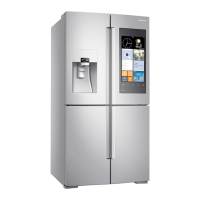


 To Next Page