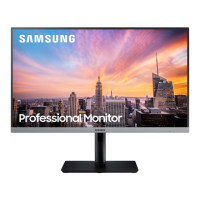
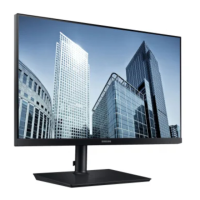
This document describes the Samsung SH85 monitor, a display device designed for various computing and multimedia applications.
Function Description
The Samsung SH85 monitor serves as a visual output device for computers and other source devices. It supports multiple input types including HDMI, DisplayPort, and USB Type-C, allowing for versatile connectivity. The monitor is capable of displaying high-resolution content and offers features such as Picture-in-Picture (PIP) and Picture-by-Picture (PBP) modes, enabling users to view content from two different sources simultaneously. It also includes an integrated USB hub for connecting peripherals and headphones. The monitor is designed to be user-friendly with a JOG button for navigation and an intuitive On Screen Display (OSD) menu for settings adjustments.
Important Technical Specifications
The SH85 series includes two models: S24H850QF* and S27H850QF*.
Model Name: S24H850QF* / S27H850QF*
Size: 24 Class (23.8 inches / 60.4 cm) / 27 Class (26.9 inches / 68.4 cm)
Display Area:
- S24H850QF*: 526.848 mm (H) x 296.352 mm (V) (20.7 inches (H) x 11.7 inches (V))
- S27H850QF*: 596.74 mm (H) x 335.66 mm (V) (23.5 inches (H) x 13.2 inches (V))
Pixel Pitch:
- S24H850QF*: 0.2058 mm (H) x 0.2058 mm (V) (0.008102 inches (H) x 0.008102 inches (V))
- S27H850QF*: 0.2331 mm (H) x 0.2331 mm (V) (0.009177 inches (H) x 0.009177 inches (V))
Maximum Pixel Clock: 250 MHz
Power Supply: AC 100 - 240 V~ (+/- 10 %), 50/60 Hz ± 3 Hz
Signal Connectors: HDMI, DP, USB Type-C
Environmental Conditions:
- Operating: Temperature: 50 °F – 104 °F (10 °C – 40 °C), Humidity: 10 % – 80 %, non-condensing
- Storage: Temperature: -4 °F – 113 °F (-20 °C – 45 °C), Humidity: 5 % – 95 %, non-condensing
Standard Signal Mode Table (Synchronization):
- Horizontal Frequency: 30 – 89 kHz
- Vertical Frequency: 50 – 75 Hz
Supported Resolutions (Examples):
- VESA, 1280 x 1024: 79.976 kHz (H), 75.025 Hz (V), 135.000 MHz (Pixel Clock)
- VESA, 2560 x 1440: 88.787 kHz (H), 59.951 Hz (V), 241.500 MHz (Pixel Clock)
The monitor supports Plug-and-Play functionality and is a Class B digital apparatus.
Usage Features
The SH85 monitor offers a range of features to enhance user experience:
- Installation: The manual provides detailed instructions for attaching the stand (S24H850QF* and S27H850QF* models) and installing a wall-mount kit or desktop stand. It emphasizes securing the installation space and adhering to safety precautions.
- Connectivity: Users can connect the monitor to a PC via HDMI, HDMI-DVI, USB Type-C, or DisplayPort cables. It also supports connecting to an external monitor via DisplayPort OUT and headphones. The integrated USB hub allows for easy connection of peripherals.
- Control Panel: A JOG button on the rear left side of the product provides multi-directional navigation for the OSD menu. The Power LED indicates the monitor's status (On, Power saving mode, Power Off).
- Direct Key Guide: Shortcuts are available for Eye Saver Mode, Volume, and Features, accessible via the JOG button.
- Display Settings:
- Brightness, Contrast, Eye Saver Mode: Adjustable via the OSD menu. Eye Saver Mode reduces blue light for eye comfort.
- Volume Setting: Adjustable via the JOG button, with an Auto Mute function for connected headphones or speakers.
- Reverse Side: Details various input ports (POWER IN, DP OUT, HDMI IN, DP IN, USB Type-C, USB, Headphones) and their functions.
- Adjusting Product Tilt and Height: The monitor allows for tilt adjustments (-2.0° to +2.0° for tilt, -5.0° to +2.0° for height) and rotation for optimal viewing angles.
- Rotating the Monitor Screen: The screen can be rotated clockwise to a vertical position.
- Anti-theft Lock: Instructions are provided for securing the monitor with an anti-theft locking device.
- Multi-Stream Transport (MST) Function: Supports connecting multiple monitors in a daisy-chain configuration via DisplayPort or USB Type-C for extended desktop or mirrored displays.
- FreeSync: Enhances gaming experience by eliminating screen tearing and lag, compatible with AMD graphics cards.
- Smart ECO Saving: Reduces power consumption by controlling the electric current used by the monitor panel.
- Off Timer Plus: Allows users to set a timer for the monitor to automatically power off.
- Source Detection: Automatically detects the input signal.
- Key Repeat Time: Controls the response rate of the JOG button.
- Power LED On: Configures the settings to enable or disable the power LED.
- Reset All: Returns all settings to the factory defaults.
- Screen Setup: Includes SAMSUNG MAGIC Bright for optimum picture quality, Brightness, Contrast, Sharpness, Color, SAMSUNG MAGIC Upscale, HDMI Black Level, Eye Saver Mode, Game Mode, Response Time, Picture Size, and Screen Adjustment.
- Configuring PIP/PBP Settings: Allows users to enable/disable PIP/PBP mode, adjust the size and position of the sub-screen, and select the sound source and picture size for each input.
- Adjusting OSD (On Screen Display) Settings: Includes Transparency, Language, and Display Time settings.
- Driver Installation: Instructions for installing the latest product driver from the Samsung Electronics website.
- Setting Optimum Resolution: Guidance on setting the optimum resolution for the PC.
Maintenance Features
The manual outlines several maintenance and safety guidelines:
- Cleaning: Provides instructions for cleaning the panel and exterior of the monitor, emphasizing the use of soft, dry cloths and avoiding alcohol, solvent, or surfactant.
- Electricity and Safety: Warnings regarding power cord usage, avoiding damaged cords, and ensuring proper power connections to prevent electric shock.
- Installation Precautions: Guidelines for securing the installation space, avoiding placing candles or cigarettes on top of the product, and ensuring proper ventilation.
- Operation Precautions: Warnings against internal temperature rise, physical damage, and improper handling of the product. It also includes advice on eye health, such as taking breaks and adjusting viewing angles.
- Troubleshooting Guide: Comprehensive section addressing common issues related to installation, product testing, resolution and frequency, and various display problems (e.g., screen not clear, blurry, dark, color issues). It also covers video playback and sound issues.
- Warranty and Service: Information on product damage caused by customer's fault, non-product defects, and extended warranty details. Samsung provides service for product repair and replacement parts.
The monitor is designed for ease of use and longevity, with clear instructions for setup, operation, and troubleshooting to ensure a smooth user experience.

 Need help?



 To Next Page
 General