04 PLAY
55
PLAY
_
Left / Right / Menu / OK button
Delete
(
Õ
)
button
LEFT / RIGHT / MENU / OK buttons activate the following.
- LEFT button : While the menu is showing, the LEFT button oper-
ates as a direction button. While the menu is not
showing, press the LEFT button to select the previ-
ous image.
- RIGHT button : While the menu is showing, the RIGHT button oper-
ates as a direction button. While the menu is not
showing, press the RIGHT button to select the next
image.
- MENU button : When you press the MENU button, the play mode
menu will be displayed on the LCD monitor. Press-
ing it again will return the LCD to the initial display.
- OK button : When the menu is displayed on the LCD monitor,
the OK button is used for confirming data that is
changed by using the 5 function button.
This deletes images stored on the memory card.
Printer (
»
) button
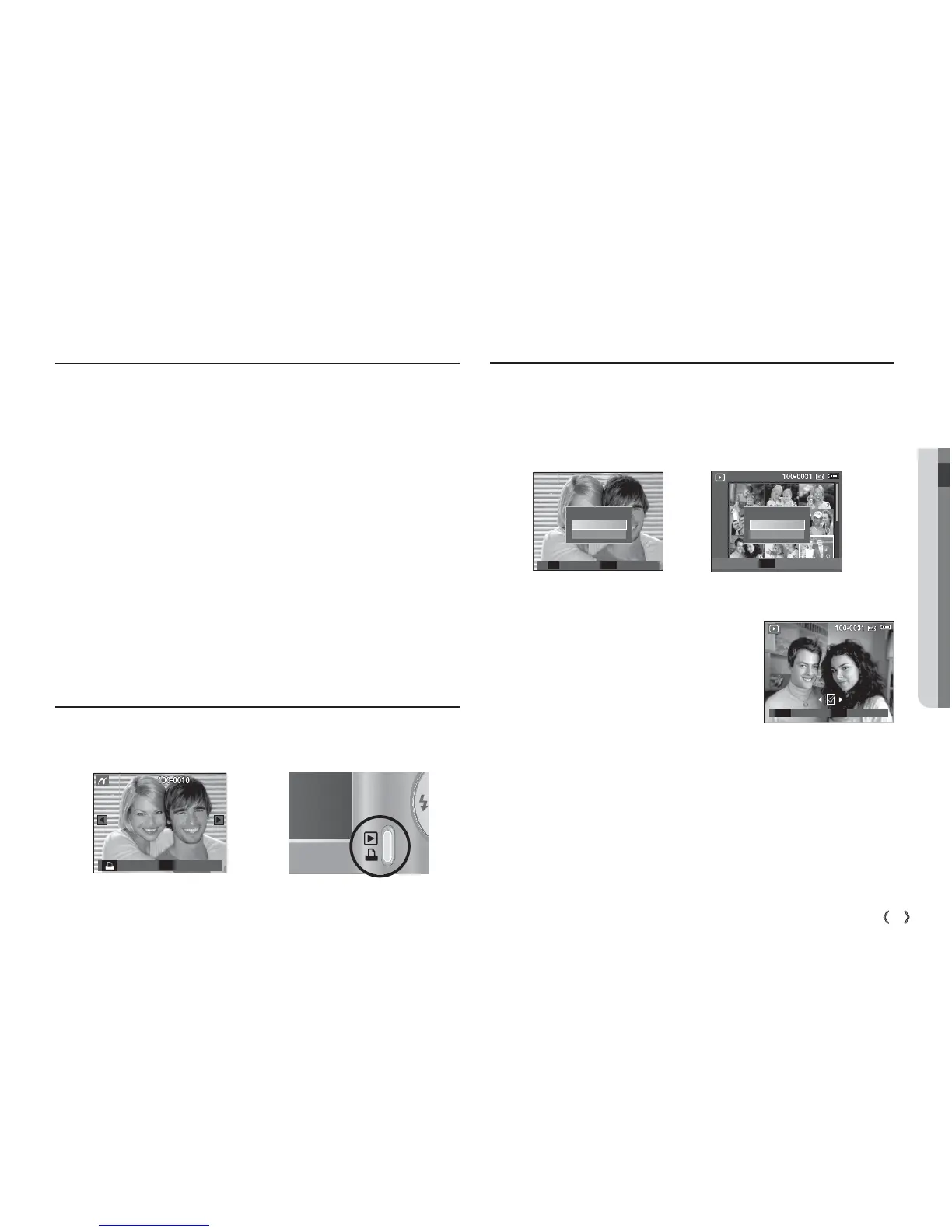
When the camera is connected to a PictBridge printer, you can print
images by pressing the Printer button.
1. Select an image that you want to delete by pressing the Left / Right
button and press the DELETE (
Õ
) button.
2. To delete images, press the T button.
- Left/Right button : Selects images
- T button : checks for deletion
- OK button : deletes the selected
images.
3. Select the submenu values by pressing the Up / Down button and
then press the OK button.
- If [No] is selected : cancels "Delete Image".
- If [Yes] is selected : deletes the selected images.
[Single Image] [Thumbnail Image]
Print Menu
OK
Delete ?
No
Yes
Confirm
OK
Delete ?
No
Yes
Select Confirm
T OK
Select Delete
T
OK


 To Next Page