EasyManua.ls Logo

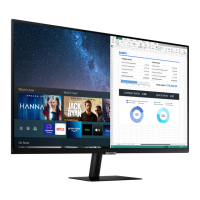
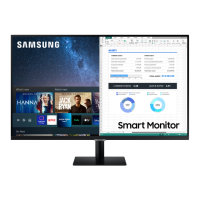
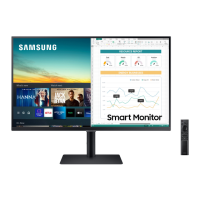
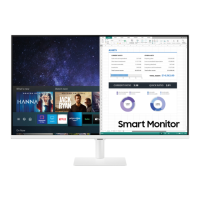
Samsung S32AM70 Series - User Manual

Samsung S32AM70 Series
137 pages
Print Icon
To Next Page IconTo Next Page
Loading...
The color and the appearance may differ depending on the product, and the specifications are
subject to change without prior notice to improve the performance.
The contents of this manual are subject to change without notice to improve quality.
© Samsung
Samsung owns the copyright for this manual.
Use or reproduction of this manual in parts or entirety without the authorization of Samsung is
prohibited.
Trademarks other than that of Samsung are owned by their respective owners.
User Manual
S24AM50* S27AM50* S32AM50* S32AM70* S43AM70*

Table of Contents

Questions and Answers

  • C
    csmithAug 29, 2025
    How to fix poor color or brightness on Samsung S32AM70 Monitor?
    • D
      Duane HendersonAug 29, 2025
      Go to Picture and then adjust the Picture Mode, Brightness, Sharpness, and Color settings. See if Power Saving Mode has been enabled. Try resetting the picture.
  • A
    Andrew PottsAug 25, 2025
    Why there is no sound from my Samsung S32AM70 even at maximum volume?
    • T
      Tracey GreenAug 25, 2025
      Check the volume control of your product, and then check the volume control of the external device.
  • C
    cbutlerSep 23, 2025
    What to do if software update fails on Samsung S32AM70?
    • D
      dpaulSep 23, 2025
      Check the network connection status of your Samsung Monitor.
  • V
    vcoxSep 2, 2025
    Why is the color poor on my Samsung S32AM70?
    • G
      gclarkSep 2, 2025
      If the color is poor or the picture is not bright enough on your Samsung Monitor, go to Picture and then adjust the Picture Mode, Brightness, Sharpness, and Color settings. Also, see if Power Saving Mode has been enabled and try resetting the picture.
  • J
    Jeffrey KennedySep 5, 2025
    What to do if no screen appears when connecting my Samsung S32AM70 Monitor to an external device?
    • D
      Daniel PetersonSep 5, 2025
      Make sure that the external device is connected securely and turned on.
  • K
    Kurt ReedAug 31, 2025
    What to do if the power LED is off and the Samsung S32AM70 screen will not switch on?
    • D
      Derrick KellyAug 31, 2025
      If the power LED is off and the screen won't turn on, verify that the power cable is connected properly. If a problem occurs with the product screen, run Self Diagnosis to check that the product is working properly.
  • T
    thomasvictorAug 28, 2025
    What to do if my Samsung S32AM70 is flickering and dimming?
    • J
      Justin BensonAug 28, 2025
      If your Samsung Monitor screen is flickering or dimming unexpectedly, try these steps: Disable energy-saving features like Ambient Light Detection, Power Saving Mode, Motion Lighting, or Contrast Enhancer. Then, run a Picture Test to see if the image quality is normal. If the test image looks fine, the issue might be with the signal from your connected device.
  • K
    kalvaradoSep 7, 2025
    How to check component connections and screen color on Samsung S32AM70?
    • N
      Nathan BowersSep 7, 2025
      Run Picture Test.
  • V
    Vicki JohnsonSep 3, 2025
    What to do if my Samsung Monitor keeps powering off?
    • M
      Mary MartinezSep 3, 2025
      If your Samsung Monitor is unexpectedly powering off, try disabling some of the energy efficiency functions. Also, check if the Sleep Timer has been enabled.
  • L
    lowejeremyAug 26, 2025
    How to fix no sound on Samsung S32AM70?
    • M
      Michael GrayAug 26, 2025
      If you see a picture but there's no sound on your Samsung Monitor, set the Sound Output to Device Speaker. If you're using an external device, check its audio output options.

Summary

Before Using the Product

Safety Precautions

Essential warnings and cautions for safe product usage, including electrical safety.

Installation and Operation Guidelines

Procedures for safe installation and operation, covering placement and usage warnings.

Connections and Peripherals

Connecting to Internet

Steps for connecting the product to a network and managing settings.

Product Features

Smart Hub and Apps Service

Utilizing the Smart Hub for apps, content discovery, and services.

Picture and Sound Settings

Adjusting visual and audio quality for optimal viewing and listening.

Maintenance and Troubleshooting

Troubleshooting Common Issues

Solutions for problems related to picture, sound, connectivity, and network.

Samsung S32AM70 Series Specifications

General IconGeneral
BrandSamsung
ModelS32AM70 Series
CategoryMonitor
LanguageEnglish

Related product manuals