EasyManua.ls Logo

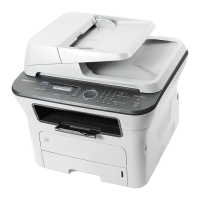
Samsung SCX-340xW Series - User Manual

Samsung SCX-340xW Series
331 pages
Print Icon
To Next Page IconTo Next Page
Loading...
BASIC
User’s Guide
SCX-340x/340xW Series
SCX-340xF/340xFW Series
SCX-340xFH/340xHW Series
BASIC
User’s Guide
This guide provides information concerning installation, basic operation and
troubleshooting on windows.
ADVANCED
This guide provides information about installation, advanced configuration, operation and
troubleshooting on various OS environments.
Some features may not be available depending on models or countries.

Table of Contents

Questions and Answers

  • J
    jason35Aug 17, 2025
    What to do if my Samsung All in One Printer says 'Install Toner Cartridge'?
    • J
      joyce80Aug 17, 2025
      If your printer displays the 'Install Toner Cartridge' message, it means a toner cartridge is not installed. You need to install a toner cartridge to resolve this issue.
  • E
    Evelyn GonzalesAug 19, 2025
    Why does my Samsung All in One Printer say 'Jam or empty Door open&close'?
    • K
      Kendra BlairAug 20, 2025
      The 'Jam or empty Door open&close' message on your Samsung All in One Printer indicates that paper has jammed in the paper feed area or there is no paper in the tray. To solve this: * Clear the jam. * Load paper in the tray.
  • A
    Anna GonzalesAug 22, 2025
    What to do if Samsung All in One Printer shows 'Paper Jam inside machine'?
    • D
      Dorothy CarsonAug 23, 2025
      If your Samsung All in One Printer displays a 'Paper Jam inside machine' error, it means paper has jammed inside the machine. Clear the jam to resolve this issue.
  • V
    Victoria VazquezAug 25, 2025
    What to do if my Samsung All in One Printer displays 'Not Compatible Toner cartridge'?
    • B
      bwhiteAug 26, 2025
      If your Samsung All in One Printer displays 'Not Compatible Toner cartridge', it means that the toner cartridge you have installed is not designed for your machine. Install a Samsung-genuine toner cartridge, designed for your machine.
  • D
    dicksonjoseAug 28, 2025
    What to do if my Samsung All in One Printer displays 'Document jam. Remove jam'?
    • L
      Lawrence SmithAug 28, 2025
      If your Samsung All in One Printer displays 'Document jam. Remove jam', it means the loaded original document has jammed in the document feeder. Clear the jam.
  • S
    Steven BarrettAug 31, 2025
    What to do if Samsung All in One Printer says 'Door Open Close it'?
    • K
      Kevin LeeAug 31, 2025
      If you receive a 'Door Open Close it' message on your Samsung All in One Printer, it indicates that the cover is not securely latched. Close the cover until it locks into place.
  • J
    Jonathan ThomasSep 2, 2025
    What does 'Prepare new cartridge' mean on my Samsung All in One Printer?
    • W
      williamroseSep 2, 2025
      The message 'Prepare new cartridge' on your Samsung All in One Printer indicates that a small amount of toner is left in the indicated cartridge and the estimated cartridge life of toner is close. Prepare a new cartridge for a replacement. You may temporarily increase the printing quality by redistributing the toner.
  • T
    Terry CopelandSep 5, 2025
    What to do if my Samsung All in One Printer shows 'Scanner Locked'?
    • T
      Trevor FergusonSep 5, 2025
      If your Samsung All in One Printer displays 'Scanner Locked', it means that the scanner is locked. Reboot the power. If the problem persists, please call for service.
  • C
    carriereeseSep 8, 2025
    What causes 'Network Problem: IP Conflict' on Samsung All in One Printer?
    • M
      Michael AlvarezSep 8, 2025
      The 'Network Problem: IP Conflict' message on your Samsung All in One Printer means that the network IP address you have set is being used by someone else. Check the IP address and reset it if necessary.
  • M
    michaelcollinsSep 12, 2025
    What does it mean if my Samsung All in One Printer says 'Door of scanner is open'?
    • R
      rdavisSep 12, 2025
      If your Samsung All in One Printer says 'Door of scanner is open', it means the document feeder cover is not securely latched. Close the cover until it locks into place.

Summary

Introduction

Key benefits

Highlights the advantages and features of the machine.

Safety information

Covers essential safety precautions and warnings for using the machine.

Machine overview

Provides a general description of the machine's parts and accessories.

Installing the driver locally

Guides on how to install the printer driver on a local computer.

Menu Overview and Basic Setup

Menu overview

Explains how to access and navigate through the machine's menus.

Basic printing

Covers the fundamental steps and features for printing documents.

Basic copying

Explains the process and options for making copies using the machine.

Basic faxing

Describes the fundamental steps for sending and receiving faxes.

Maintenance

Replacing the toner cartridge

Step-by-step guide on how to replace the toner cartridge.

Cleaning the machine

Provides instructions for cleaning the exterior and interior of the machine.

Storing the toner cartridge

Recommendations for proper storage of the toner cartridge to ensure performance.

Monitoring the supplies life

Explains how to check the remaining life of consumables like toner.

Troubleshooting

Tips for avoiding paper jams

Guidelines to prevent common paper jam issues.

Clearing original document jams

Instructions for removing jammed originals from the document feeder.

Clearing paper jams

Procedures for clearing paper jams from various parts of the machine.

Understanding display messages

Provides meanings and solutions for messages displayed on the machine's screen.

Appendix

Specifications

Lists the technical specifications of the machine, including dimensions and power.

Regulatory information

Details safety, compliance, and regulatory statements for the product.

Software Installation

Installation for Macintosh

Step-by-step guide for installing software on Macintosh operating systems.

Installation for Linux

Guide for installing software packages on Linux operating systems.

Reinstallation for Macintosh

Instructions for uninstalling and reinstalling software on Macintosh systems.

Using a Network-Connected Machine

Wired network setup

Guides on configuring the machine for a wired network connection.

Installing driver over the network

Instructions for installing the printer driver on a network.

Wireless network setup

Step-by-step guide for connecting the machine wirelessly.

Useful network programs

Introduces software tools for managing network settings and devices.

Useful Setting Menus

Print menu

Explains various settings and options available in the print menu.

Copy menu

Details the features and settings available for the copy function.

Fax menu

Covers the various settings and options related to the fax function.

Scan menu

Explains the settings and options available for scanning documents.

Special Features

Printing features

Explains advanced printing options and settings.

Scan features

Details various scanning methods and settings available.

Fax features

Covers advanced faxing capabilities and settings.

Setting up the fax address book

Covers registering, editing, and using speed dial numbers for faxing.

Useful Management Tools

Using SyncThru Web Service

Guide to managing machine settings and firmware via a web browser.

Using Samsung Easy Printer Manager

Application for managing printer settings and status.

Using Samsung Printer Status

Monitors and informs about the machine's status, errors, and supplies.

Using Smart Panel

Program for monitoring machine status and customizing settings.

Troubleshooting

Printing quality problems

Solutions for issues affecting the quality of printed output.

Printing problems

Addresses common issues encountered during the printing process.

Paper feeding problems

Solutions for issues related to paper jams and feeding errors.

Scanning problems

Solutions for issues encountered during the scanning process.

Samsung SCX-340xW Series Specifications

General IconGeneral
FunctionsPrint, Copy, Scan
Print TechnologyLaser
Print Speed (Black)Up to 20 ppm
Print ResolutionUp to 1200 x 1200 dpi
Copy Speed (Black)Up to 20 cpm
Copy ResolutionUp to 1200 x 1200 dpi
Scan Resolution (Optical)Up to 1200 x 1200 dpi
Duplex PrintingManual
Duty Cycle (Monthly)Up to 10, 000 pages
Scan Resolution4800 x 4800 dpi (Enhanced)
Paper Handling Input (Standard)150 sheets
Paper Handling Output (Standard)100 sheets
Media Sizes SupportedA4, A5, Letter, Legal, Executive, Folio, Oficio, ISO B5, JIS B5, Envelope
ConnectivityUSB 2.0
Operating System CompatibilityWindows, Mac, Linux
DisplayLCD

Related product manuals