English - 8
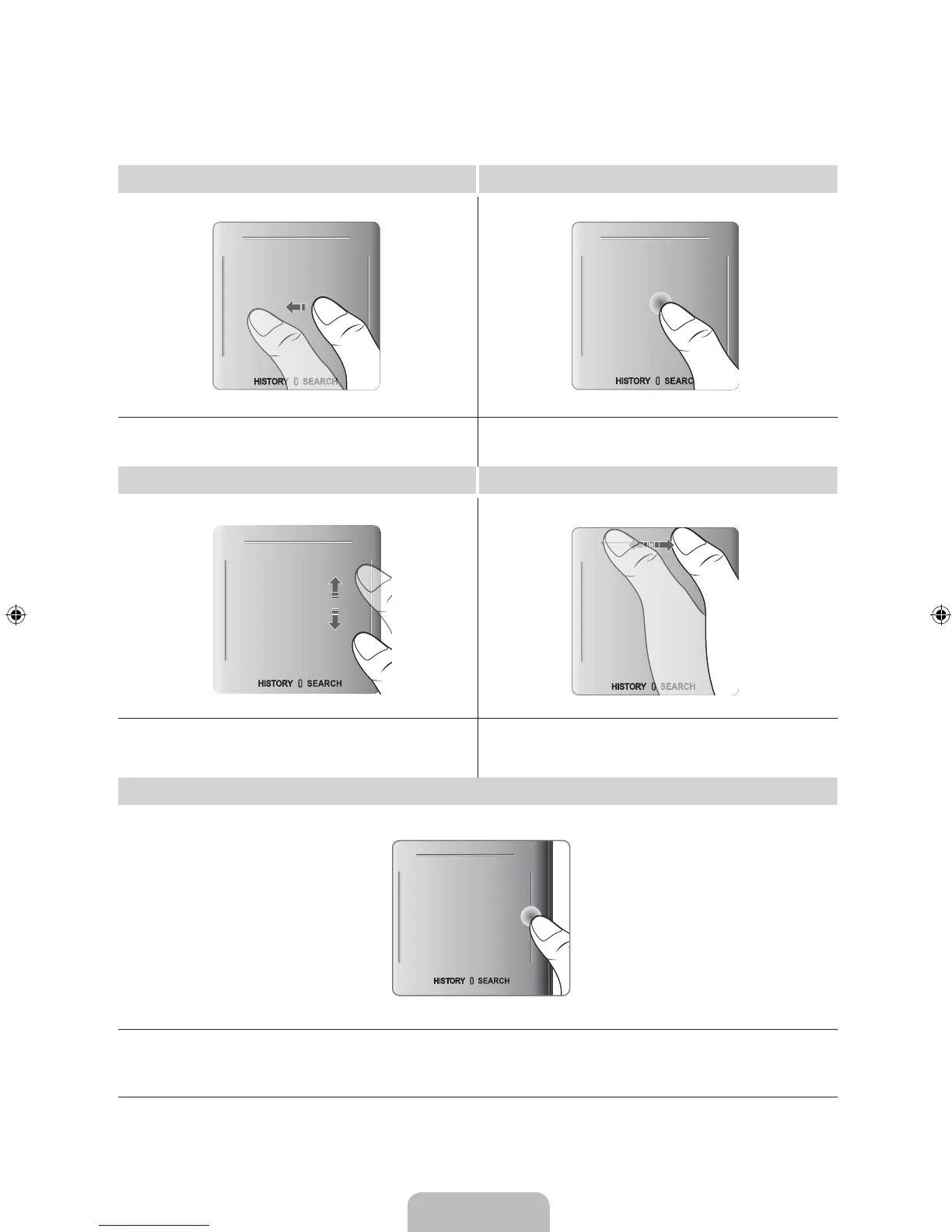
Using the touchpad
Use the touchpad to perform various commands. Navigate to Tutorial (Screen Menu > System > Device Manager >
Smart Touch Control Settings > Tutorial) to view an on-screen guide to using the Smart Touch Control.
Dragging Press
Drag on the touchpad in the desired direction.
Move the focus or the pointer in the direction the finger is dragging.
Press the touchpad. This selects the focused item.
Scrolling Up and Down Scrolling Left and Right
Scroll up/down the line on either the left or right edge of the touchpad.
This scrolls a webpage or a list up/down. This scrolling feature easily
accommodates both right-handed and left-handed users.
Move your finger horizontally on the projected line at the top of the
touchpad. You can horizontally scroll a horizontal list or the Smart Hub
panel.
Changing Channels by Entering Numbers
While watching TV, tap on the protruding line on the left or right edge of the touchpad to bring up the numerical input window on the screen. Use
your finger to enter the number for the channel you want to watch. The recognised number is displayed on the screen and the TV switches to the
corresponding channel. However, the number you have entered may not be recognised properly by the TV. Refer to the guide below to ensure that
your numerical entries are recognised accurately.
[PF5500-XA_KE]BN68-04943A-02ENG.indb 8 2013-05-20 �� 2:39:42






 To Next Page