EasyManua.ls Logo

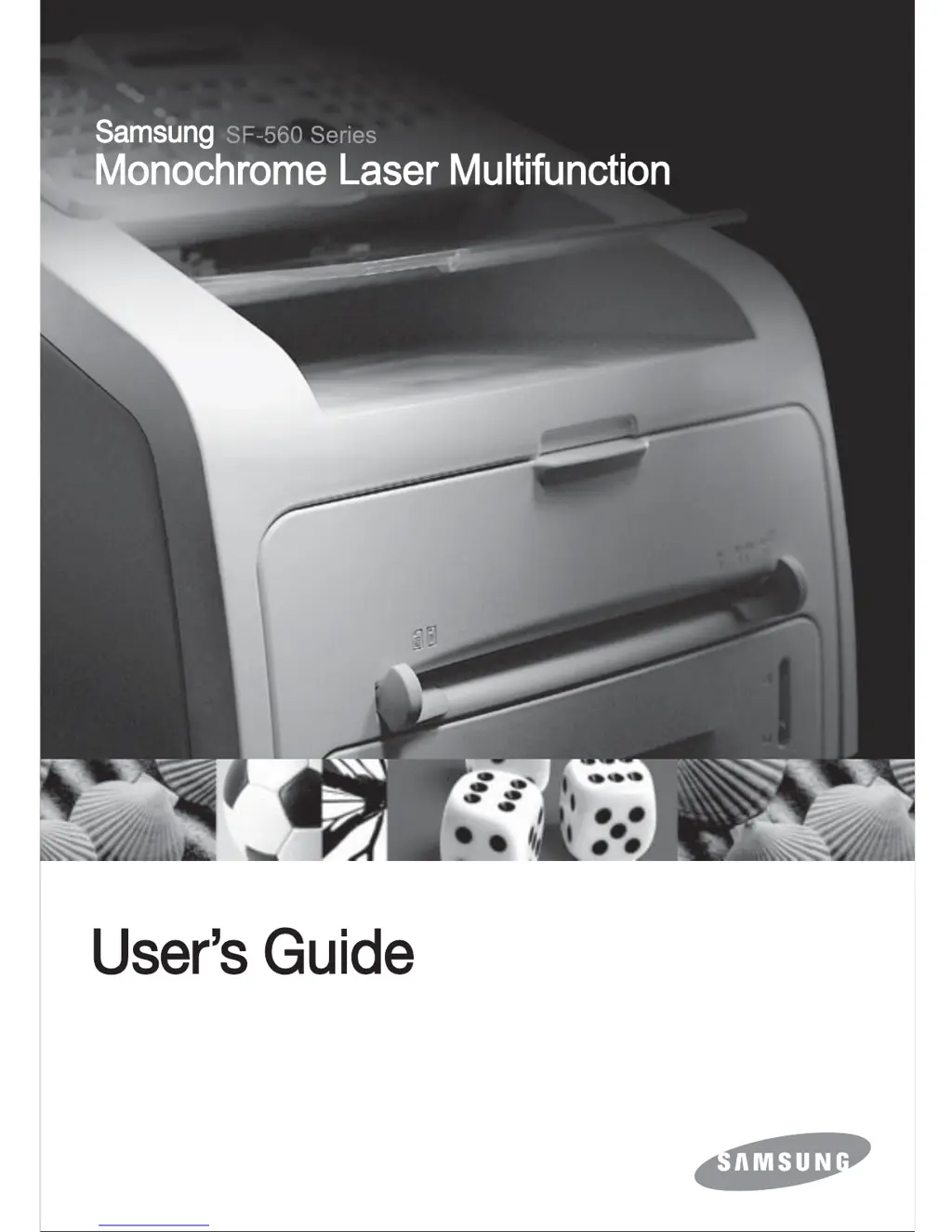
Samsung SF SF-560 - User Manual

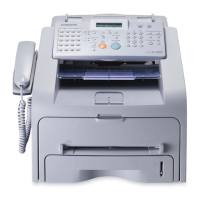
Samsung SF SF-560
98 pages
Print Icon
To Next Page IconTo Next Page
Loading...

Table of Contents

Questions and Answers

  • J
    Jason MathisAug 12, 2025
    Why is my Samsung All in One Printer showing 'Toner Low'?
    • G
      gthomasAug 12, 2025
      The 'Toner Low' message on your Samsung All in One Printer indicates that the toner cartridge is almost empty. To temporarily reestablish printing operations, take out the toner cartridge and gently shake it.
  • A
    Anthony EvansAug 16, 2025
    What to do if my Samsung SF SF-560 All in One Printer says 'Toner Empty'?
    • D
      David TorresAug 16, 2025
      If your Samsung All in One Printer indicates 'Toner Empty', it means the toner cartridge has run out. Replace it with a new toner cartridge.
  • K
    Kari PhillipsAug 20, 2025
    What to do if my Samsung All in One Printer has Paper Jam 1?
    • E
      Elizabeth AlexanderAug 20, 2025
      If your Samsung All in One Printer displays a 'Paper Jam 1' error, it means paper has jammed in the paper exit area, or a jam occurred in the manual feeder, or the machine detects non-feeding from the manual feeder. Clear the jam.
  • Z
    zcolonAug 25, 2025
    What to do if my Samsung SF SF-560 All in One Printer has Paper Jam 2?
    • K
      kedwardsAug 25, 2025
      If your Samsung All in One Printer displays 'Paper Jam 2', it means paper has jammed in the fuser area. Clear the jam.
  • M
    Mary JohnsonAug 27, 2025
    What to do if my Samsung SF SF-560 All in One Printer has Paper Jam 0?
    • B
      Brian CarterAug 28, 2025
      If your Samsung All in One Printer is showing 'Paper Jam 0', paper has jammed in the feeding area of the paper tray. Clear the jam.
  • W
    walkertoddAug 31, 2025
    What to do if my Samsung All in One Printer memory is full?
    • W
      William DanielAug 31, 2025
      If the memory of your Samsung All in One Printer is full, delete unnecessary documents. You can also retransmit after more memory becomes available, or split the transmission into more than one operation.
  • J
    John GriffinSep 4, 2025
    What to do if my Samsung SF SF-560 All in One Printer has a power failure?
    • M
      Mark LewisSep 4, 2025
      If your Samsung All in One Printer experiences a power failure where power turned off and then on, and the machine’s memory has not been saved, you need to start again the job which you were trying to do before the power failure.
  • M
    Maureen AllisonSep 7, 2025
    Why is my Samsung SF SF-560 All in One Printer saying '[No Paper] Add Paper'?
    • T
      Tyler AliSep 7, 2025
      The '[No Paper] Add Paper' message on your Samsung All in One Printer indicates that the paper tray has run out of paper. Load paper in the paper tray.

Summary

Safety and Regulatory Information

Important Precautions and Safety Information

Basic safety precautions to reduce risk of fire, electric shock, and injury.

Laser Safety Statement

Information regarding Class I laser product certification and safety warnings.

Ozone and Mercury Safety

Information on ozone production and mercury content in the product.

FCC and Radio Frequency Compliance

FCC rules, radio frequency emissions, and user information.

Canadian Radio Interference Regulations

Compliance with Canadian standards for digital apparatus.

Ringer Equivalence Number (REN)

Information on telephone line load and REN usage.

Replacing the Fitted Plug (UK Only)

Plug Wiring and Earthing Instructions

Details on correct wiring and earthing for UK power plugs.

Chapter 1: Getting Started

Setting Up Your Machine

Instructions for unpacking, selecting a location, and component identification.

Setting Up the Machine System

Procedures for changing language, setting machine ID, date, time, and paper.

Chapter 2: Basic Functions

Sending a Fax

Guide on preparing, loading, and sending faxes automatically or manually.

Receiving a Fax

Explains different receiving modes and paper loading for incoming faxes.

Making a Copy

Instructions for loading paper, setting copy options, and making copies.

Automatic Dialing

How to store and use one-touch, speed, and group dialing for faxes.

Chapter 3: Advanced Fax Functions

Sending Broadcasting Faxes

How to send a single document to multiple destinations simultaneously.

Sending a Delayed Fax

Setting up faxes to be sent at a later, specified time.

Sending a Priority Fax

Sending documents with high priority ahead of other operations.

Chapter 4: Additional Features

Using Secure Receiving Mode

Restricting access to received faxes when the machine is unattended.

Printing Reports

How to print various reports like phonebook list, sent/received fax reports.

Using Advanced Fax Settings

Configuring various fax transmission and reception settings.

Chapter 5: Maintenance

Clearing the Memory

Procedures for clearing specific types of stored data and settings.

Cleaning Your Machine

Instructions for cleaning the outside, inside, and scan unit of the machine.

Maintaining the Toner Cartridge

Guidelines for toner cartridge storage, saving toner, and redistribution.

Chapter 6: Troubleshooting

Clearing Document Jams

Steps to remove jammed documents from the Automatic Document Feeder.

Clearing Paper Jams

Instructions to clear paper jams in various locations within the machine.

Solving Problems

Common issues like paper feeding, copying, and faxing problems with solutions.

Appendix A: Specifications

General Specifications

Technical details including ADF, power, noise level, and dimensions.

Copier Specifications

Details on scan method, resolution, copy speed, and paper types.

Facsimile Specifications

Information on modem speed, transmission speed, and resolution.

Paper Specifications

Guidelines for paper types, sizes, weight, and storage environment.

Samsung SF SF-560 Specifications

General IconGeneral
FunctionsPrint, Copy, Scan, Fax
Printing TechnologyLaser
Print Resolution600 x 600 dpi
Copy Resolution600 x 600 dpi
Scan TypeFlatbed
Fax Transmission Speed33.6 Kbps
Paper Capacity250 sheets
ConnectivityUSB 2.0
Operating System CompatibilityWindows, Mac
Modem Speed33.6 Kbps
Fax Resolution300 x 300 dpi
Printer TypeAll in One Printer

Related product manuals