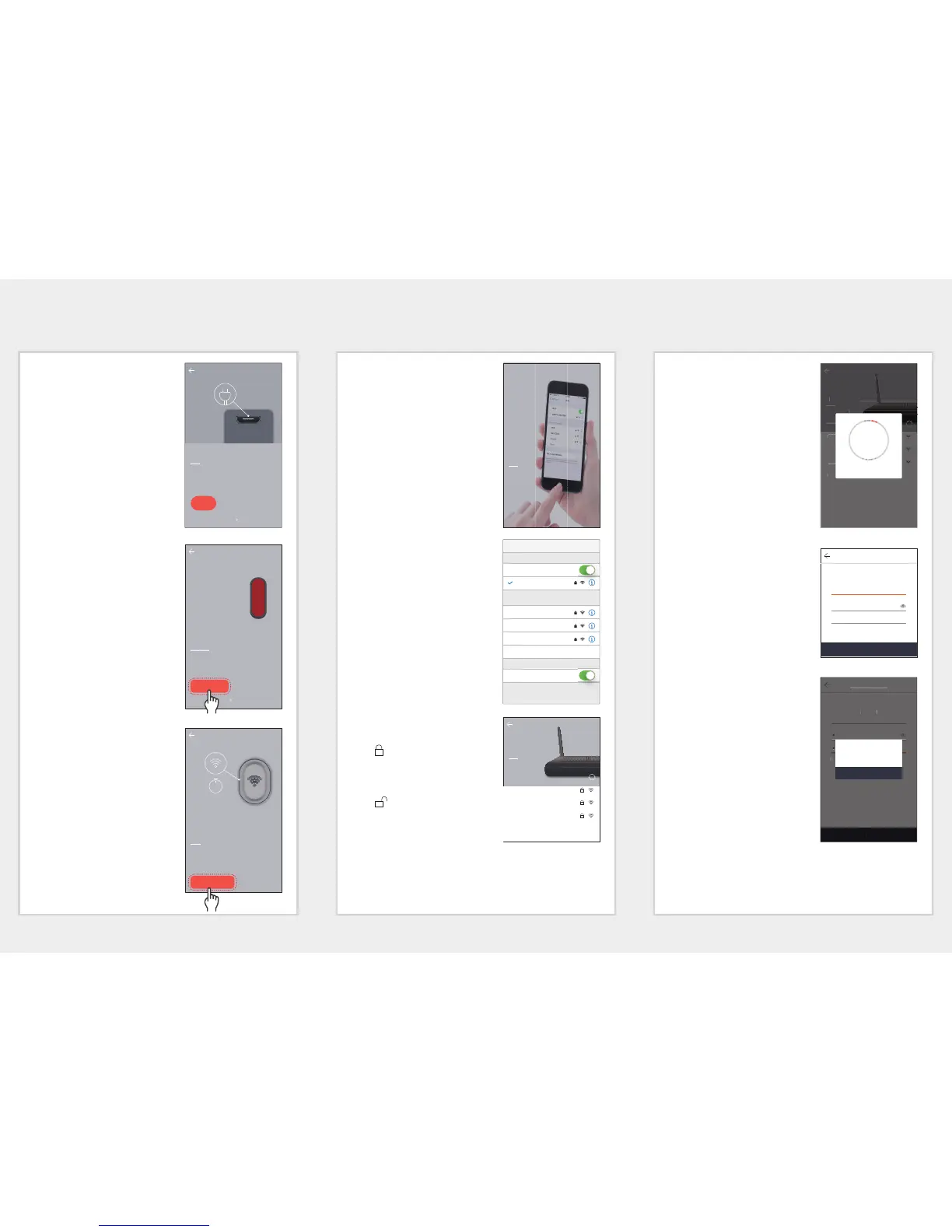
6. After connecting the power
supply to the product, press the
<Next> button.
7. When the LED of the product
blinks, press <Ready>.
8. Press and hold the Wi-Fi button
until the yellow light turns on.
9. When the next window pops
up, move to Wi-Fi Setup for
Smartphone.
10. Select ‘DIRECT-CAM’ and enter
your password.
M
Select a name that contains the last
4 digits of the product serial
number.
When password entry is requested,
enter ‘smartcam’.
11. Select a wireless router that is
connected to the camera.
•
: After a password is
entered and verified, it is
connected to the wireless
router.
•
: It is connected to the
wireless router without any
password.
• Others : This is used when no
router to connect with the camera has been found, or
when a hidden SSID is connected.
12. Connection of the camera to the
router is made.
M
When the camera LED is blinking, it
is searching for a wireless router.
When the camera is connected to
the router, the LED illuminates in
blue; when the camera is
connected to the server, the LED
illuminates in green.
When a product that has a wired
LAN function has failed wireless
registration, please try wired LAN
registration.
13. Enter <Name> and <Password>
and then press <OK>.
14. You have successfully registered
the product.
With the SNH model, when you
press <OK>, the screen changes
to the camera live window.
For the SmartCam A1 model,
press <OK>, and the camera will
be registered.
M
Depending on the smartphone
default settings, the camera may
not be registered.
If this is the case, please check the
Help and try again.
OK
Setting a password
For security purposes, please set up a station name and
password.
Name
Confirm Password
1 to 8 alphanumeric characters
Password
OK
Setting a password
For security purposes, please set up a station name and
password.
mv Argus
•
1 to 8 alphanumeric characters
•



 To Next Page