EasyManua.ls Logo

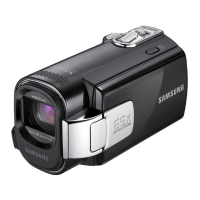
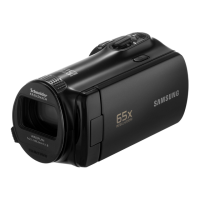
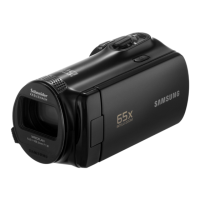
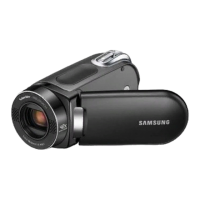
Samsung SMX-F40 - User Manual

Samsung SMX-F40
131 pages
Print Icon
To Next Page IconTo Next Page
Loading...
www.samsung.com/register
SMX-F40BN/SMX-F40SN/SMX-F40RN/SMX-F40LN
SMX-F43BN/SMX-F43SN/SMX-F43RN/SMX-F43LN
SMX-F44BN/SMX-F44SN/SMX-F44RN/SMX-F44LN
SMX-F400BN/SMX-F400SN/SMX-F400RN/SMX-F400LN
User Manual
Memory Camcorder

Table of Contents

Questions and Answers

  • T
    Tina NobleSep 18, 2025
    Why can't I play Samsung SMX-F40 Camcorder video files on my PC?
    • J
      jhudsonSep 18, 2025
      If you cannot properly play a video file from your Samsung Camcorder on your PC, you may need a video codec. Install or run the built-in editing software (Intelli-studio). Also, ensure the USB cable is correctly connected to the USB jack on your camcorder.
  • S
    Sean PierceAug 25, 2025
    What to do if my Samsung SMX-F40 Camcorder says card full?
    • L
      larsencarlaAug 25, 2025
      If your Samsung Camcorder displays 'Card Full', you should delete unnecessary files from the memory card. Alternatively, use the built-in memory (available on SMX-F43/F44 models only). You can also back up your files to a PC or other storage media and then delete them from the card, or simply switch to another memory card with sufficient free space.
  • K
    Krista PerryAug 25, 2025
    Why does my Samsung SMX-F40 say insert card?
    • J
      jameswrightAug 26, 2025
      If your Samsung Camcorder prompts you to insert a card, simply insert a memory card into the device.
  • W
    williamzimmermanAug 27, 2025
    How to fix Samsung SMX-F40 Camcorder that does not turn on?
    • K
      Kathleen CoxAug 27, 2025
      If your Samsung Camcorder does not turn on, ensure a battery pack is inserted. Charge the battery pack or replace it with a charged one. If using an AC power adapter, verify it's properly connected to the wall outlet. As a final step, remove and reconnect the power supply before turning the camcorder on.
  • W
    wsheppardSep 23, 2025
    Why can't I dub correctly with my Samsung SMX-F40?
    • P
      Peter CardenasSep 23, 2025
      If you cannot dub correctly using the Audio/Video cable with your Samsung Camcorder, ensure that the Audio/Video cable is properly connected to the correct jack.
  • K
    kimberlyrodgersSep 23, 2025
    Why is the playback screen paused or distorted on my Samsung Camcorder?
    • H
      henry05Sep 23, 2025
      If the playback screen on your Samsung Camcorder is paused or distorted, check the system requirements to play the video. Try exiting all other applications running on your computer.
  • T
    Todd WilsonSep 10, 2025
    What to do if Samsung SMX-F40 Camcorder says number of video files is full?
    • K
      Katie EricksonSep 10, 2025
      If your Samsung Camcorder displays 'The Number of video files is full. Cannot copy videos.', format the storage media using the menu after backing up important files to your PC or another storage device. Also, set “File No.” to “Reset.”
  • R
    Rodney ColemanSep 12, 2025
    What to do if Samsung SMX-F40 says number of photo files is full?
    • A
      Austin CobbSep 12, 2025
      If your Samsung Camcorder displays 'The Number of photo files is full. Cannot copy photos.', format the storage media using the menu item after backing up important files to your PC or another storage device. Set “File No.” to “Reset.”
  • R
    Renee NicholsonSep 4, 2025
    Why does my Samsung SMX-F40 Camcorder say low speed card?
    • J
      Jackie HowellSep 4, 2025
      If your Samsung Camcorder shows 'Low speed card. Please record a lower resolution', try recording video at a lower resolution. Alternatively, use a faster memory card.
  • S
    Sonia GonzalesSep 1, 2025
    What to do if Samsung SMX-F40 says not supported card?
    • A
      Andrew LewisSep 2, 2025
      If your Samsung Camcorder displays 'Not Supported Card', you should switch to a memory card that is recommended for use with the camcorder.

Summary

SAFETY WARNINGS

IMPORTANT INFORMATION ON USE

Before using this camcorder

Provides essential information and considerations before operating the camcorder for the first time.

important safety instructions

preparation

CONNECTING A POWER SOURCE

Information on how to connect the camcorder to a power source for charging and operation.

basic operation of the camcorder

SETTING THE TIME ZONE AND DATE;TIME FOR THE FIRST TIME

Guides on setting the camcorder's time zone and date/time upon initial use.

basic recording

RECORDING VIDEOS

Step-by-step guide on how to record videos using the camcorder, including start/stop operations.

TAKING PHOTOS

Instructions on how to capture still photos with the camcorder, including using the PHOTO button.

basic playback

PLAYING BACK VIDEOS

Step-by-step guide on how to preview and play recorded videos in thumbnail index view.

recording options

CHANGING THE MENU SETTINGS

Explains how to customize camcorder settings using the MENU button and joystick.

Time Lapse REC

Enables programming the camcorder to record frames at intervals for time-lapse videos.

playback options

Delete

Allows erasing recorded videos or photos individually or all at once.

Protect

Enables protection of important videos or photos against accidental deletion.

system setting

Format

Deletes all files from storage media and corrects potential problems, preparing it for use.

Date;Time Set

Allows setting the camcorder's date and time, which is recorded with videos and photos.

Default Set

Restores all menu settings to their factory default values.

using with a Windows computer

System Requirements

Lists the minimum system requirements for using the Intelli-studio editing software.

warranty

troubleshooting

Samsung SMX-F40 Specifications

General IconGeneral
Digital zoom2200 x
Optical zoom52 x
Focal length range2.1 - 109.2 mm
Sensor typeCCD
Total megapixels0.8 MP
Optical sensor size1/6 \
Display diagonal2.7 \
Video out1
Auto focusYes
Compatible operating systemsWindows XP SP2, Vista
Video formats supportedH.264, MP4
Maximum video resolution720 x 576 pixels
Analog signal format systemPAL
Still image resolution(s)1600 x 1200
Audio formats supportedAAC
USB 2.0 ports quantityUSB 2.0 ports have a data transmission speed of 480 Mbps, and are backwards compatible with USB 1.1 ports. You can connect all kinds of peripheral devices to them.
Compatible memory cardsMMC, SD, SDHC
Product colorRed
Battery typeIA-BE210TB
Weight and Dimensions IconWeight and Dimensions
Depth63.3 mm
Width59.6 mm
Height112.5 mm
Weight220 g

Related product manuals