EasyManua.ls Logo

Samsung SPP 2040 - User Manual

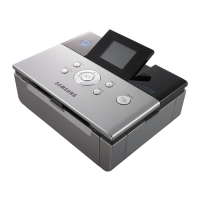
Samsung SPP 2040
81 pages
Print Icon
To Next Page IconTo Next Page
Loading...
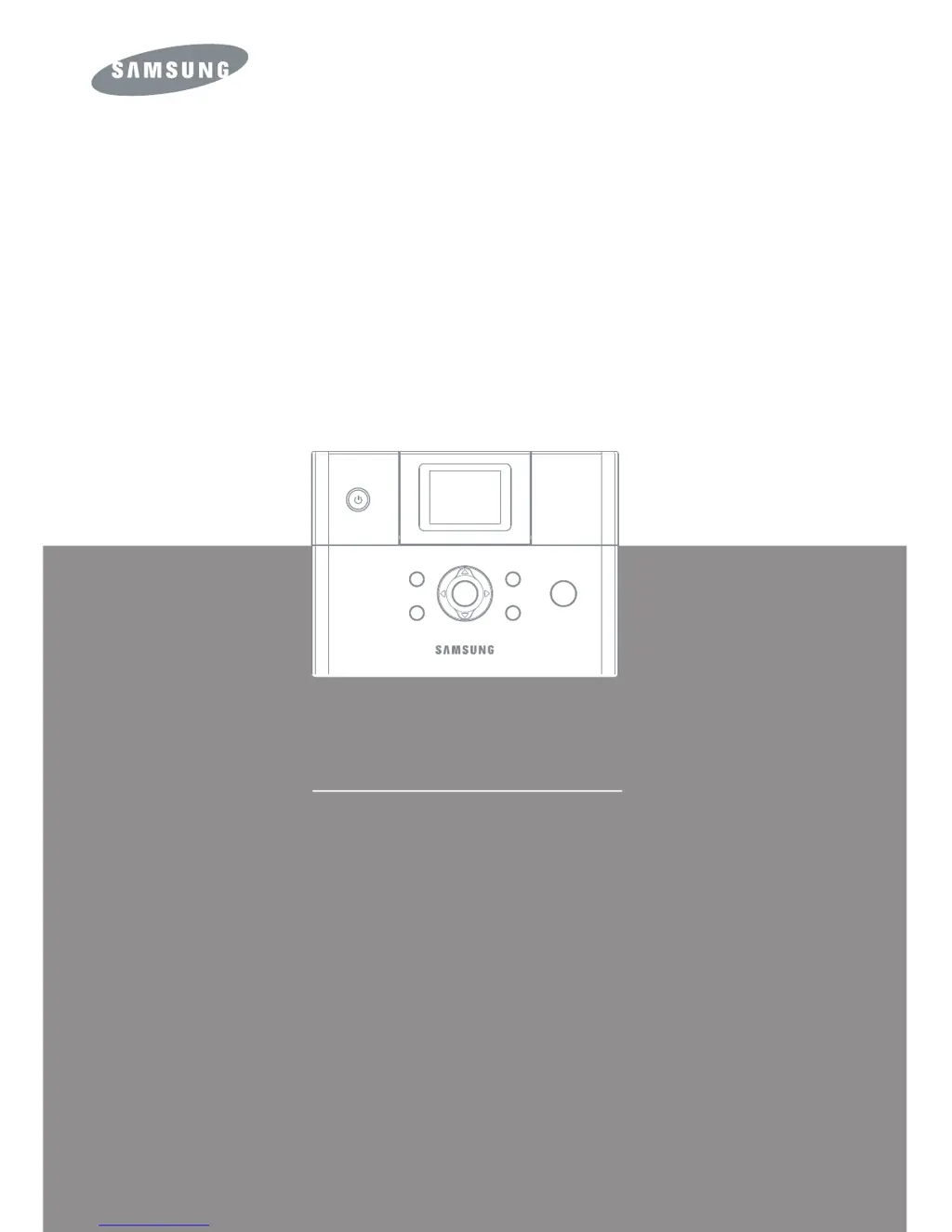
SPP-2040 Series / SPP-2020 Series
Samsung P Users Guidehoto Printer

Table of Contents

Questions and Answers

  • L
    Lisa HallAug 14, 2025
    What to do if there is a paper jam in my Samsung Printer?
    • D
      Dalton CarpenterAug 15, 2025
      If your Samsung Printer has a paper jam, turn the printer off. If the jammed paper doesn't come out automatically, remove it manually. Then, turn the printer back on. Note that one page of the ribbon cartridge’s life is used when the paper jams occurs even though an image is not printed.
  • B
    brittanymelendezAug 17, 2025
    What to do if Samsung Printer cannot print image?
    • M
      Matthew GrayAug 18, 2025
      If your Samsung Printer cannot print an image, turn the printer off and on.
  • A
    Alexis RobinsonAug 21, 2025
    How to fix error when there is no paper in Samsung Printer?
    • L
      Lisa SmithAug 21, 2025
      If your Samsung Printer displays an error indicating there is no paper, load paper into the printer and then press the Print button.
  • D
    Douglas WashingtonAug 25, 2025
    What to do if Samsung SPP 2040 cannot read memory card?
    • K
      katelyn24Aug 25, 2025
      If your Samsung Printer failed to read the memory card, remove the memory card and insert it again. If the error persists, try using a different memory card.
  • J
    jonesjamesAug 28, 2025
    What to do if paper cassette is not inserted correctly in Samsung Printer?
    • Z
      Zachary FieldsAug 28, 2025
      If your Samsung Printer indicates that the paper cassette is not inserted or is inserted incorrectly, insert the paper cassette, or reinsert it correctly.
  • I
    Isabel WalshAug 31, 2025
    What to do if Samsung Printer says that ribbon cartridge is not installed when printing?
    • J
      Jose PopeAug 31, 2025
      If the ribbon cartridge is not installed when you try to print images on your Samsung Printer, install the ribbon cartridge and press the Print button.
  • R
    Roger ReedSep 3, 2025
    What to do if Samsung Printer has problem reading JPEG files?
    • M
      Michael ClarkSep 4, 2025
      If your Samsung Printer has a problem reading JPEG files, try printing other images.
  • D
    David DuffySep 6, 2025
    What to do if images in memory card were deleted on Samsung SPP 2040 Printer?
    • R
      Robin HoodSep 7, 2025
      If the images in the memory card were deleted, try printing images from another source using your Samsung Printer.
  • R
    robert61Sep 10, 2025
    What to do if Samsung SPP 2040 cannot read images?
    • H
      herrerastephanieSep 10, 2025
      If your Samsung Printer cannot read images, turn the printer off and on.

Summary

Important Safety Information

Safety Instructions

Provides essential safety guidelines for product operation and handling.

Setting Up your System

Guides users on how to properly set up the printer for optimal use.

Care During Use

Offers advice on safe and correct operation of the printer during use.

Replacement Parts and Accessories

Information on using manufacturer-recommended replacement parts and accessories.

Power Cord Requirements

Getting Started

Name of Each Part

Identifies and describes the components and parts of the photo printer.

Installation

Installing the Ribbon Cartridge

Step-by-step guide for installing the ribbon cartridge into the printer.

Loading Paper

Instructions on how to correctly load paper into the paper cassette.

Connecting the Power Cord

Details on how to connect the printer to a power source.

Printing from Memory Cards

Inserting Memory Cards

Guidance on inserting various types of memory cards into the printer.

Printing Images

How to select and print individual images from a memory card.

Printing Multiple Images

Instructions for selecting and printing a group of images.

Printing Images Using Multi-Display

Using the multi-image display feature to select photos for printing.

Printing Enlargements of Portions of an Image

How to enlarge and print specific sections of an image.

Setting Various Effects

Options for adjusting color, sharpness, and brightness of images.

Setting Additional Functions

Configuring borders, layout, and other print settings.

Printing DPOF Files

Printing images using the Digital Print Order Format (DPOF).

Removing Memory Cards

Safe procedures for removing memory cards from the printer.

Printing Directly from Your Digital Camera

Printing via a Computer

Connecting Your Printer to a Windows-based PC

Steps to connect the printer to a Windows PC via USB.

Installing the Program for Windows

Guide for installing the printer software on Windows operating systems.

Deleting the PhotoThru Program

Instructions for uninstalling the PhotoThru software on Windows.

Selecting Your Photo Printer as the Default Printer in Windows

How to set the Samsung printer as the default printing device in Windows.

Printing from a Windows-based Computer

Process for printing images from applications on a Windows computer.

Setting Up the Printer in Windows

Configuring printer properties and options within Windows.

Printing with the PhotoThru Program in Windows

Using the PhotoThru program for editing and printing images in Windows.

Installing the Program for Macintosh

Guide for installing the printer software on Macintosh operating systems.

Setting Up the Printer in Macintosh

Configuring printer settings and options on a Macintosh computer.

Printing from a Macintosh

Steps for printing images from applications on a Macintosh computer.

Printing Using PhotoThru Program in Macintosh

Using the PhotoThru program for image editing and printing on Macintosh.

Using MSC(Mass Storage Class) Function (For SPP-2040 Series only)

Utilizing the printer as a card reader via USB connection on Windows.

Printing with Bluetooth (Optional: SPP-00 BA)

Wireless printing from Bluetooth-equipped devices.

Maintenance

Maintaining the Printer

Instructions for cleaning and general upkeep of the printer.

Replacing the Ribbon Cartridge

Detailed steps for replacing the ribbon cartridge in the printer.

Troubleshooting

Resolving common problems and error messages displayed by the printer.

Specifications

Technical details and features of the Samsung Photo Printer.

Samsung SPP 2040 Specifications

General IconGeneral
BrandSamsung
ModelSPP 2040
CategoryPrinter
LanguageEnglish

Related product manuals