EasyManua.ls Logo

Samsung SR8875 - User Manual

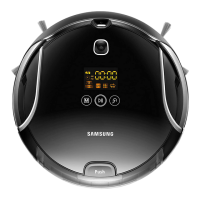
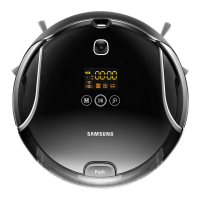
Samsung SR8875
140 pages
Print Icon
To Next Page IconTo Next Page
Loading...
imagine the possibilities
Thank you for purchasing a Samsung product.
To receive a more complete service,
please register your product at
www.samsung.com/register
Robotic Vacuum Cleaner
User Manual
Before operating this unit, please read the instructions carefully.
For indoor use only.
English
This manual is made with 100 % recycled paper.
Code No. DJ68-00620Z REV(0.0)
SR8875
DJ68-00620Z(0.0).indb 1DJ68-00620Z(0.0).indb 1 2013.1.8 9:38:22 AM2013.1.8 9:38:22 AM

Other manuals for Samsung SR8875

Questions and Answers

  • C
    Connie GravesAug 18, 2025
    What to do if my Samsung SR8875 Vacuum Cleaner doesn't turn on?
    • A
      Alexander FrostAug 18, 2025
      If your Samsung Robotic Vacuum Cleaner isn't turning on, try the following: First, ensure the Power Switch is turned on. Then, press the power button. If the battery level is low and 'LO' is displayed, manually dock the vacuum onto the charger. Check and replace the remote control batteries (AAA type) if they are depleted. Also, the vacuum may not operate because of a height difference on the floor, a thin towel wrapped around the driving wheel, or being stuck on a doorsill; in these cases, turn off the Power Switch and move the vacuum to a different location. Finally, if the dust bin is full, empty it; if the suction inlet or filter is clogged, remove any foreign substances or clean the filter.
  • S
    Shaun BishopAug 20, 2025
    Why can't my Samsung Vacuum Cleaner find the charger?
    • S
      Scott BurtonAug 20, 2025
      If your Samsung Robotic Vacuum Cleaner is having trouble finding the charger, make sure the charger's power plug is correctly plugged into the outlet. Remove any obstacles within approximately 1 meter in front of the charger and 0.5 meters to the left and right. Wipe off any foreign substances on the charging pins with a dry towel. Also, check if a VIRTUAL GUARD is installed near the charger; if so, move it to another location.
  • M
    Mrs. Karen Lindsey DDSAug 23, 2025
    What to do if Samsung SR8875 Vacuum Cleaner gets stuck?
    • C
      Craig RosarioAug 23, 2025
      If your Samsung Vacuum Cleaner gets caught, stuck, or trapped, turn off the Power Switch at the bottom and move it to a different location.
  • R
    Roger SmithAug 26, 2025
    Why does the Virtual Guard battery on my Samsung SR8875 Vacuum Cleaner drain so fast?
    • R
      Robert JohnsonAug 26, 2025
      If the battery usage time of the VIRTUAL GUARD is too short, replace the batteries. If you are using manganese dry-cell batteries, replace them with new alkaline batteries.
  • T
    Tracy RoachAug 28, 2025
    Why is my Samsung SR8875 Virtual Guard battery life so short?
    • A
      Andrea RiveraAug 28, 2025
      If the battery usage time of the VIRTUAL GUARD is too short, it may be because the batteries are worn out. Replace the batteries. If you're using manganese dry-cell batteries, replace them with alkaline batteries.
  • J
    Joyce WillisAug 30, 2025
    How to remove a foreign substance from the power brush of my Samsung SR8875?
    • J
      james34Aug 30, 2025
      To remove a foreign substance caught in the power brush of your Samsung Vacuum Cleaner, turn off the Power Switch at the bottom and remove the foreign substance from the power brush.
  • B
    Brian MaciasSep 2, 2025
    How do I remove debris from the left driving wheel of my Samsung SR8875?
    • P
      parnoldSep 2, 2025
      To remove a foreign substance caught in the left driving wheel of your Samsung Vacuum Cleaner, turn off the Power Switch at the bottom and remove the foreign substance from the left driving wheel.
  • M
    mendezronaldSep 5, 2025
    How do I remove debris from the right driving wheel of my Samsung SR8875?
    • B
      Brandon SmithSep 5, 2025
      To remove a foreign substance caught in the right driving wheel of your Samsung Vacuum Cleaner, turn off the Power Switch at the bottom and remove the foreign substance from the right driving wheel.
  • O
    ofloresSep 7, 2025
    How to clean the obstacle sensor window on a Samsung Vacuum Cleaner?
    • B
      bellamandaSep 7, 2025
      To clean a foreign substance from the obstacle sensor window of your Samsung Vacuum Cleaner, turn off the Power Switch at the bottom and wipe the foreign substance from the front and rear sensor windows using a soft cloth.
  • C
    christinawoodsSep 10, 2025
    How to clean the cliff sensor window on a Samsung SR8875 Vacuum Cleaner?
    • H
      huynhalyssaSep 10, 2025
      To clean a foreign substance from the Cliff sensor window on your Samsung Vacuum Cleaner, turn off the Power Switch at the bottom and wipe the foreign substance on the cliff sensor window with a soft cloth.

Summary

Safety Information

Understanding Caution Symbols

Key explanations of caution and warning symbols used throughout the manual.

Important Safety Instructions

Critical safety instructions to follow before and during use of the robotic vacuum.

Power Cord and Electrical Safety

Safety instructions related to the power cord, plug, and electrical connections.

Pre-Operation Safety Checks

Essential safety checks and preparations before activating the robotic vacuum cleaner.

Safety During Vacuum Operation

Important safety considerations to keep in mind while the vacuum is actively cleaning.

Safety for Cleaning and Maintenance

Safety protocols to follow when performing cleaning and maintenance tasks.

Assembling the Cleaner

Operating the Cleaner

Basic Cleaning Operations

How to start, stop cleaning, and initiate automatic recharging.

Maintain Tools and Filter

Troubleshooting

Pre-Service Call Checklist

Common issues and troubleshooting steps before contacting customer support.

Understanding Error Codes

Guide to interpreting error codes and their corresponding solutions.

Samsung SR8875 Specifications

General IconGeneral
Dustbin Capacity0.6 L
ColorBlack
Battery Life90 minutes
Charging Time180 minutes
Filter TypeHEPA

Related product manuals