EasyManua.ls Logo

Samsung SyncMaster 3 series - User Manual

Samsung SyncMaster 3 series
51 pages
Print Icon
To Next Page IconTo Next Page
Loading...
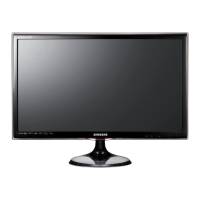
LED TV MONITOR
user manual
Thank you for purchasing this Samsung product.
To receive more complete service, please register
your product at
www.samsung.com/register
(MFM TV)
imagine the possibilities
TA550
TA350

Questions and Answers

  • J
    Jason BlanchardAug 19, 2025
    What to do if my Samsung LED TV will not turn on?
    • K
      kathybushAug 19, 2025
      Check that the AC power cord is firmly plugged into both the wall and the LED display. Ensure the wall outlet is working. Try pressing the POWER button on the LED display itself to rule out a remote issue. If it turns on this way, the problem is with the remote control.
  • J
    Joseph RollinsAug 21, 2025
    Why does my Samsung LED TV turn off automatically?
    • R
      Robert HollandAug 21, 2025
      Make sure the Sleep Timer is off in the Time menu. If a PC is connected, check its power settings. Ensure the AC power cord is securely connected to the wall and the LED display. If watching from an antenna or cable without a signal, the LED display might turn off automatically after 15-60 minutes.
  • I
    Isaac HartAug 25, 2025
    What to do if there is no picture/video on my Samsung SyncMaster 3?
    • J
      john61Aug 25, 2025
      Check the cable connections by removing and reconnecting all cables connected to the Samsung Monitor and external devices. Ensure that your external device’s video outputs match the connections to the TV input. Verify that your connected devices are powered on. Select the correct source on the TV by pressing the SOURCE button on the remote control. Try rebooting the connected device by reconnecting its power cable.
  • J
    Jack HaleyAug 26, 2025
    How to fix a Samsung SyncMaster 3 Monitor that will not turn on?
    • K
      Kelly LutzAug 26, 2025
      First, ensure that the AC power cord is securely plugged into the wall outlet and the Samsung Monitor. Check if the wall outlet is working. Then, try pressing the POWER button on the TV to rule out a remote control issue. If the TV turns on, the problem might be with the remote control.
  • D
    darlenejohnsonAug 28, 2025
    Why does my Samsung Monitor turn off automatically?
    • J
      James WhitneyAug 28, 2025
      Ensure that the Sleep Timer is set to Off in the System menu. If your PC is connected to the Samsung Monitor, check your PC power settings. Make sure the AC power cord is securely plugged into the wall outlet and the TV. If watching TV from an antenna or cable connection, the TV will turn off after 10 - 15 minutes if there is no signal.
  • L
    lisa89Aug 30, 2025
    How to improve poor color or brightness on Samsung SyncMaster 3?
    • S
      shawnfosterAug 30, 2025
      Adjust the Picture options in the TV menu, specifically Picture Mode, Color, Brightness and Sharpness. Also, adjust the Energy Saving option in the TV menu. You can also try resetting the picture to the default settings.
  • J
    Joshua CoxSep 1, 2025
    Why is the picture quality bad on my Samsung LED TV?
    • M
      Michael GrantSep 1, 2025
      First, run the Picture Test to see if your LED display shows the test image correctly. Go to MENU - Support - Self Diagnosis - Picture Test. If the test image looks good, the problem might be with the source or signal you're using.
  • K
    Kenneth Diaz IISep 3, 2025
    What to do if my Samsung LED TV image doesn't look as good as in the store?
    • D
      Deanna CarterSep 4, 2025
      If you're using an analogue cable or set-top box, consider upgrading to a digital one. Use an HDMI cable for HD picture quality. Cable/satellite users should try HD channels. Antenna users should try HD channels after auto-tuning. Adjust your cable/set-top box video output to 1080i or 720p. Also, make sure you're watching from the right distance for the screen size and signal definition.
  • H
    Harold GraySep 5, 2025
    How to fix poor color or brightness on Samsung LED TV?
    • L
      Lori MoyerSep 5, 2025
      Adjust the picture settings in the LED display menu, such as Picture Mode, Colour, Brightness, and Sharpness. Also, adjust the Energy Saving option in the LED display menu (MENU - System - Eco Solution - Energy Saving). You can also try resetting the picture settings to their defaults (MENU - Picture - Reset Picture).
  • M
    Michael JohnsonSep 8, 2025
    What to do if the picture on my Samsung LED TV freezes when changing channels?
    • C
      Charles BennettSep 8, 2025
      If you're using a cable box, try resetting it by unplugging the AC cord and waiting for it to reboot, which may take up to 20 minutes. Also, set the output resolution of the cable box to 1080i or 720p.

Summary

Getting Started

Safety Precautions

General safety guidelines, warnings, and cautions for product operation and installation.

Power Related Safety

Precautions related to power cords, outlets, and electrical safety.

Installation Safety Precautions

Safety advice for product installation and placement to prevent hazards.

Electrical Safety Cautions

Cautions regarding unplugging, handling, and electrical safety.

Placement and Handling Cautions

Cautions about product placement, handling, and environmental factors.

Hazard and Environmental Cautions

Cautions concerning electrical hazards, environmental risks, and object placement.

Screen Care and Usage Cautions

Cautions related to screen care, user comfort, and product placement.

Installing the Stand

Step-by-step guide for assembling and attaching the product's stand.

Connections

Connecting to an Antenna

Instructions for connecting the television to an antenna for signal reception.

Plug & Play Initial Setup

Guides through the initial setup process for configuring basic TV settings automatically.

Connecting to AV Devices via HDMI;DVI

Explains connecting external AV devices using HDMI or DVI cables for HD quality.

Connecting via Component;AV Cables

Details connecting devices using Component or Audio/Video cables.

Connecting to a PC

Guides on connecting the TV to a PC using HDMI, DVI, or D-sub cables.

Basic Features

Picture Menu Settings

Accessing and adjusting preset picture modes and general picture settings.

Using TV as a PC Display

Setup guide for using the TV as a PC monitor, including software configuration.

Sound Menu and Modes

Accessing and configuring preset sound modes.

Advanced Features

Anynet+ (HDMI-CEC) Setup

Enabling and using HDMI-CEC for controlling connected devices.

Support Menu and Self Diagnosis

Accessing support features like self-diagnosis for problem resolution.

Using My Contents with USB

How to enjoy photos, music, and movies from a USB device.

Anynet+ Troubleshooting

Solutions for common problems encountered with the Anynet+ feature.

Other Information

Troubleshooting: PC, Video, Sound Issues

Common issues with PC connection, video, and sound, along with solutions.

Troubleshooting: Connectivity and Other Issues

Further troubleshooting for speaker noise, picture issues, and connectivity problems.

Samsung SyncMaster 3 series Specifications

General IconGeneral
BrandSamsung
ModelSyncMaster 3 series
CategoryMonitor
LanguageEnglish

Related product manuals